# Task Types
> Add quiz, file submission, form, code, short answer and number answer tasks to an assignment, set their grading options and generate tasks with AI.
An assignment is made of one or more tasks. In the assignment **Editor** tab, click **Add Task** and pick a type. Tasks can be dragged to change their order.
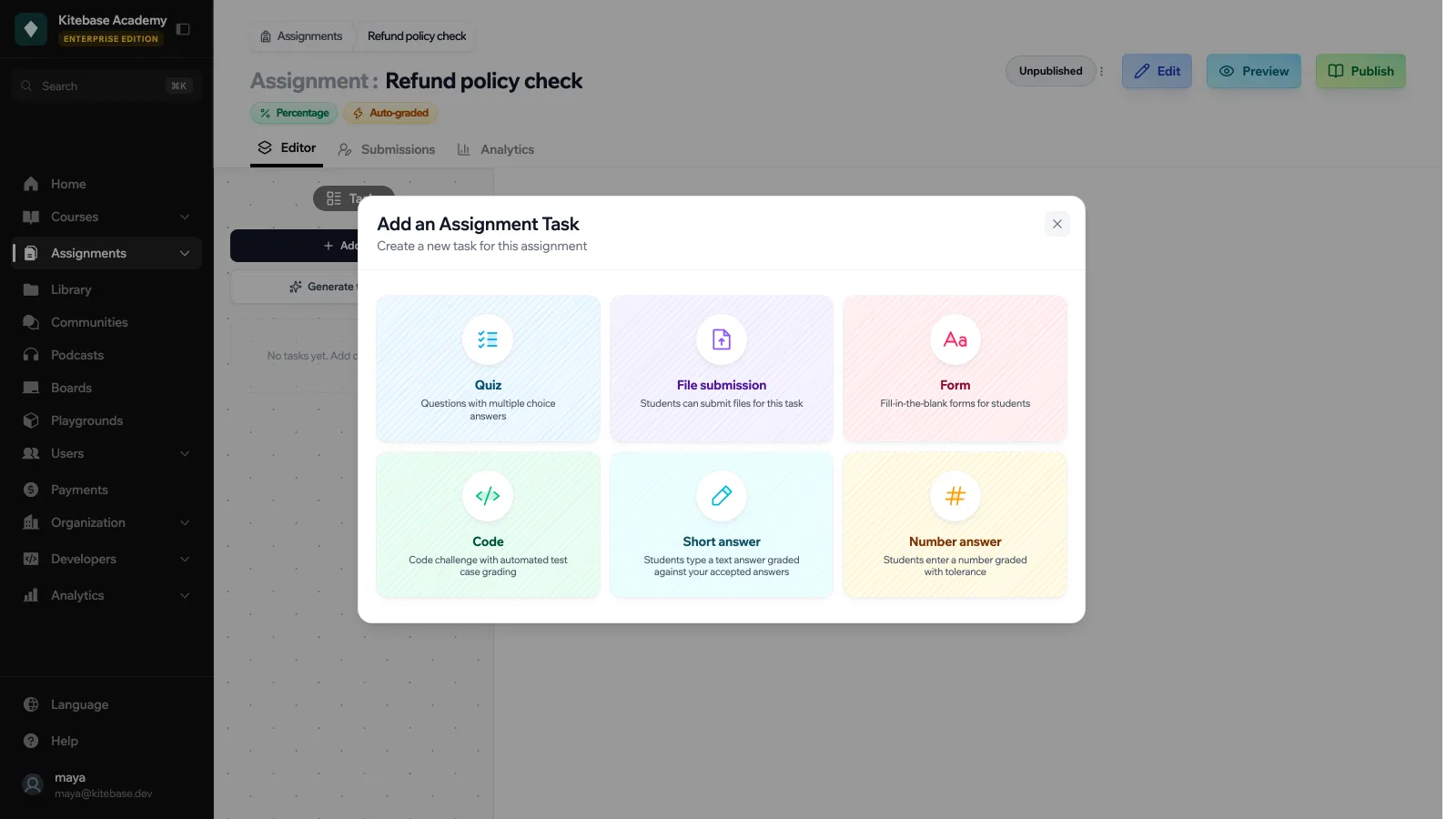 Every task has a **Title**, a **Description**, an optional **Hint** and an optional **Reference file** that learners can download (pdf, docx, mp4, jpg, jpeg, png, pptx or zip). Each task is scored out of 100, and the assignment grade is the average of its tasks.
| Type | What learners do | Graded automatically |
| --- | --- | --- |
| **Quiz** | Answer multiple choice questions. | Yes |
| **File submission** | Upload a file. | No, a teacher grades it |
| **Form** | Fill in the blanks in a text. | Yes |
| **Code** | Write code that runs against test cases. | Yes |
| **Short answer** | Type a short text answer. | Yes |
| **Number answer** | Enter a number. | Yes |
## Quiz
Add questions, then options. Mark each option as correct or not. A question with one correct option is shown as **Select one answer**, a question with several as **Select all that apply**. A question with no correct option is skipped when grading.
The **Grading** setting controls select-all-that-apply questions:
- **All or nothing**: a question scores only when the selected answers match the key exactly.
- **Partial credit**: learners earn part of the marks, and each wrong selection cancels a right one.
## File submission
Learners upload one file: pdf, docx, jpg, jpeg, png, pptx or zip, up to 50 MB. Once the assignment is submitted, the file can no longer be changed. A teacher downloads the file and grades it by hand from the **Submissions** tab.
## Form
Write a prompt and use `___` for each blank. For every blank you set a placeholder and the correct answer. Learners fill the blanks in, and each blank is checked against its answer.
## Code
| Setting | What it does |
| --- | --- |
| **Language** | Any of the [code execution languages](https://docs.learnhouse.app/platform/code-execution#supported-languages). |
| **Starter Code** | The code learners start from. |
| **Solution Code** | Your reference solution. Optional. |
| **Test Cases** | Each has a label, **Stdin**, **Expected Stdout**, and can be **Visible** or **Hidden**. Hidden tests are only run at grading time and learners never see their input or output. |
| **Grading Mode** | **Equal Weight** (each test counts the same), **Binary (All or Nothing)** or **Custom Weights** (you set a weight per test). |
Under **Student behavior**:
| Option | What it does |
| --- | --- |
| **Let students run their code** | Shows a **Run Tests** button so learners can try their code before submitting. |
| **Show expected vs actual on failures** | When a visible test fails, show the expected and received output. |
| **Show hidden test count** | Show learners how many hidden tests exist. |
| **Require passing visible tests** | Learners can't save until every visible test passes. |
| **Reveal solution after submit** | After saving, learners can open your reference solution. |
## Short answer
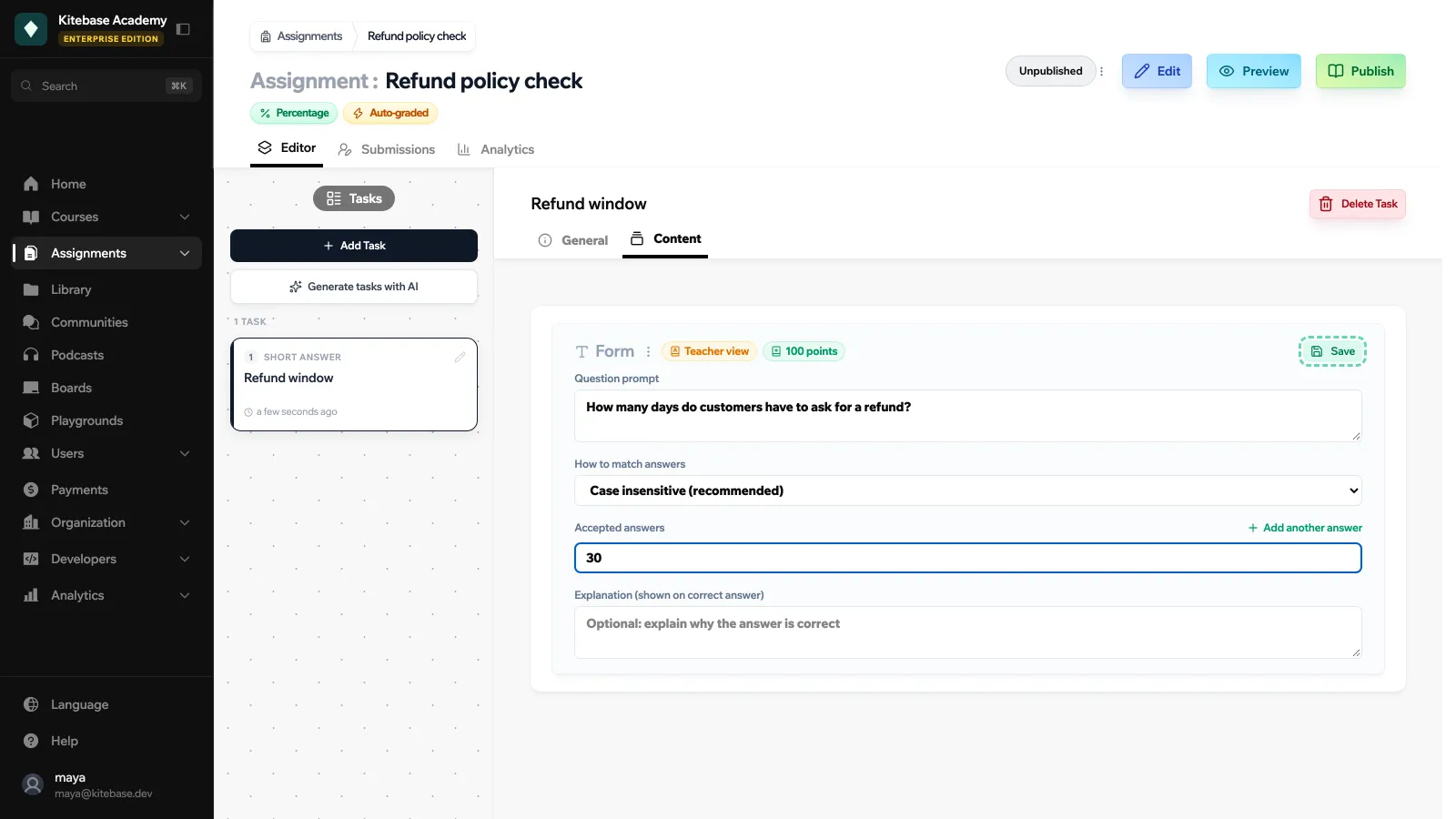
Write a **Question prompt** and one or more **Accepted answers**. Choose **How to match answers**:
- **Exact match**
- **Case insensitive (recommended)**
- **Contains the answer anywhere**
- **Regular expression**
You can add an **Explanation (shown on correct answer)**.
 ## Number answer
Set the **Correct value** and a **Tolerance (±)**. Any answer within the tolerance is accepted. The optional **Unit** is shown next to the input but is not checked. You can add an **Explanation (shown on correct answer)**.
## Generating tasks with AI
Click **Generate tasks with AI** in the Editor tab and describe what you want. LearnHouse drafts up to 10 tasks grounded in the course content. You can preview and edit them (title, description, hint, questions and answers) before adding them to the assignment. AI can generate Quiz, Form, Short answer, Number answer and File submission tasks, not Code tasks.
Each generation uses 3 [AI credits](https://docs.learnhouse.app/platform/ai#ai-credits).
> The API also accepts a `CUSTOM` task type whose content and submission you define yourself. It has no built-in interface and is always graded by hand. See [Headless Assignments](https://docs.learnhouse.app/developers/api/headless-assignments).