# Boards
> Use boards, shared real-time canvases for live classes and group work: add members and roles, notes, frames, AI playgrounds and timers, and work live.
Boards are shared, freeform canvases that several people edit at the same time, like a whiteboard. Use them for group projects, brainstorming, planning or live workshops. A board is separate from course content and does not use the course page editor.
> Boards must be enabled in your [Organization Settings](https://docs.learnhouse.app/platform/organizations/settings). On LearnHouse Cloud, boards are available on the Personal, Pro and Enterprise plans, but not on Free or Standard.
>
## Creating a board
Go to **Boards** in the dashboard and click **New Board**. Give it a **Name** and an optional **Description**, then click **Create Board**. New boards are private: only you and the members you add can open them.
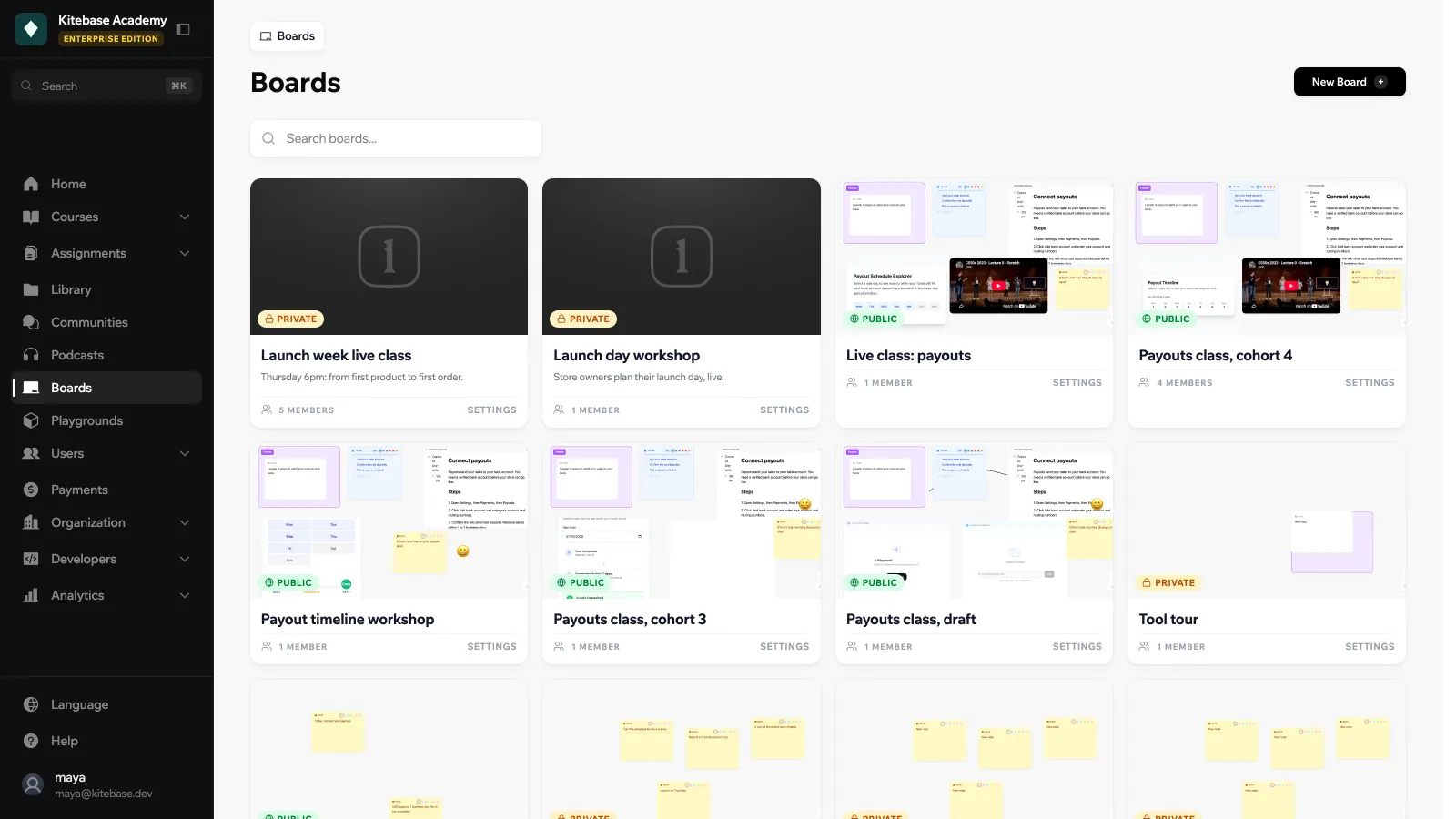 From the board list you can **Open Board**, **Duplicate Board** or **Delete Board**, and select several boards to delete them together. A duplicate keeps the description, thumbnail and public or private setting, but starts with an empty canvas and you as its only member. Deleting is permanent, so duplicate a board first if you might want it back.
## Settings
Each board has four settings tabs:
| Tab | What it does |
| --- | --- |
| **General** | Name and description. |
| **Thumbnail** | Cover image shown on the board card: **Upload Image** (JPG, JPEG or PNG, up to 8 MB) or generate one with AI. |
| **Access** | **Public**: every signed-in member of the organization can open the board. **Users Only**: only members of the user groups you link with **Link to UserGroup**, plus the board's members. |
| **Members** | The people who collaborate on the board. |
### Members and roles
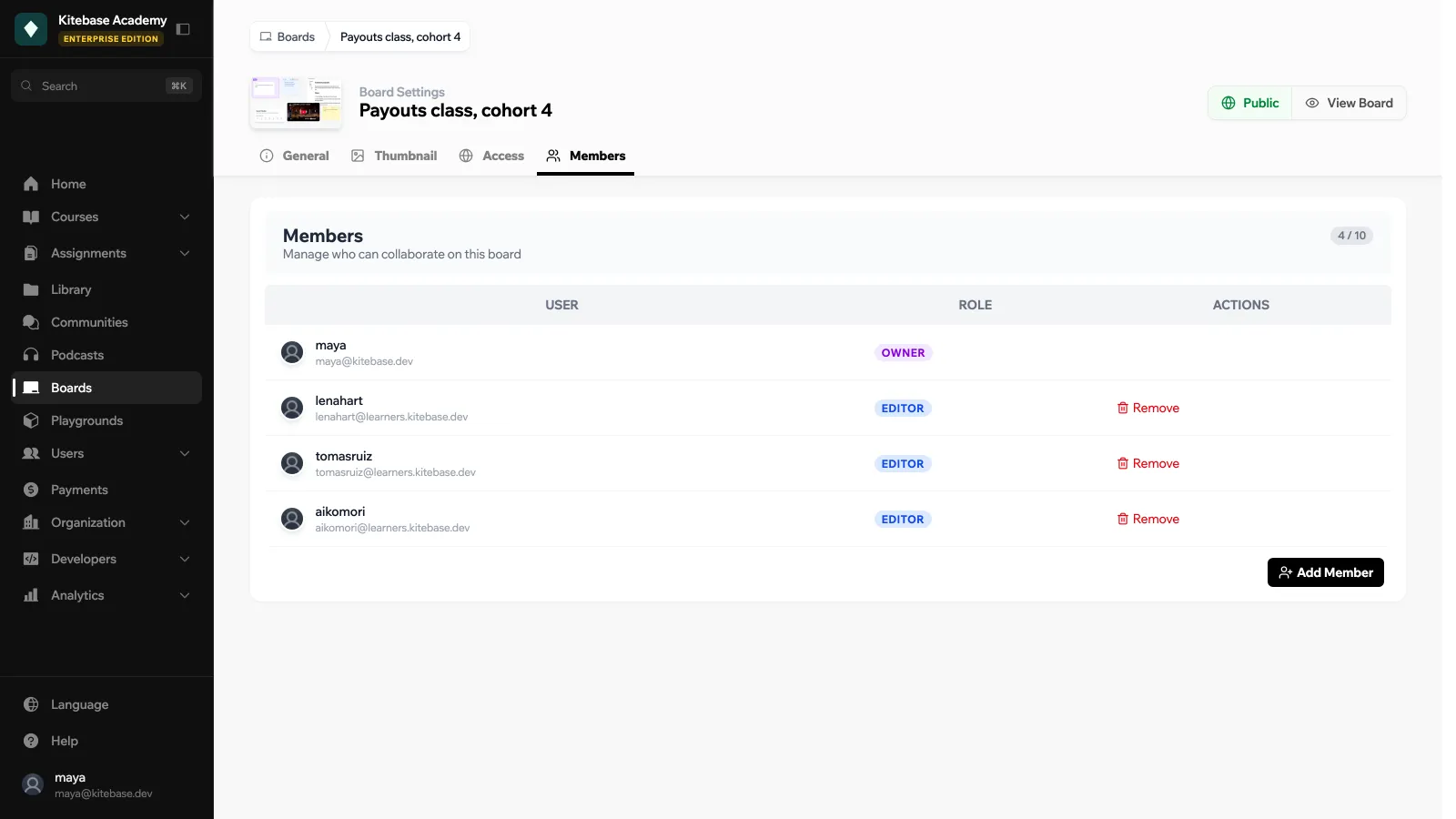
Click **Add Member**, search for someone in your organization, and pick a role:
| Role | Can do |
| --- | --- |
| **Owner** | Everything, including managing members. The person who created the board. |
| **Editor** | Edit the board. |
| **Viewer** | View the board without editing. |
A board can have up to 10 members. If someone is removed while the board is open, they see **You no longer have access to this board**.
People who open a board through **Public** access or a linked user group, without being members, join as viewers: they watch the board live, but cannot change it. Add everyone who should write as an **Editor**. The exception is a [live session](https://docs.learnhouse.app/enterprise/live-sessions#the-board): organization members in the session's room can edit its board while they are in the class.
 ## The canvas
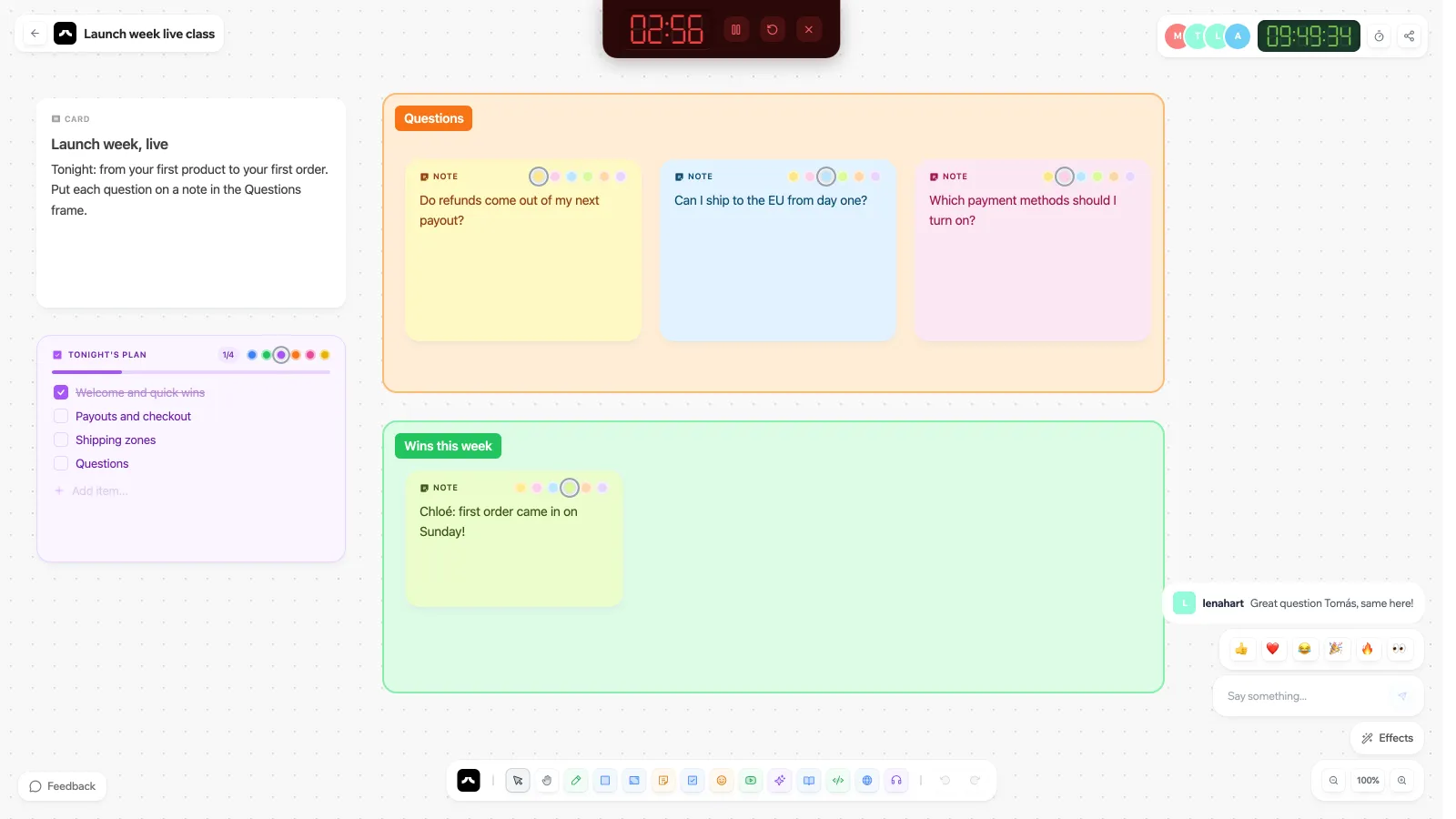
The toolbar has these tools:
| Tool | What it adds or does |
| --- | --- |
| **Select** / **Pan** | Select items, or move around the canvas. Zoom with the zoom controls. |
| **Draw** | Freehand drawing, in **Thin**, **Medium** or **Thick** strokes. |
| **Add Card** | A text card. |
| **Frame** | A frame to group items into an area. |
| **Note** | A sticky note. |
| **To-do** | A checklist. |
| **Sticker** | An emoji sticker. |
| **YouTube** | A YouTube video, from its URL. |
| **AI Playground** | An interactive element generated by AI from a description. See below. |
| **Activity** | A Dynamic Page, Video or Document activity from one of your courses. |
| **Embed** | Content from YouTube, Figma, CodePen, Spotify and more, by URL or embed code. |
| **Webpage** | A live web page. Some sites block being embedded. |
| **Podcast** | A podcast episode from your organization. |
Select an item to **Duplicate** or **Delete** it, or to **Move back** / **Move forward** in the stack. Drag an item by its handle to move it. **Undo** and **Redo** are in the toolbar. Everything saves as you go.
Notes, to-do lists and frames each come in several colors. A to-do list shows how many of its items are done.
### Frames
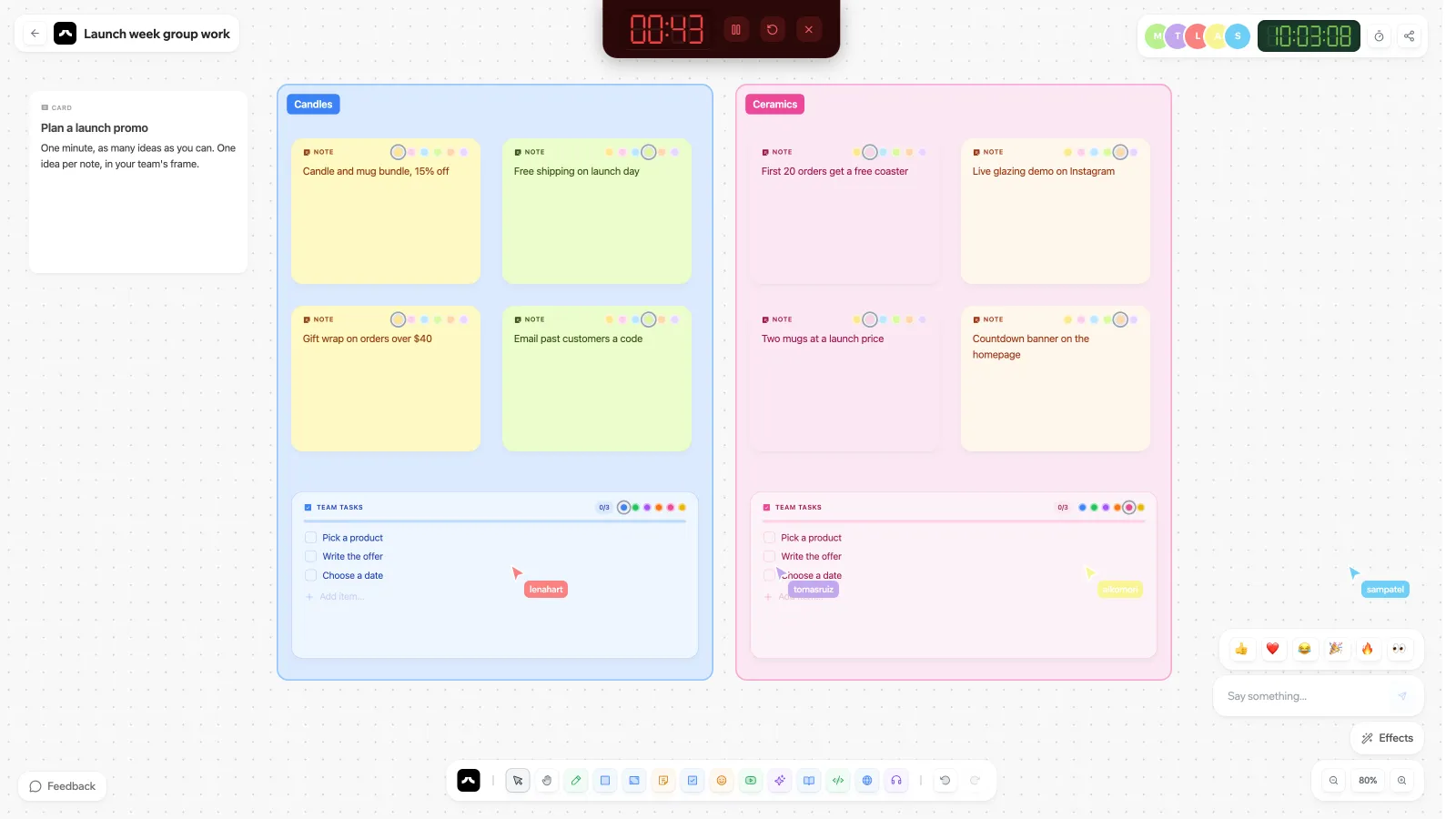
Frames group items into an area, such as one frame per step of a lesson or one per team. Double-click a frame's title to rename it, and pick a color so frames stand apart. Dragging a frame moves everything inside it. The lock in the frame's top bar keeps the items inside it in place, so nobody moves them by accident.
 ### AI Playground on a board
Describe what you want (a quiz, flashcards, a chart, a timeline, a drawing tool, a calculator) and click **Generate**. You can refine the result up to 6 times. Each generation uses 3 [AI credits](https://docs.learnhouse.app/platform/ai#ai-credits).
## Working together
Changes appear for everyone on the board in real time, and edits made at the same time merge without conflicts.
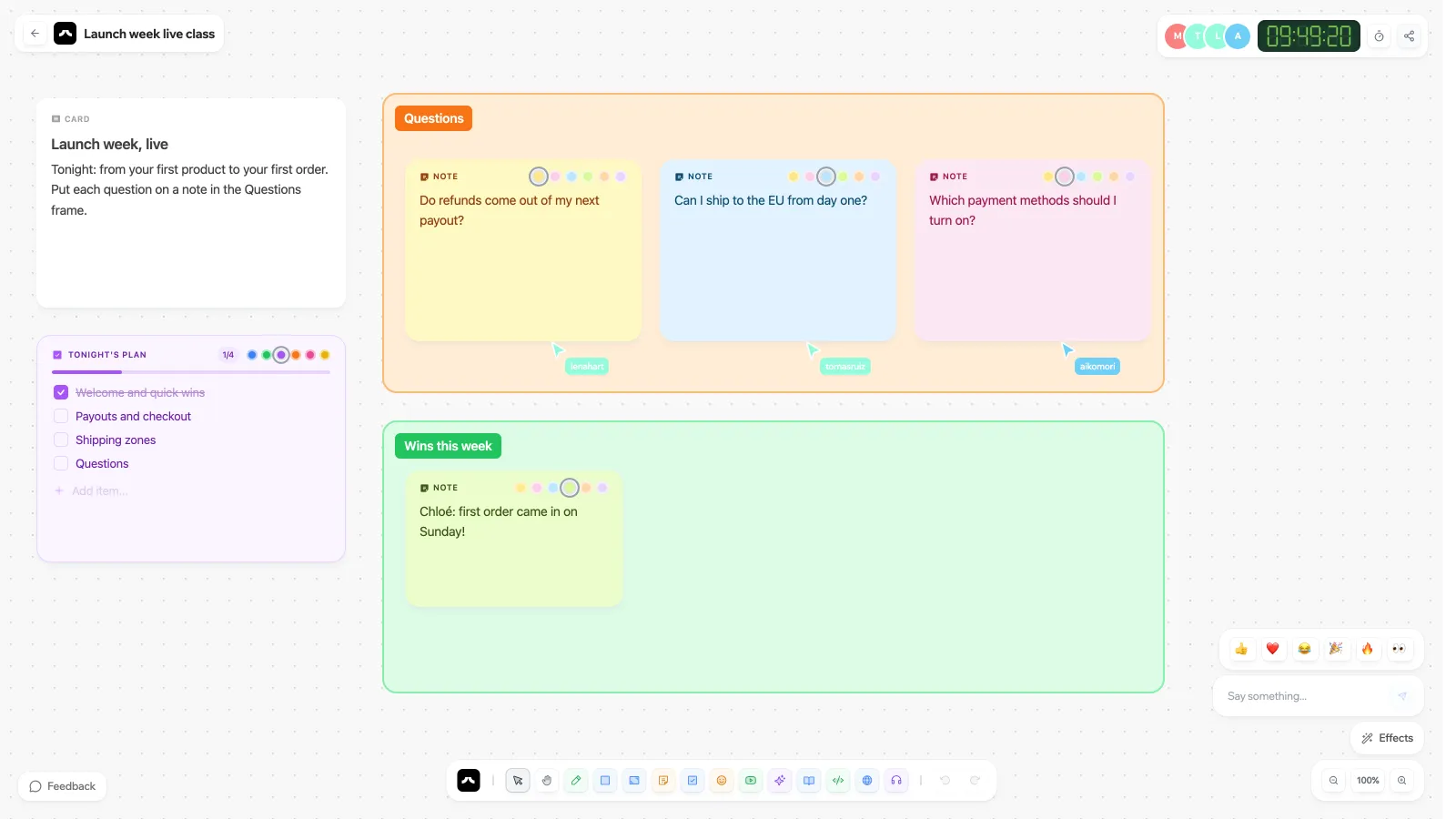
- **Live cursors and avatars** show who is on the board and where they are working. You see what others type as they type it.
- **Reactions and chat**: emoji reactions float up with the sender's name, and a quick message shows in the chat and next to the sender's cursor.
- **Timer**: **Set timer** starts a countdown shown at the top of every screen on the board. Pick 1, 3, 5, 10, 15 or 30 minutes, or a Pomodoro cycle. Everyone sees **Time's up!** when it ends, and you can **Restart** or **Close** it.
- **Effects**: full-screen effects everyone sees, such as **Fireworks**, **Blizzard** or **Aurora**.
- **Share board**: copy a link to the board.
 > On self-hosted installs, boards sync through the collaboration server, which must be running and reachable. See [Configuration](https://docs.learnhouse.app/self-hosting/configuration).