# AI Course Creator
> Use the AI Course Creator to plan a course in a chat, attach source material, create the chapters and generate every activity, and see its AI credit cost.
The **AI Course Creator** plans a course with you in a chat, then writes the content of each activity. Open it from **Courses** in the dashboard: click **New Course**, then **Start with AI**.
### Describe the course
In the chat, describe the course you want: topic, audience and goals. You can also start from one of the templates (**Web Development**, **Data Science**, **Marketing**, **Language**, **Business**, **Design**).
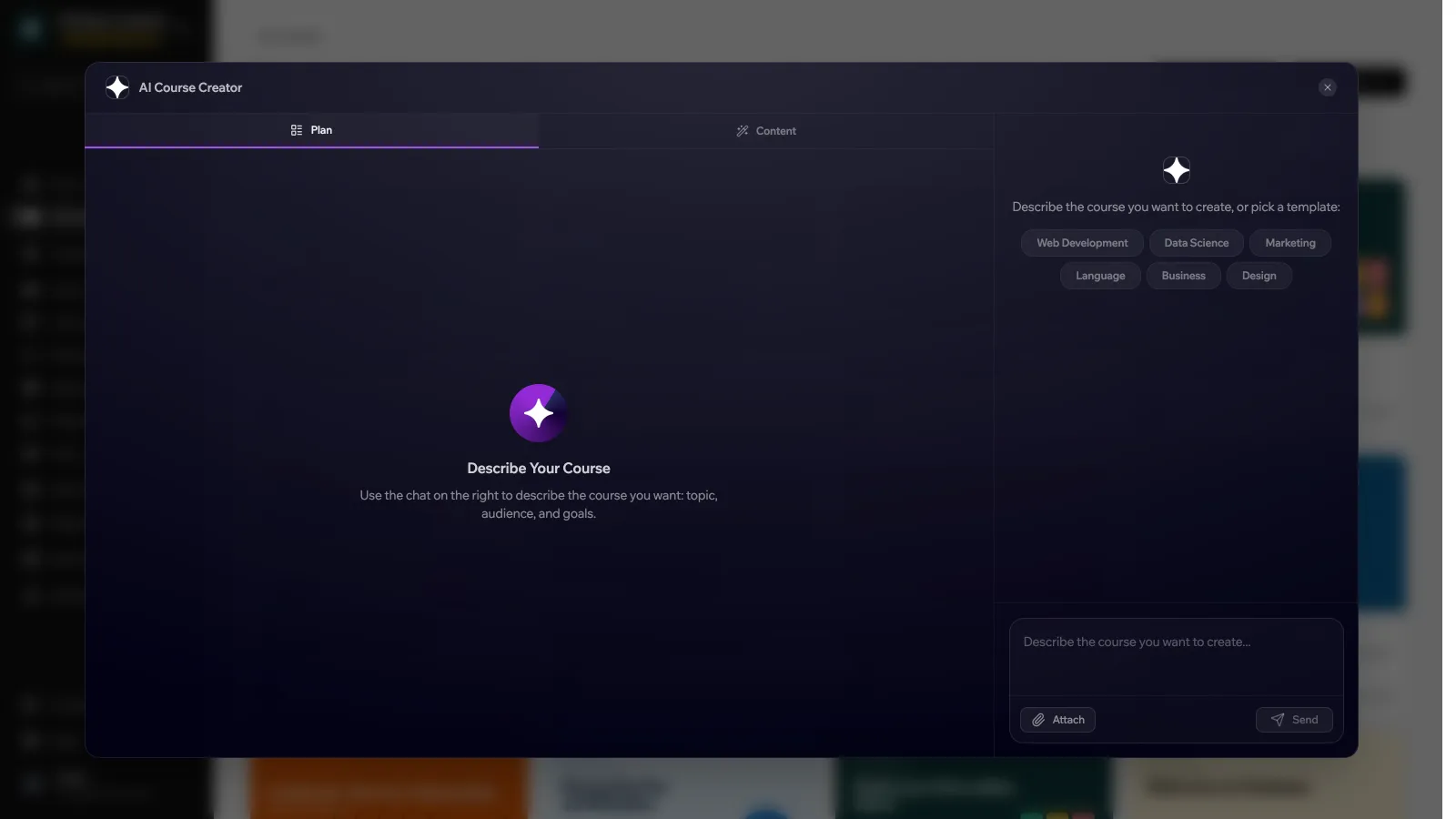 Use **Attach** to give the AI source material:
| Attachment | Accepts |
| --- | --- |
| **Photo** | PNG, JPG or GIF images. |
| **YouTube Video** | A YouTube URL. The AI analyzes the video, which can take 1 to 2 minutes. |
| **Document** | PDF, DOC or TXT files. |
### Review the plan
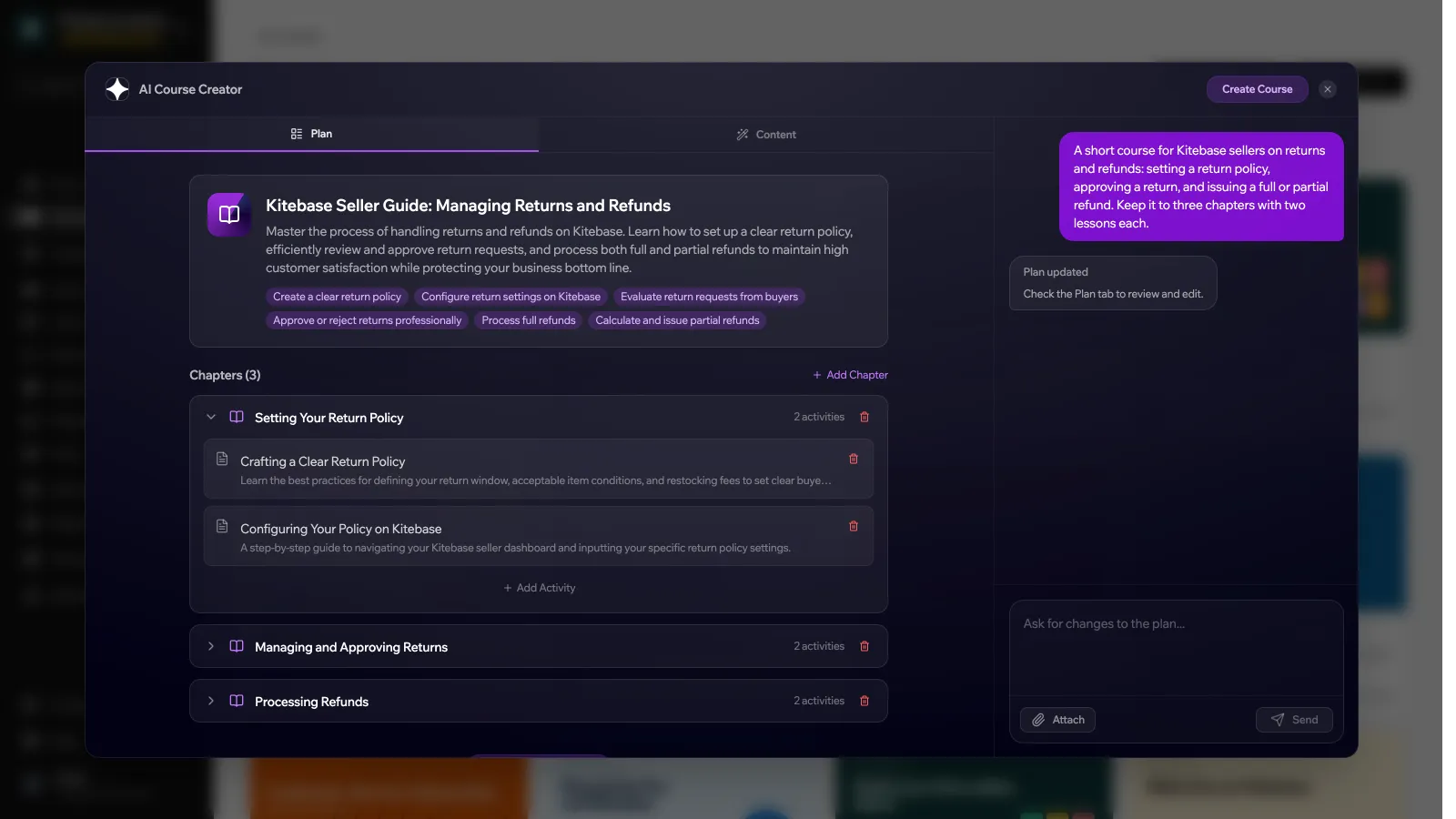
The AI proposes chapters and activities in the **Plan** tab. Keep chatting to ask for changes, or edit the plan yourself with **Add Chapter** and **Add Activity**. You can ask for changes up to 10 times. After that you can still edit the plan by hand.
 ### Create the course
Click **Create Course**. LearnHouse creates the course with its chapters and activities. The course starts private and unpublished, and its activities start as drafts.
### Generate the content
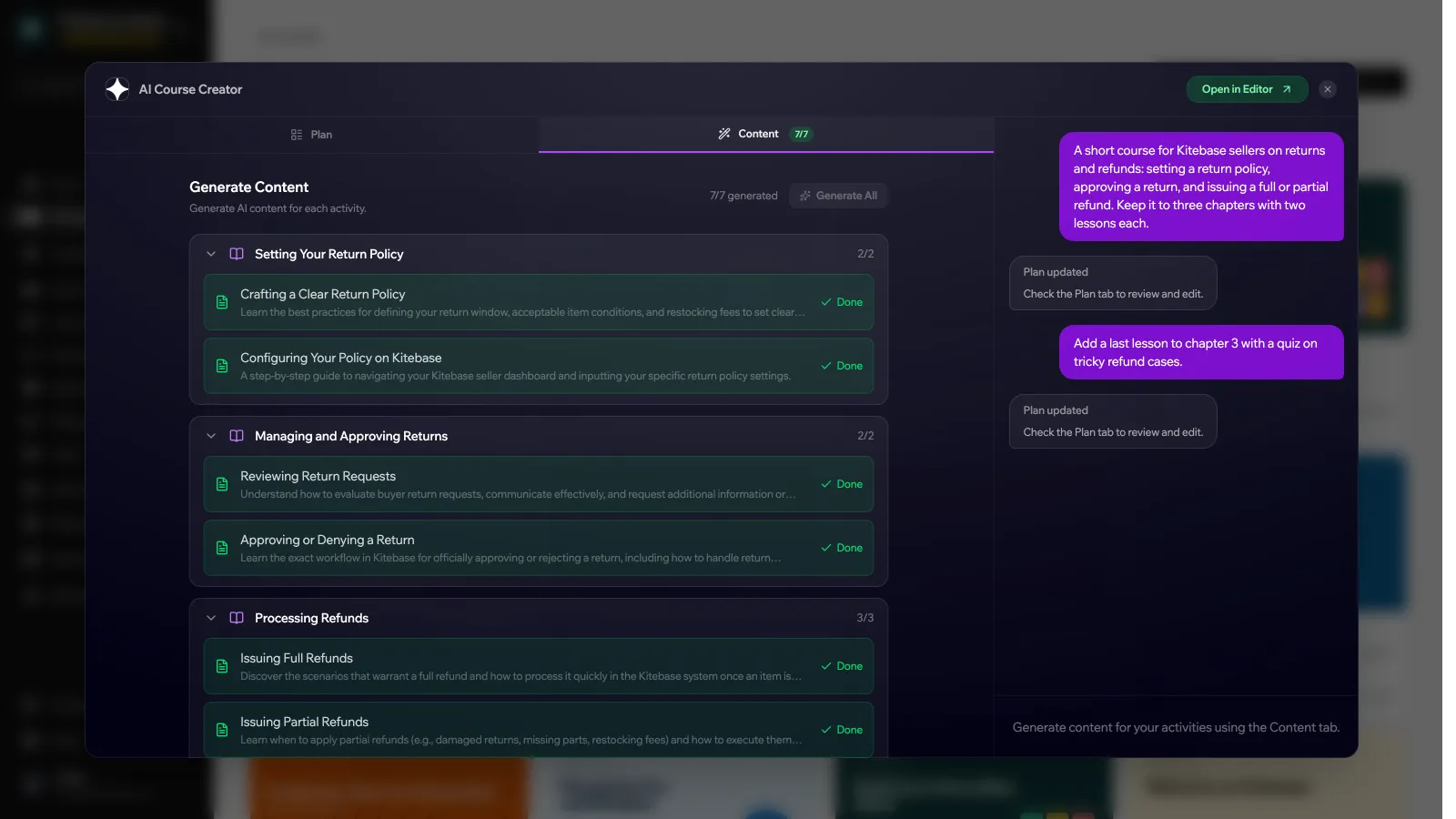
In the **Content** tab, click **Generate** on an activity to have its page written, or **Generate All** for every activity. When everything is generated, click **Open in Editor** to review and publish the course.
 ## AI credits
Starting the plan, each change to the plan, and each generated activity use [AI credits](https://docs.learnhouse.app/platform/ai#ai-credits): 1 credit each, or 3 credits each when your organization uses the larger "pro" model (the Pro and Enterprise plans on LearnHouse Cloud). Creating the course from the plan is free.
> Every activity the AI Course Creator makes is a Dynamic Page. You can add videos, assignments and other activity types afterwards. Review what it writes before publishing, especially facts, figures and code.