# Import & Export
> Export, clone and import LearnHouse courses, bring in courses from Moodle, Canvas and other LMSs, or build a course from a folder of videos and documents.
LearnHouse can move courses between organizations and instances, bring them in from other learning platforms, and build a course from a folder of files.
## Exporting courses
From **Courses** in the dashboard:
- Use **Export Course** on a course to download it as a `.zip` package.
- Click **Select**, pick several courses and click **Export Selected** to download them in one `.zip`. You can export up to 20 courses at a time.
An export contains the course structure, its content and its files. Import it into any LearnHouse organization with **LearnHouse Courses** below.
## Cloning a course
**Clone Course** makes a full copy of a course in the same organization. The copy is private. Use **Clone Selected** to clone several at once.
## Importing courses
Click **Import Course** in the course list and pick a source:
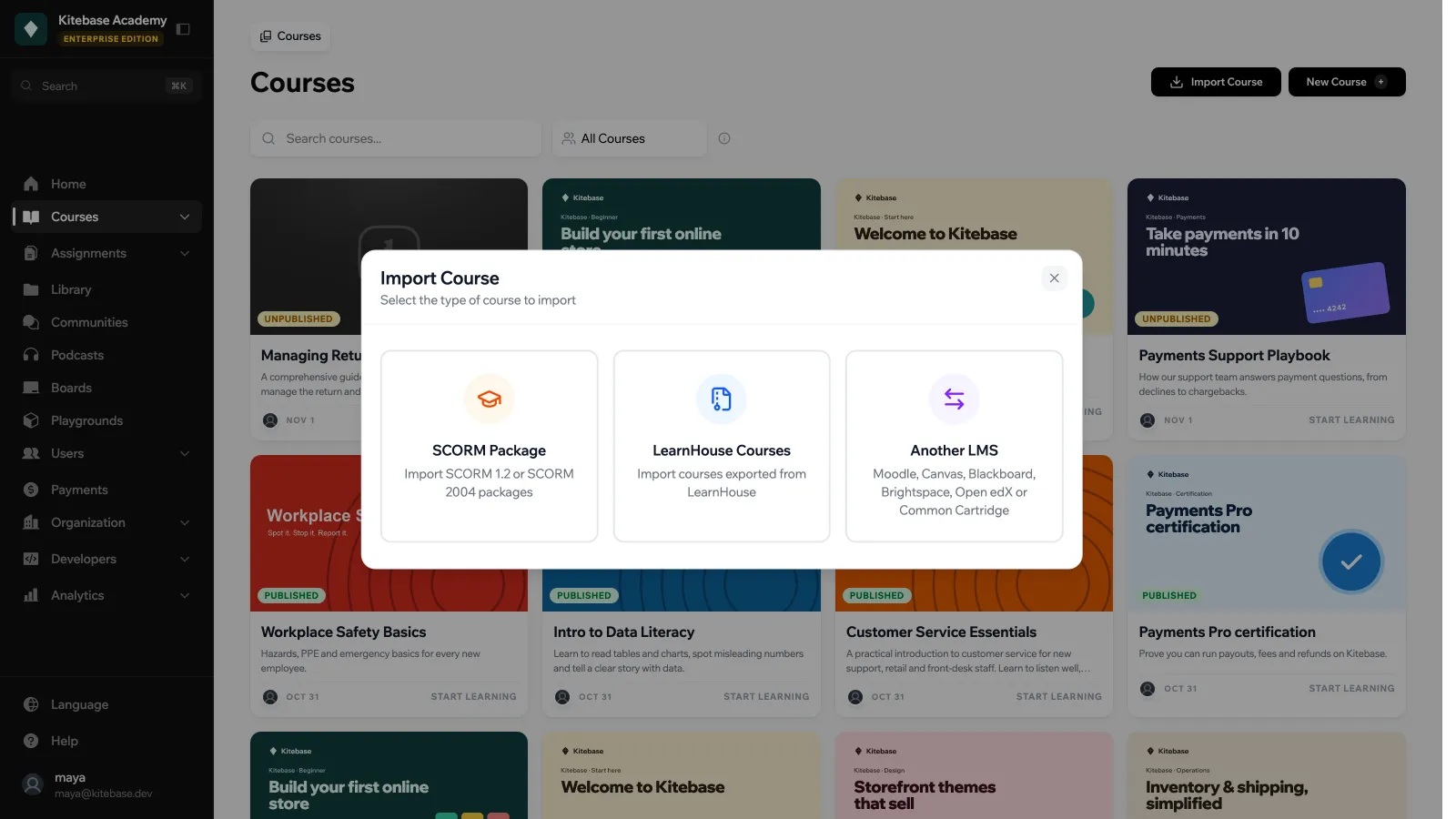 | Source | Accepts |
| --- | --- |
| **SCORM Package** | SCORM 1.2 or SCORM 2004 packages. Enterprise only. |
| **LearnHouse Courses** | A LearnHouse course export (`.zip`), up to 500 MB. |
| **Another LMS** | Exports from Moodle, Canvas, Blackboard, Brightspace, Open edX or any Common Cartridge. See [Import from Another LMS](https://docs.learnhouse.app/developers/migration/from-another-lms). |
### LearnHouse Courses
1. **Upload Package**: drop the `.zip` and click **Analyze Package**.
2. **Configure**: pick the courses to import from the package, then set the **Import Options**:
- **Course Name Prefix**: text added in front of every imported course name (for example `Imported - `).
- **Set as private**
- **Set as unpublished**
3. Click the import button, which shows how many courses you selected (for example **Import 2 Course(s)**). The summary shows which courses were created, with a link to open each one.
### Another LMS
The **Import from Another LMS** window has three steps: **Upload Package**, **Configure** and **Complete**. Choose the **Source platform** (or leave **Auto-detect**), choose how **Quizzes** are converted (**Graded assignments** or **Interactive quiz blocks in pages**), drop the export and click **Upload and Convert**.
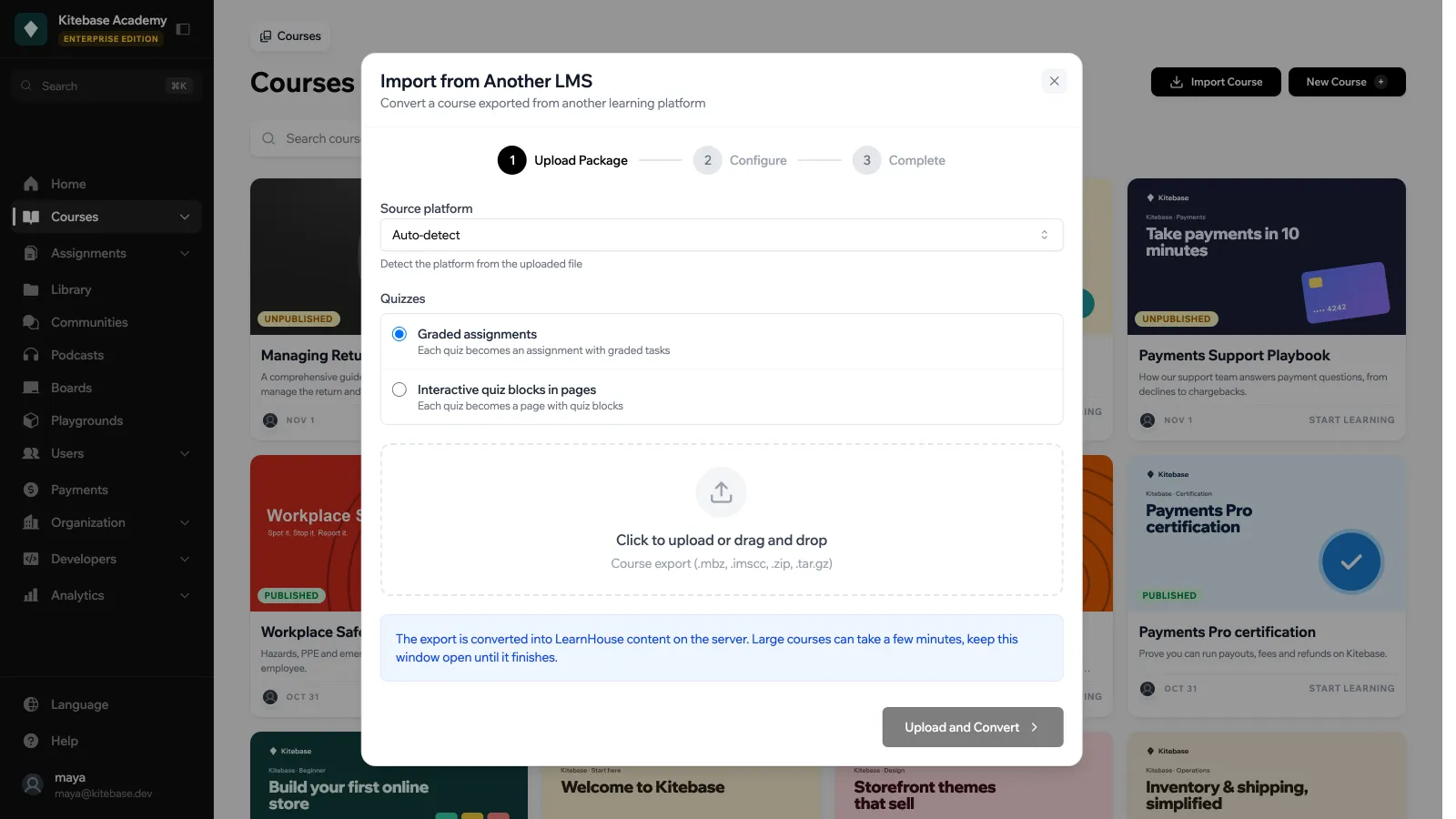 After the conversion you get a report of what was created and skipped, then the same import options as above. The full list of supported formats and what each item becomes is in [Import from Another LMS](https://docs.learnhouse.app/developers/migration/from-another-lms).
## From existing content
If you have a set of files but no course yet, use **New Course** > **From Existing Content**. The **Migrate Content** wizard has three steps:
1. **Upload**: drop your files. Accepted: videos (MP4, WebM, MOV), documents (PDF), images (PNG, JPG, WebP) and audio (MP3, WAV). Up to 5 GB per file and 20 GB in total. Enter a **Course Name** and a **One-liner Description**.
2. **Organize**: click **Organize with AI** to have the files sorted into chapters and activities for you (1 AI credit), or **Organize Manually**. Either way you can then drag files between chapters and activities, and use **Add Chapter** and **Add Activity**.
3. **Complete**: click **Create Course**. LearnHouse uploads the files and creates the chapters and activities.
> The same flows are available through the API. See [Migrating Content](https://docs.learnhouse.app/developers/migration).