# Taking a Course

> See what learners get when they take a course: the course page, activity navigation, focus mode, Ask AI, the video player and the end of the course.

This page describes what learners see when they follow a course.

## The course page

The course page shows the description, what learners will get out of it, the authors, any [course updates](https://docs.learnhouse.app/platform/courses/settings#course-updates), and the list of chapters and activities. If a [community](https://docs.learnhouse.app/platform/discussions) is linked to the course, its latest threads appear under **Community Discussions**.

Click **Start Course** to open the first activity. Once a learner has started, the button continues where they left off.
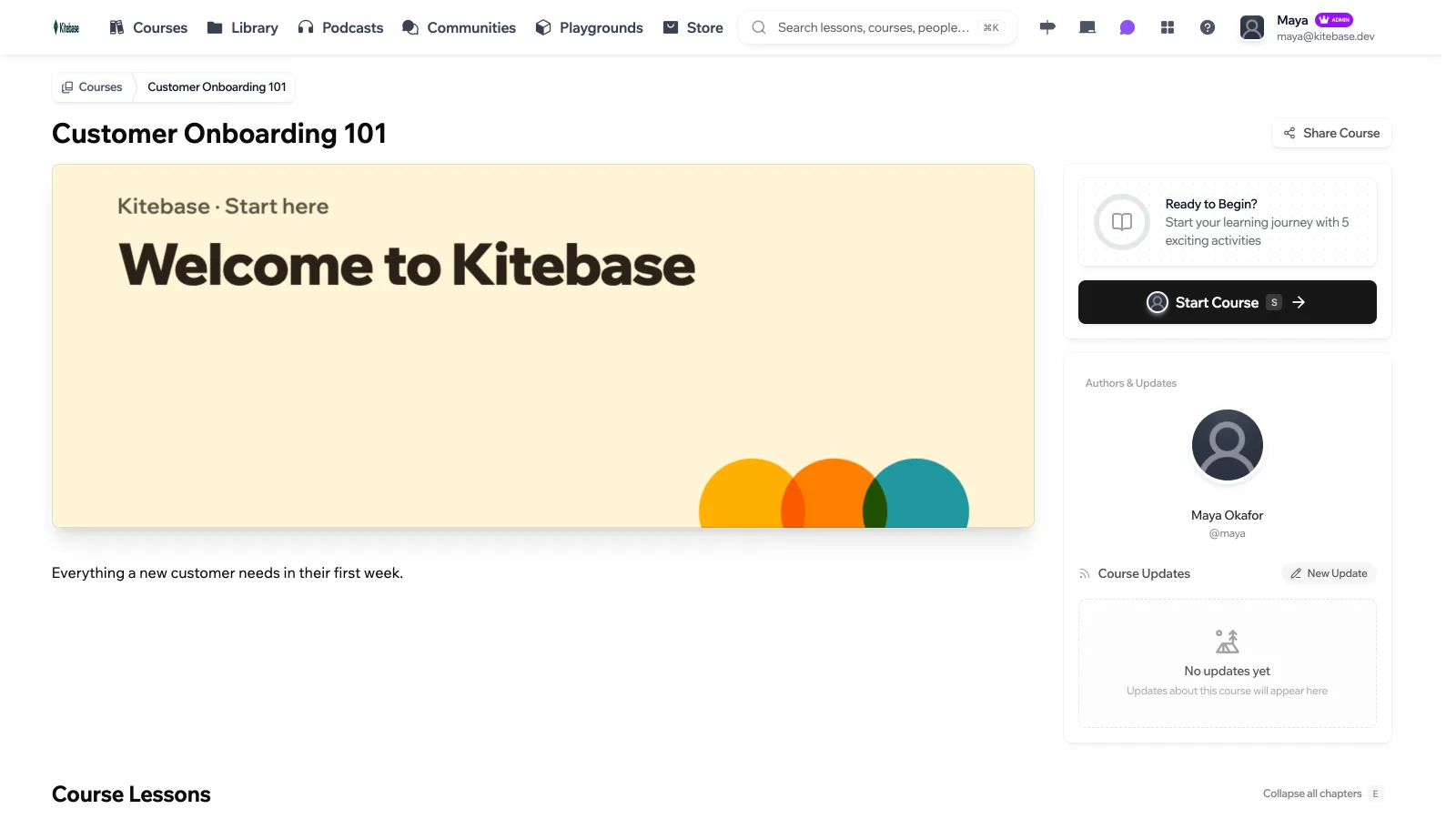
<img src="/img/pages/courses/course-page.webp" alt="A public course page with the cover, description, the Start Course button, the author and Course Updates" width={1600} height={900} style={{ borderRadius: 10 }} />

If the course uses [drip content](https://docs.learnhouse.app/platform/courses/drip-content), a banner names the next chapter and when it opens, upcoming chapters show their opening date, and **Add to calendar** downloads every release as an `.ics` file.

## Inside an activity
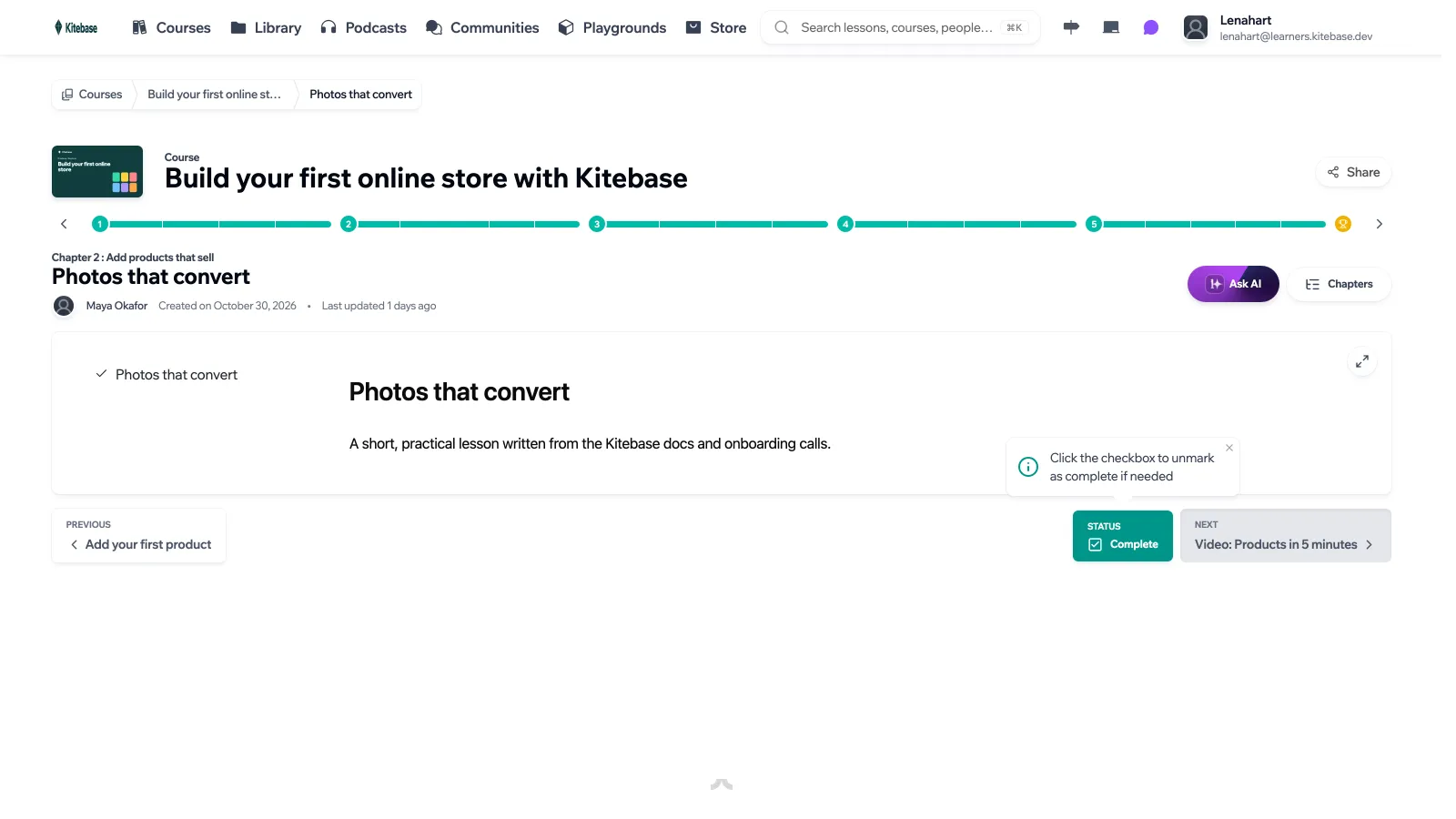
<img src="/img/pages/courses/activity-page.webp" alt="A lesson seen by a learner, with the course progress bar, Ask AI, Chapters, the Previous and Next buttons and the Complete status" width={1600} height={900} style={{ borderRadius: 10 }} />

| Feature | What it does |
| --- | --- |
| **Previous activity** / **Next activity** | Move through the course in order. |
| **Mark as complete** | Records the activity as done in the learner's [Trail](https://docs.learnhouse.app/platform/courses/trails). Clicking it again offers **Unmark Activity**. |
| **Focus Mode** | Hides the course navigation so only the content is on screen. |
| **Ask AI** | Opens an AI chat about the current activity. See [AI for Students](https://docs.learnhouse.app/platform/ai/for-students). |
| **Share** | **Copy Link** to the activity, or **Embed** to copy an `<iframe>` code that shows the activity on another site. |

Locked chapters and activities show **This activity is locked** with a hint to sign in or join the right user group. See [Locking chapters and activities](https://docs.learnhouse.app/platform/courses/chapters-and-activities#locking-chapters-and-activities).

### Videos

Video activities open on a dark band across the page, so the video stands out. Uploaded videos play in the LearnHouse player (built on Video.js), which has:

- Adaptive streaming with a quality menu, and preview thumbnails when you hover the timeline, for videos that are streamed in several qualities.
- Playback speed, picture-in-picture, AirPlay and fullscreen.
- Subtitles in several languages. See [AI Video Captions](https://docs.learnhouse.app/platform/courses/video-captions).
- Chapters, drawn as segments on the timeline and listed under the player under **Chapters**, so learners can jump to a section.

When the video is paused, the previous and next activities appear on either side of the player, so learners can move on without leaving it.

<img src="/img/pages/courses/video-player-paused.webp" alt="A paused video activity on the dark band, with the video title and the previous and next activities shown on either side" width={1600} height={900} style={{ borderRadius: 10 }} />

YouTube videos play in the YouTube player.

### End of the course

After the last activity, learners reach the end screen. If the course has a certification and they earned it, they can download it as a PDF and open its verification page. See [Certifications](https://docs.learnhouse.app/platform/certifications).

## Keyboard shortcuts

Press `?` anywhere to see the shortcuts available on the current page. On a course page, `s` starts the course (or continues where you left off) and `e` expands or collapses all chapters. Inside an activity, `j` and `k` (or the arrow keys) move to the next and previous lesson, `m` marks the lesson complete and `f` toggles focus mode. The full list is in [Command Palette and Keyboard Shortcuts](https://docs.learnhouse.app/platform/search/keyboard-shortcuts#lesson-page).

Search (`/` or `Cmd+K`) finds lessons as well as courses. See [Search](https://docs.learnhouse.app/platform/search).
