# Blocks
> Browse every block in the LearnHouse editor, from text and media to quizzes, flipcards, code challenges, embeds and tables, with the options each one has.
Type `/` anywhere in a page to open the block menu. Start typing to filter it (for example `/quiz` or `/table`), then press Enter. The menu groups blocks into **Text**, **Media**, **Interactive**, **Callouts**, **Dynamic content**, **UI Elements** and **Tables**, in that order. Most blocks are also in the [editor toolbar](https://docs.learnhouse.app/platform/editor#the-toolbar).
## Text
| Block | What it does |
| --- | --- |
| **Paragraph** | Plain body text. |
| **Heading 1** to **Heading 6** | Section headings. |
| **Bullet List** | Unordered list. |
| **Ordered List** | Numbered list. |
| **Code Block** | Code snippet with syntax highlighting. |
Inline formatting (bold, italic, underline, strikethrough, inline code, links) is available from the toolbar and the usual keyboard shortcuts.
## Media
| Block | What it does | Options |
| --- | --- | --- |
| **Image** | Upload an image (JPG, PNG, WebP or GIF), or generate one with AI. | Drag the edge to resize. Expand and download buttons for learners. |
| **Video** | Upload a video file (MP4 or WebM). | Size: **Small**, **Medium**, **Large**. Expand and download buttons. |
| **YouTube** | Embed a YouTube video. This opens the **Embed** block with YouTube preselected. | Same as **Embed**. |
| **PDF** | Upload a PDF and show it in an inline viewer. | Drag to resize. Expand and download buttons. |
| **Audio** | Upload audio, generate narration with AI, or embed a podcast. | Size: **Small**, **Medium**, **Large**, **Full Width**. See below. |
| **Library** | Insert a file or resource from your [Library](https://docs.learnhouse.app/platform/courses/library). | **Choose from Library** or **Upload**, then **Show as card** or **Show inline**. |
You can also paste or drop a file straight into the page. Images (JPEG, PNG, WebP, GIF), videos (MP4, WebM) and PDFs are uploaded and turned into the matching block.
### The Audio block
The Audio block has four tabs:
| Tab | What it does |
| --- | --- |
| **Upload** | Upload an MP3, WAV, OGG or M4A file. |
| **Generate** | Create narrated audio with AI: **Text to speech**, **Podcast (2 voices)** or **Speak**. See [AI for Teachers](https://docs.learnhouse.app/platform/ai/for-teachers#audio-generation). |
| **Episode** | Embed one episode from one of your organization's [podcasts](https://docs.learnhouse.app/platform/podcasts). |
| **Playlist** | Embed a whole podcast as a playlist. |
## Interactive
| Block | What it does |
| --- | --- |
| **Magic Block** | Describe an interactive element (a simulation, a chart, a small game) and AI generates it as HTML. You can refine it up to 6 times per block. |
| **Quiz** | Multiple choice questions that learners answer on the page. See [Quiz block](#quiz-block). |
| **H5P** | Embed H5P content hosted elsewhere. See [H5P](https://docs.learnhouse.app/platform/editor/h5p). |
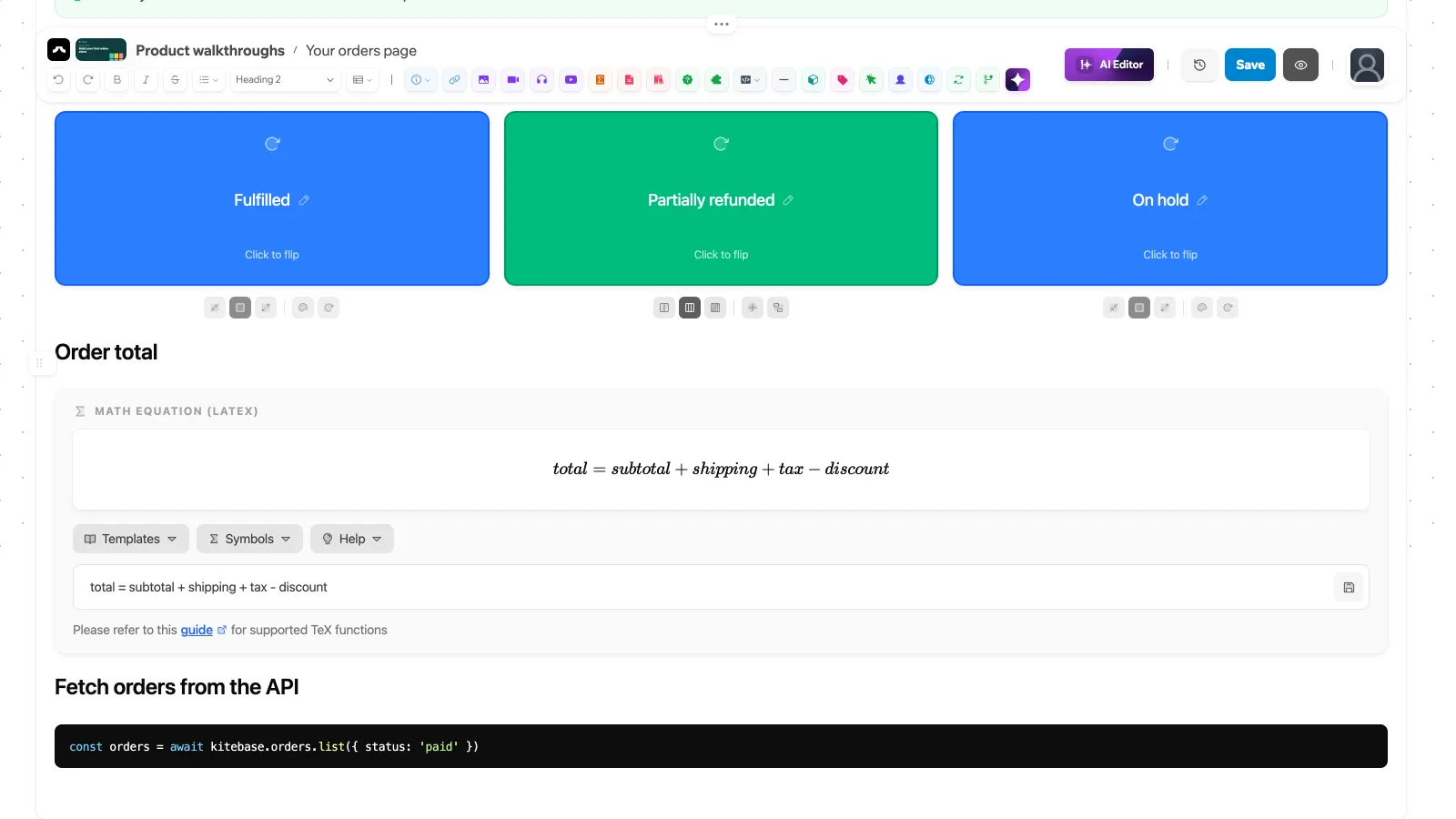
| **Math Equation** | A LaTeX equation, with **Templates** and **Symbols** pickers and a quick reference. |
| **Web Preview** | A card that previews a web page. See [Web Preview](#web-preview). |
| **Flipcard** | A flashcard: the question on the front, the answer on the back. |
| **Flashcard Grid** | Several flipcards side by side, in **2 Columns**, **3 Columns** or **4 Columns**. |
| **Code Playground** | A coding challenge that runs real code against test cases. See [Code Execution](https://docs.learnhouse.app/platform/code-execution). |
| **Scenarios** | A branching scenario: each step shows text (and optionally an image) and a set of choices that lead to other steps. **Generate with AI** drafts one for you. |
Blocks with an AI option use your organization's [AI credits](https://docs.learnhouse.app/platform/ai#ai-credits).
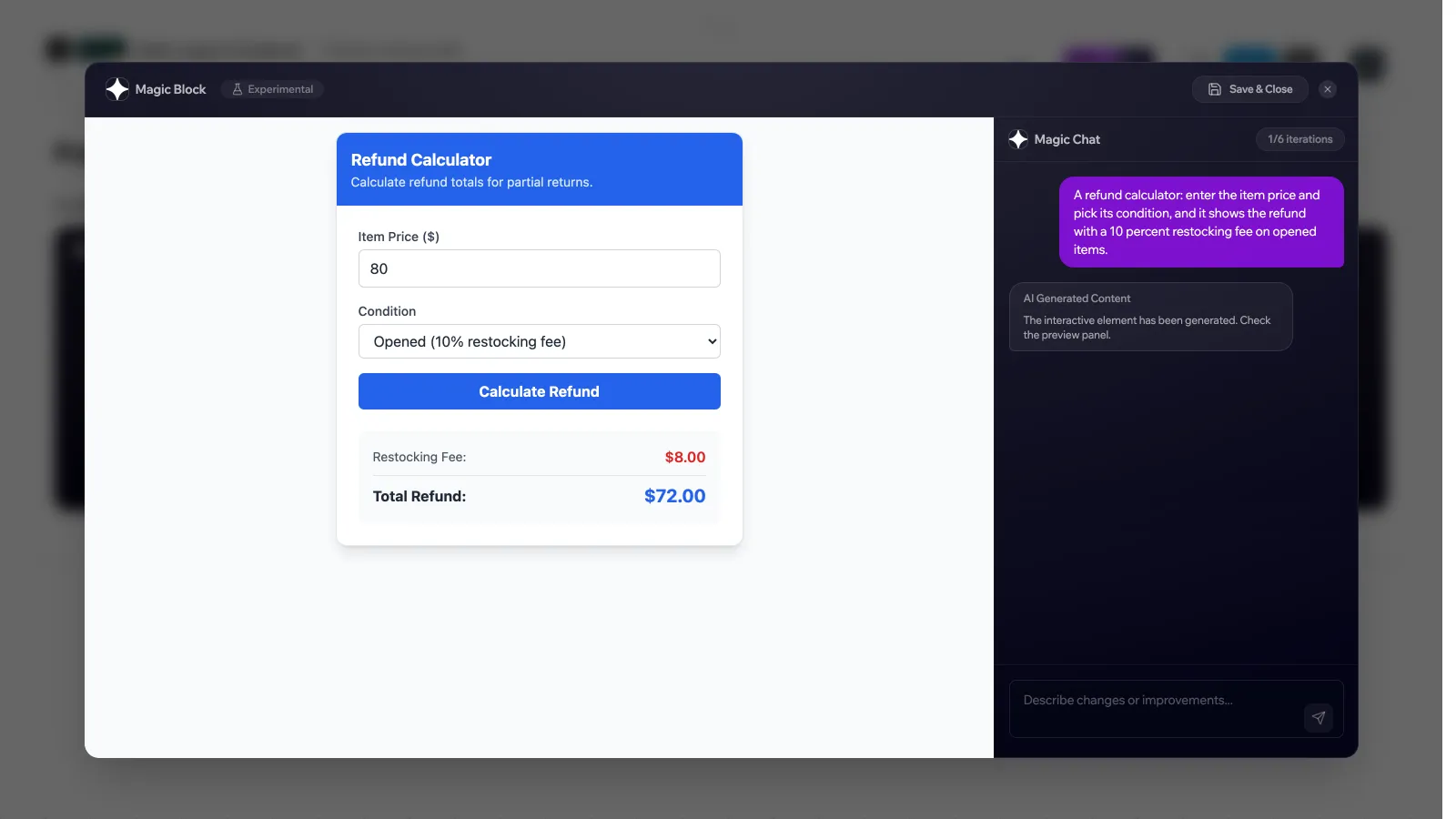 > **Magic Block** is available whenever AI is turned on for your organization. Each generation or change uses 3 AI credits.
### Quiz block
Each question has a list of answers, and you mark one or more of them as correct. A question with one correct answer is shown as **Select one answer**. A question with several correct answers is shown as **Select all that apply**. A question with no correct answer is skipped.
Click **Generate with AI** to have questions written from the page content. You choose between single answer and select-all-that-apply questions, preview the result and regenerate before inserting.
Learners pick their answers and click **Submit** to see whether they got everything right, then **Reset answers** to try again. Quiz block answers are not graded and not stored. For a graded quiz, use an [assignment](https://docs.learnhouse.app/platform/assignments) with a Quiz task.
### Flipcard and Flashcard Grid
A flipcard has a question, an answer, a color (10 to pick from), an alignment (left, center or right) and a size (small, medium or large). Learners click a card to flip it.
To lay cards out in a row, insert a **Flashcard Grid**, or select an existing flipcard and use **Group into Grid**. Inside a grid, use **Add Card** to add more cards and **Ungroup Cards** to turn them back into single cards.
### Web Preview
Enter a **Website URL** and the block shows the page's title, description and image. You can turn on **Show button**, set its **Button label**, and choose **Open in-app popup (might not work on all websites)** to open the link in a popup instead of a new tab. You can also set the card's alignment.
## Callouts
| Block | What it does |
| --- | --- |
| **Callout** | A highlighted box. Pick its type: **Info**, **Warning**, **Tip**, **Success** or **Error**. |
## Dynamic content
| Block | What it does |
| --- | --- |
| **Variable** | A value each learner reads as their own, such as their first name or progress. |
| **Conditional content**, **Show to a group**, **Unlock later**, **A/B test** | Blocks only some learners see. |
| **Insert template**, **Save as template** | Reuse saved blocks and pages. |
See [Dynamic Content & Templates](https://docs.learnhouse.app/platform/editor/dynamic-content).
## UI Elements
| Block | What it does |
| --- | --- |
| **Divider** | A horizontal line between sections. Typing `---` also inserts one. |
| **Badge** | A colored label with an optional emoji. |
| **Button** | A clickable button that opens a link. You set the link, color and alignment. |
| **User** | A card for a user from your organization. Enter their username and click **Load User**. |
| **Embed** | Embed external content. See [Embed](#embed). |
### Embed
The Embed block takes either a URL or a full embed code (an `