# Custom Domains
> Serve your LearnHouse organization from your own domain: add it, create the TXT and CNAME DNS records, verify it and check that HTTPS is active.
Serve your organization from your own domain, such as `learn.mycompany.com`, instead of the default LearnHouse address.
> Custom domains are shown from the **Pro** plan on LearnHouse Cloud. Changing them needs a role that can update the organization.
>
## Adding a domain
### Add the domain
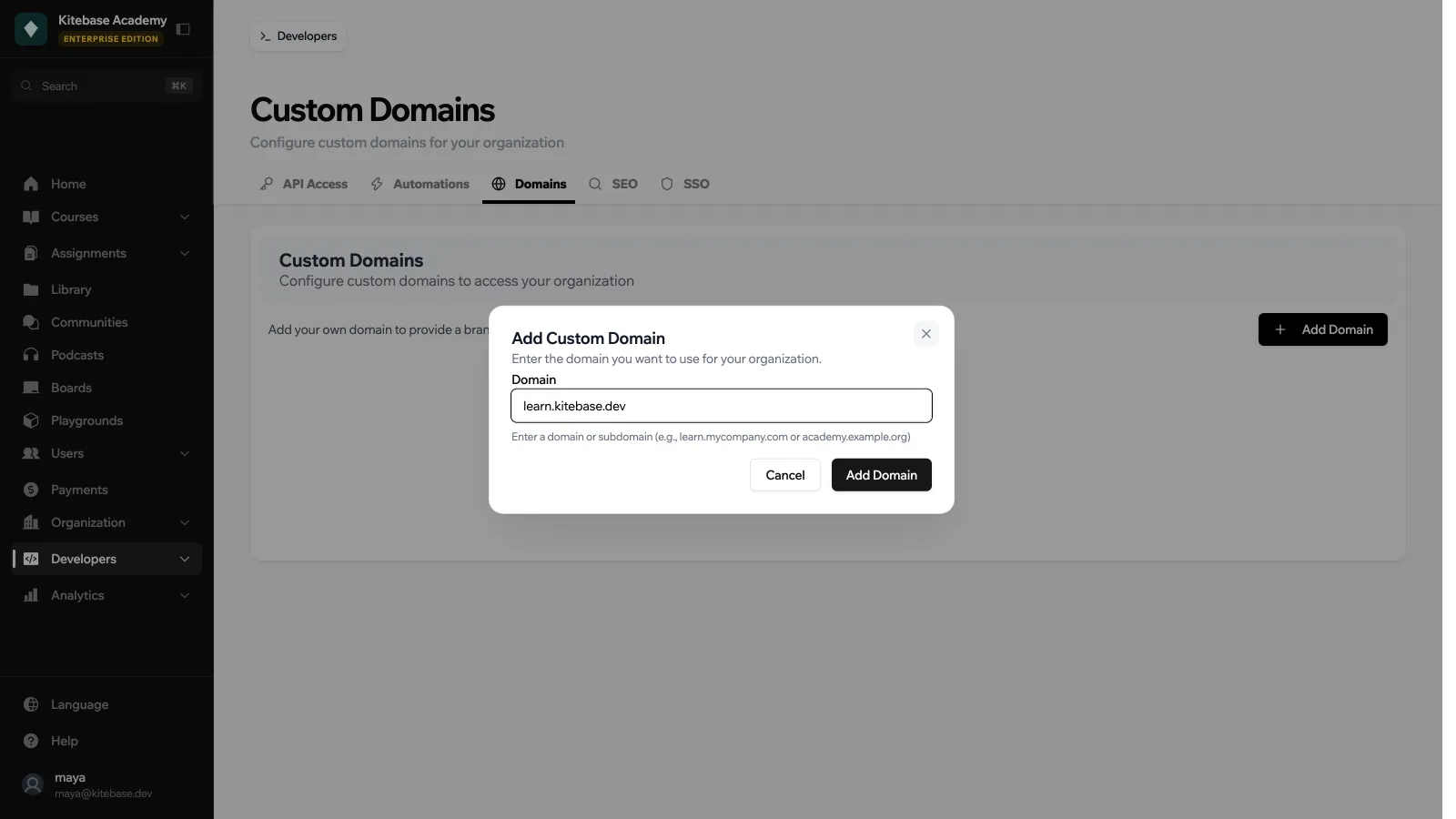
Go to **Developers** → **Domains** and click **Add Domain**. Enter a domain or subdomain, for example `learn.mycompany.com` or `academy.example.org`. If you paste a full URL, the protocol and path are removed.
 ### Create the DNS records
LearnHouse shows two records under **DNS Configuration Required**. Add both at your domain registrar or DNS provider (Cloudflare, GoDaddy, Namecheap and so on):
| Record | Purpose | Host / Name | Value |
| --- | --- | --- | --- |
| **TXT Record** | For verification | `_learnhouse-verification` (or `_learnhouse-verification.` for a subdomain) | `learnhouse-verify=` |
| **CNAME Record** | For routing | Your domain or subdomain | `.`, for example `myschool.learnhouse.io` on LearnHouse Cloud |
Use the copy buttons to avoid typos.
### Verify
Click **Verify DNS**. LearnHouse looks up the TXT record. Once it is found, the domain becomes **Verified**. DNS changes may take up to 48 hours to spread, but they usually show up within minutes. If verification fails, the domain stays **Pending** and LearnHouse tells you what it could not find.
### Check HTTPS
After verification, the **SSL Certificate** column shows the HTTPS status: **SSL Active**, provisioning, or a problem with the certificate. Click **Check** to refresh it.
## Statuses
| Status | Meaning |
| --- | --- |
| **Pending** | Waiting for the TXT record |
| **Verified** / **Active** | The TXT record was found and the domain serves your organization |
| **Failed** | Verification failed |
To stop using a domain, click **Remove**. This cannot be undone.
## Good to know
- Sessions started on your custom domain are always tied to your organization. See [Authentication](https://docs.learnhouse.app/platform/users/authentication#sharing-sessions-with-learnhouseio).
- If another organization added the same domain but never verified it, you can still claim it by completing verification.
- On a self-hosted instance, the CNAME target uses your `LEARNHOUSE_DOMAIN`. See [Environment Variables](https://docs.learnhouse.app/self-hosting/configuration/environment-variables).