# Organization Settings
> Configure your LearnHouse organization settings, from name, branding and public menu to optional features, AI, analytics retention and the danger zone.
Organization settings live under **Organization** in the dashboard (`/dash/org/settings`). The page has these tabs: **General**, **Features**, **Branding**, **Menu**, **Landing Page**, **Course completion**, **AI**, **Analytics**, **Usage**, **Other** and **Danger Zone**. The **Analytics** tab only appears when [analytics](https://docs.learnhouse.app/platform/analytics) is available (Enterprise Edition or LearnHouse Cloud).
Changing settings needs a role that can update the organization (the Admin role by default).
> Some settings moved. Sign-in methods and two-factor are under **Users** (see [Authentication](https://docs.learnhouse.app/platform/users/authentication)). API access, automations, domains, SEO and SSO are under **Developers** (see [Custom Domains](https://docs.learnhouse.app/platform/organizations/custom-domains) and [SEO](https://docs.learnhouse.app/platform/organizations/seo)). Old links redirect to the new pages.
## General
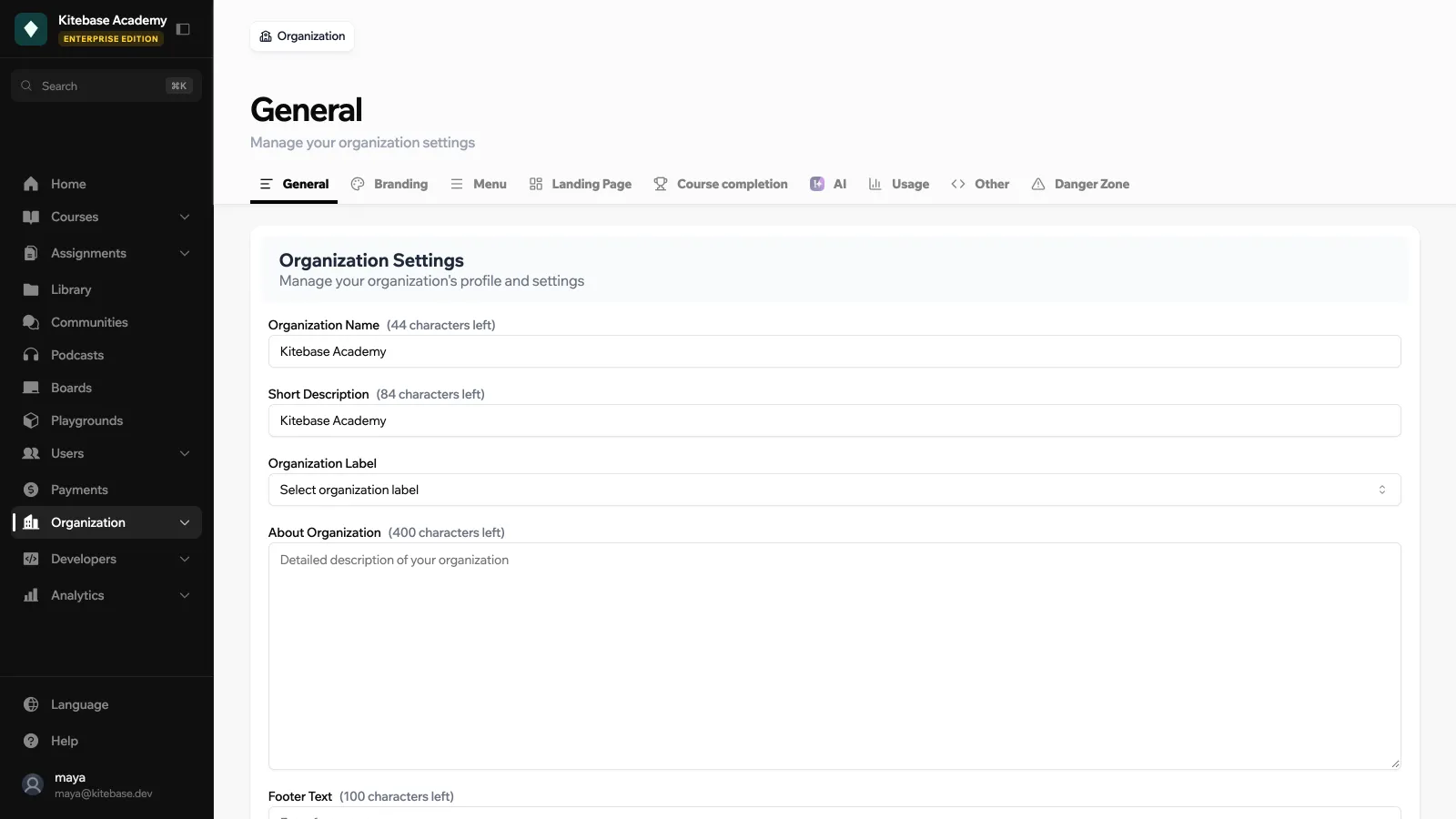
| Field | Limit | Notes |
| --- | --- | --- |
| **Organization Name** | 60 characters, required | |
| **Short Description** | 100 characters, required | |
| **Organization Label** | required | A category such as Education, Tech or Business. |
| **About Organization** | 400 characters | |
| **Footer Text** | 100 characters | Custom text displayed at the bottom of your organization pages. |
| **Email Sender Name** | 64 characters | The display name on emails sent for your organization: sign-in links, password resets, invitations, verification and welcome emails. Only the name changes; the sending address stays the platform's. Leave it empty to use the default ("LearnHouse"). Links and URLs are not allowed. |
| **Default Language** | | The language new visitors see and the language of emails sent for your organization. Members can still pick their own interface language. |
Click **Save Changes** to apply.
 ## Features
**Features** has one switch per optional feature: **Paths**, **Library**, **Communities**, **Podcasts**, **Live sessions**, **Boards**, **Playgrounds** and **Payments**. Turn a feature off to hide it from your organization's navigation. Turn it back on at any time.
Features your plan does not include are listed under **Not in your plan**, with the plan that unlocks them and an **Upgrade** link. A feature turned off by the platform administrator shows "Turned off by the platform administrator" and its switch is locked. Only organization admins can change these switches.
## Branding
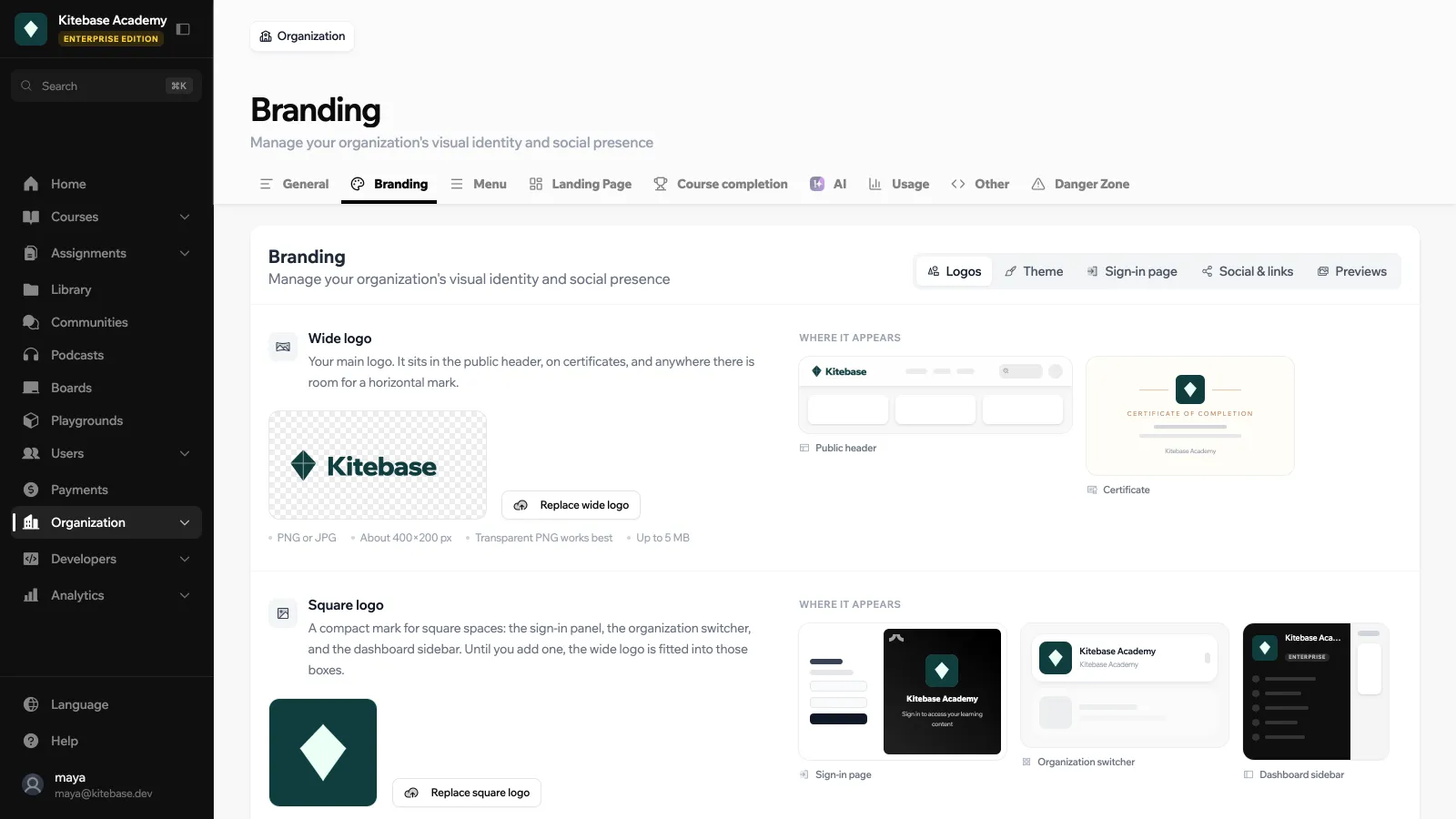
Branding has five sub-tabs. Each shows a live preview of where the asset appears.
### Logos
| Asset | Recommended size | Used on |
| --- | --- | --- |
| **Wide logo** | About 400×200 px, transparent PNG works best | The public header |
| **Square logo** | 512×512 px, no rounded corners | The sign-in panel, the organization switcher, the dashboard sidebar, emails and [certificates](https://docs.learnhouse.app/platform/certifications#what-a-certificate-shows). Until you upload one, the wide logo is used. |
| **Favicon** | 64×64 px | The browser tab |
Logos accept PNG or JPG.
 ### Theme
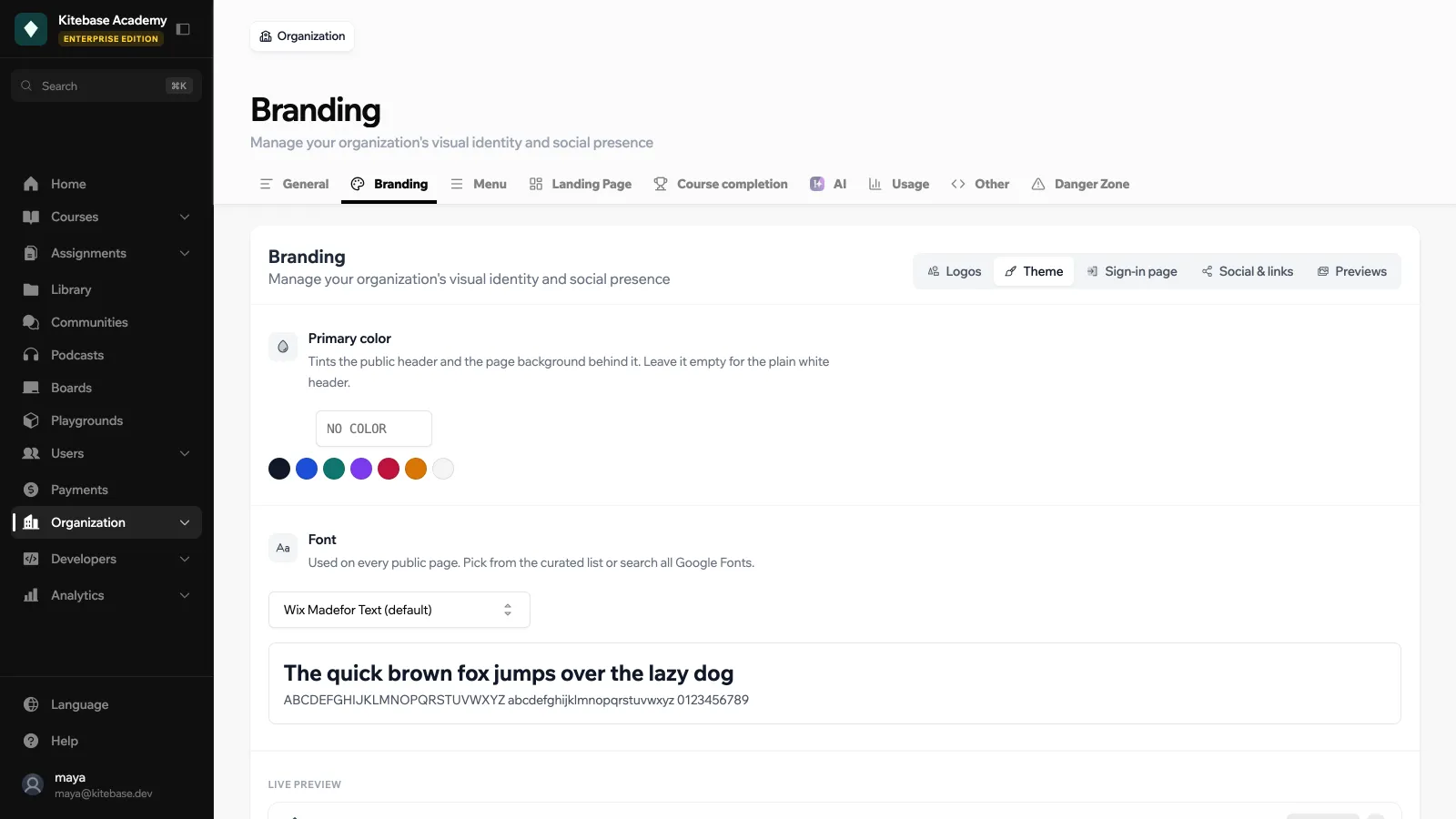
- **Primary color**: tints the public header and the page background behind it. Pick a preset, use the color picker or type a hex value. Leave it empty for the plain white header. Emails use it for buttons.
- **Font**: used on every public page. Choose from the suggested list or search all Google Fonts.
Changes apply to your public pages after you save.
 ### Sign-in page
- **Welcome message**: up to 200 characters. The default is "Sign in to access your learning content".
- **Background**: **Gradient** or **Custom** (upload a PNG, JPG or WebP image, or generate one with AI).
- **Text color**: **Light** or **Dark**, to stay readable on your background.
### Social & links
- **Social profiles**: links to your X (Twitter), Facebook, Instagram and YouTube pages, shown in the footer.
- **Custom links**: up to 3 extra footer links, each with a label and a URL.
### Previews
- **Thumbnail**: 1200×600 px. Used on the explore page and in link previews.
- **Preview gallery**: up to 4 images or YouTube/Loom videos that showcase your organization. Drag to reorder.
## Menu
**Menu** controls the links in your public navigation. You can switch each built-in link on or off, rename it and drag it into a new order: **Courses**, **Paths**, **Library**, **Podcasts**, **Live**, **Communities**, **Playgrounds** and **Store**.
Use **Add a custom link** to add your own, with a label, a URL and an icon.
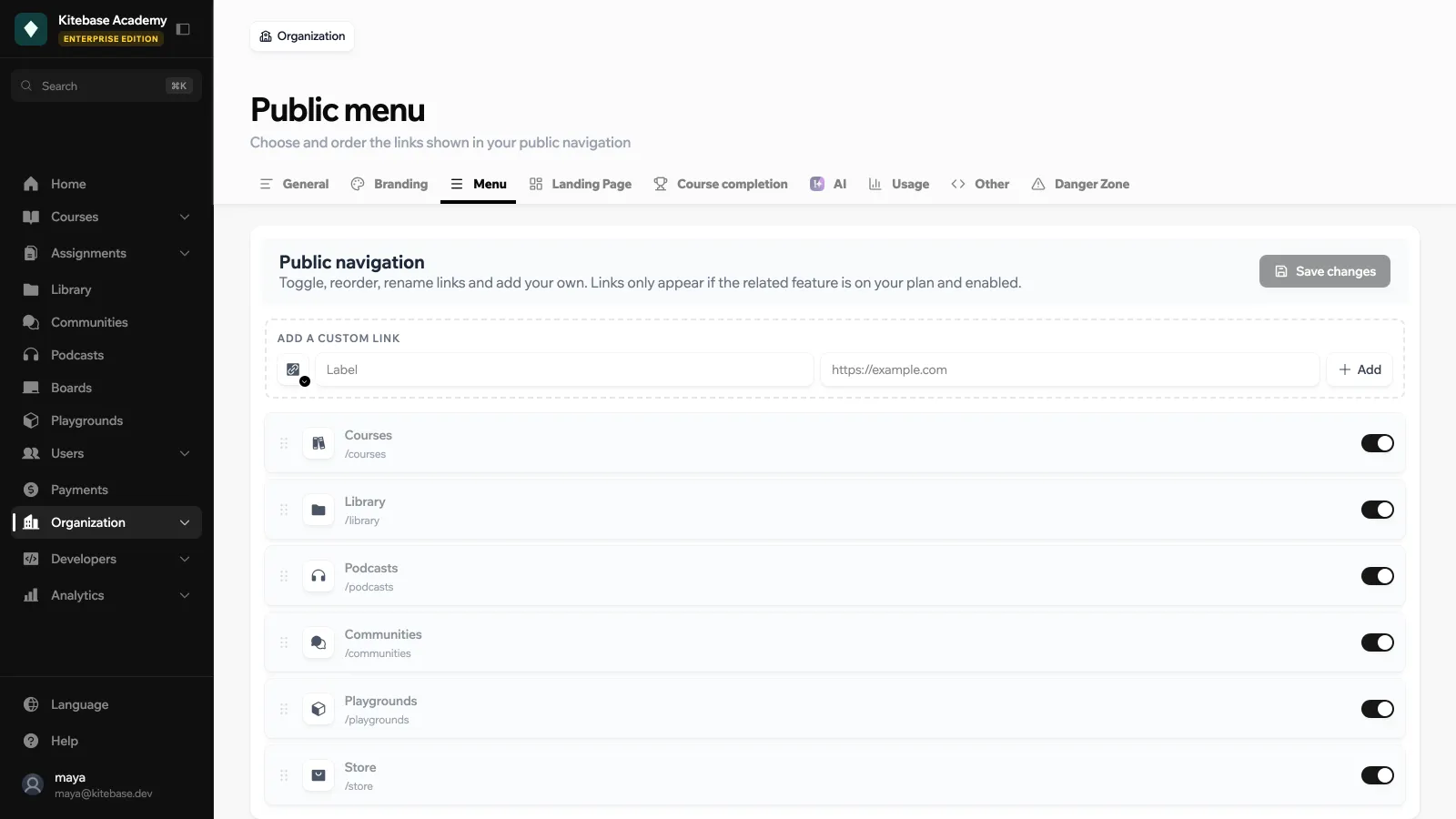 A link only appears when its feature is on your plan and enabled. The editor marks those that are not with "Requires ... plan" or "Feature is off". Hidden pages also lose their [keyboard shortcut](https://docs.learnhouse.app/platform/search/keyboard-shortcuts).
## Landing Page
Replace the default home page with a page you build from sections. See [Landing Page](https://docs.learnhouse.app/platform/organizations/landing-page).
## Course completion
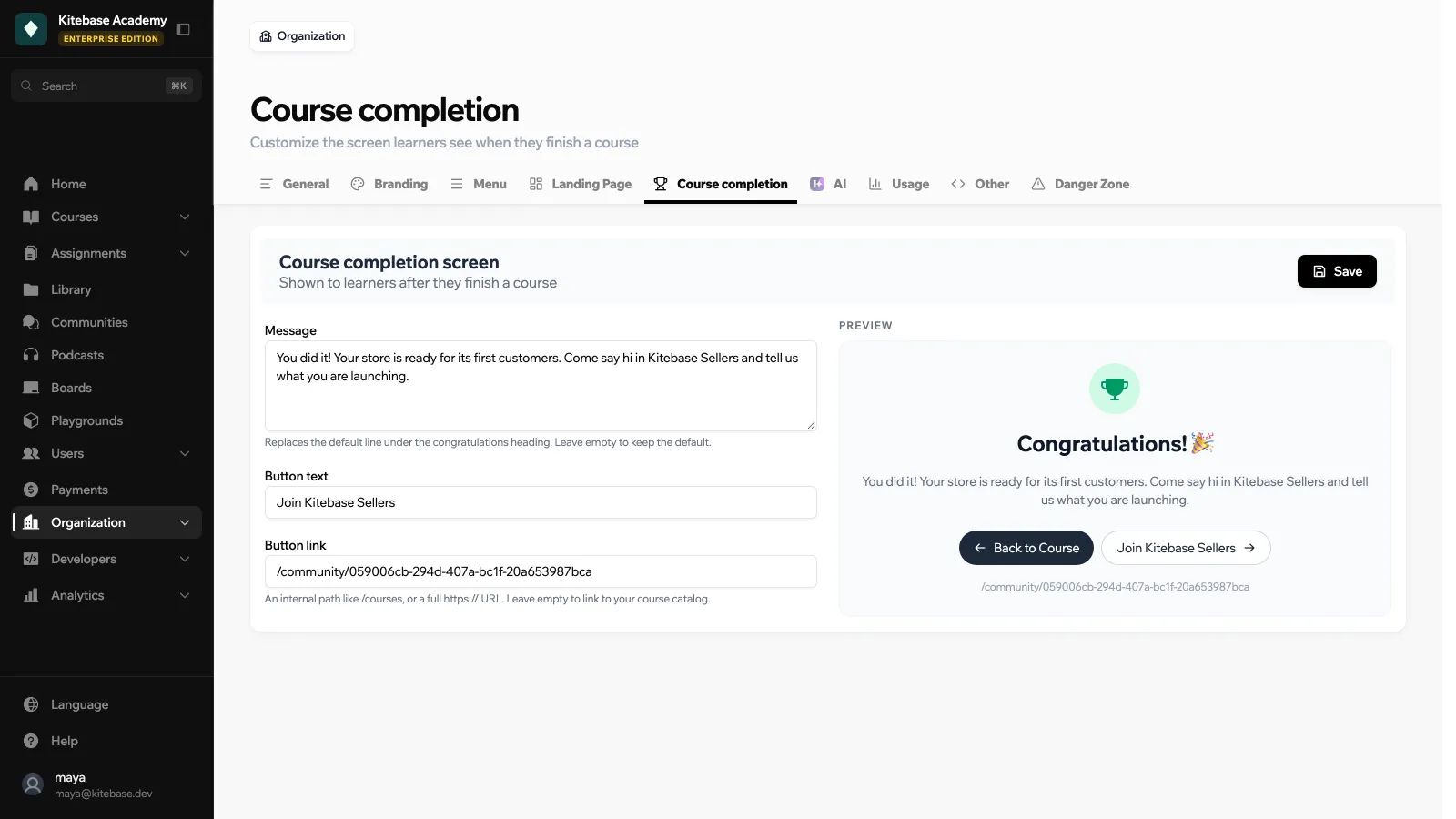
This sets the screen learners see after they finish a course. A live **Preview** updates as you type.
| Field | Limit | Notes |
| --- | --- | --- |
| **Message** | 500 characters | Replaces the default line under the congratulations heading. |
| **Button text** | 60 characters | Defaults to "Browse all courses". |
| **Button link** | | A path on your site starting with `/`, or a full `http://` or `https://` URL. Leave it empty to send learners to the course catalog. |
 ## AI
Turn **Enable AI Features** on or off for the whole organization, and switch **AI Copilot** on or off. **AI Copilot** controls Copilot and the other [agents](https://docs.learnhouse.app/platform/messages#agents) in Messages. Editor assistance and AI learning activities follow the main switch. Only admins can change these. See [AI](https://docs.learnhouse.app/platform/ai) for what each feature does.
On LearnHouse Cloud, the AI tab is shown from the Standard plan up.
## Analytics
**Analytics** sets how long your organization's analytics data is kept and what is collected: **Data retention**, counting visitors who aren't signed in, storing the visitor's country and leaving admins and maintainers out of stats. On the Enterprise plan you can also download every stored event as CSV. See [Analytics settings](https://docs.learnhouse.app/platform/analytics#settings).
## Usage
**Usage** shows your plan and how much of it you use:
- **Plan & Resource Usage**: **Courses**, **Members** and **Admin Seats**, each as used out of the limit. Self-hosted instances show **Unlimited**.
- **AI Credits**: **Base Credits**, **Purchased**, **Used** and **Remaining**.
- **Active Packs**: any add-on packs on the organization.
On LearnHouse Cloud you can compare plans and buy more AI credits from here. See [Plans & Limits](https://docs.learnhouse.app/platform/organizations/plans).
## Other
### "Made with LearnHouse" watermark
A switch controls the "Made with LearnHouse" badge on your public pages and the "Powered by LearnHouse" line in emails.
| Deployment | Behavior |
| --- | --- |
| LearnHouse Cloud, free plan | Always shown. The switch is disabled. |
| LearnHouse Cloud, paid plans | You choose. |
| Enterprise Edition | Hidden by your license. |
| Open source | The page badge follows the switch. Emails always show the line. |
### Scripts
Add custom JavaScript to your organization's pages, for example an analytics or chat widget. Each script has a **Script Name** and **Script Content**. Click **Add Script** to save it.
> Scripts run on your pages with full access to them. Only add code you trust.
## Danger Zone
| Action | What it does |
| --- | --- |
| **Remove all members** | Removes everyone except you. Content is kept. |
| **Wipe all content** | Deletes all courses and their content. The organization and its members are kept. |
| **Delete this organization** | Deletes the organization. Type the organization slug to confirm. |
None of these can be undone.