# Command Palette and Keyboard Shortcuts
> Use the LearnHouse command palette and keyboard shortcuts to search, jump between pages with g chords and move through courses and lessons without a mouse.
Learners can move around a LearnHouse organization without a mouse. The command palette searches and jumps to pages, and single-key shortcuts handle the common actions on each page.
Press ? on any learner page to open the **Keyboard shortcuts** sheet. It lists every shortcut that works on the page you are on, grouped as **Everywhere**, **Go to** and **On this page**.
> Shortcuts are ignored while you are typing in a text field, a select or the editor. Shortcuts that use ⌘, Ctrl or Alt are left to the browser, except the palette shortcut.
## Command palette
Open the palette with ⌘ K on macOS, Ctrl K on Windows and Linux, or /. You can also click **Search** in the top menu.
Before you type, the palette shows:
- **Actions**: the shortcuts available on the current page (for example **Start course** on a course page).
- **Go to**: the pages of your organization, such as Home, Courses, Paths, Library, Podcasts, Live, Communities, Playgrounds, Store, Progress, Boards, Calendar and your account pages. A page only appears when the feature is turned on for the organization and you are allowed to open it.
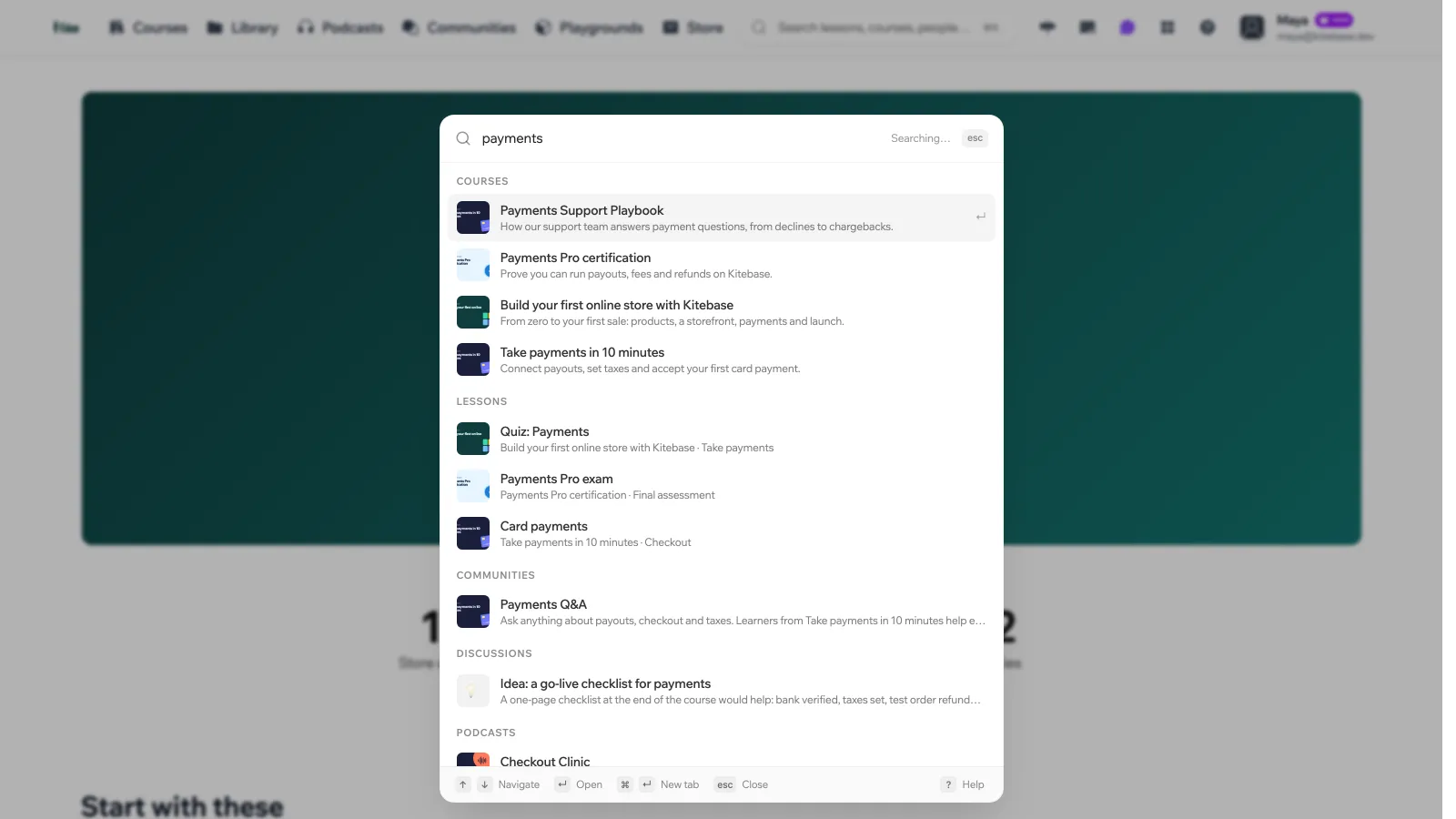 Type 3 characters or more to search content. Results are grouped as **Courses**, **Lessons**, **Folders**, **Communities**, **Discussions**, **Playgrounds**, **Podcasts** and **Members**, and **See all results** opens the full [search page](https://docs.learnhouse.app/platform/search).
| Key | Action |
| --- | --- |
| ↑ ↓ | Navigate |
| Enter | Open |
| ⌘/Ctrl Enter | Open in a new tab |
| Esc | Close |
## Everywhere
| Key | Action |
| --- | --- |
| ? | Open the keyboard shortcuts sheet |
| / | Open search |
| ⌘/Ctrl K | Open search |
| p | Play or pause the podcast player, when one is open |
## Go to
"Go to" shortcuts are two keys pressed one after the other: press g, then the second key within about a second.
| Keys | Page |
| --- | --- |
| g then h | Home |
| g then c | Courses |
| g then r | Learning paths |
| g then l | Library |
| g then p | Podcasts |
| g then v | Live sessions |
| g then m | Communities |
| g then y | Playgrounds |
| g then s | Store |
| g then t | Progress (your trail) |
| g then b | Boards |
| g then e | Calendar |
| g then u | Account settings |
A chord only exists when its page is available to you. If the organization has turned off podcasts, for example, g p does nothing.
## Lists and catalogs
These work on the home page, the course catalog, the library and its folders, podcasts, communities, playgrounds, boards, your progress page and the search page.
| Key | Action |
| --- | --- |
| j or ↓ | Next item |
| k or ↑ | Previous item |
| Enter | Open selected item |
| ] | Next page |
| [ | Previous page |
## Course page
| Key | Action |
| --- | --- |
| s | Start course, or continue where you left off |
| e | Expand or collapse all chapters |
## Lesson page
| Key | Action |
| --- | --- |
| j or → | Next lesson |
| k or ← | Previous lesson |
| ] | Next chapter |
| [ | Previous chapter |
| m | Mark lesson complete, or unmark it |
| f | Toggle focus mode |
| Esc | Exit focus mode |
| Space | Play or pause video |
| c | Back to course |
In right-to-left languages, the arrow keys for next and previous lesson are swapped to follow the reading direction.
## Community page
| Key | Action |
| --- | --- |
| n | New discussion |