# Members & Invites
> Manage LearnHouse members: search and export the Users list, set open or closed signup, create invite codes, add signup fields and invite people by email.
This page covers the **Users**, **Signups & Invite Codes** and **Invite Members** tabs under **Users** in the dashboard.
## The Users list
The **Users** tab lists everyone in the organization, 10 per page. Use **Search users...** to find someone, and **Filters** to narrow by role, by verification status (**Verified** or **Unverified**) or by user group. Each row shows the member's groups, role and how they signed up (Email, Google, and so on).
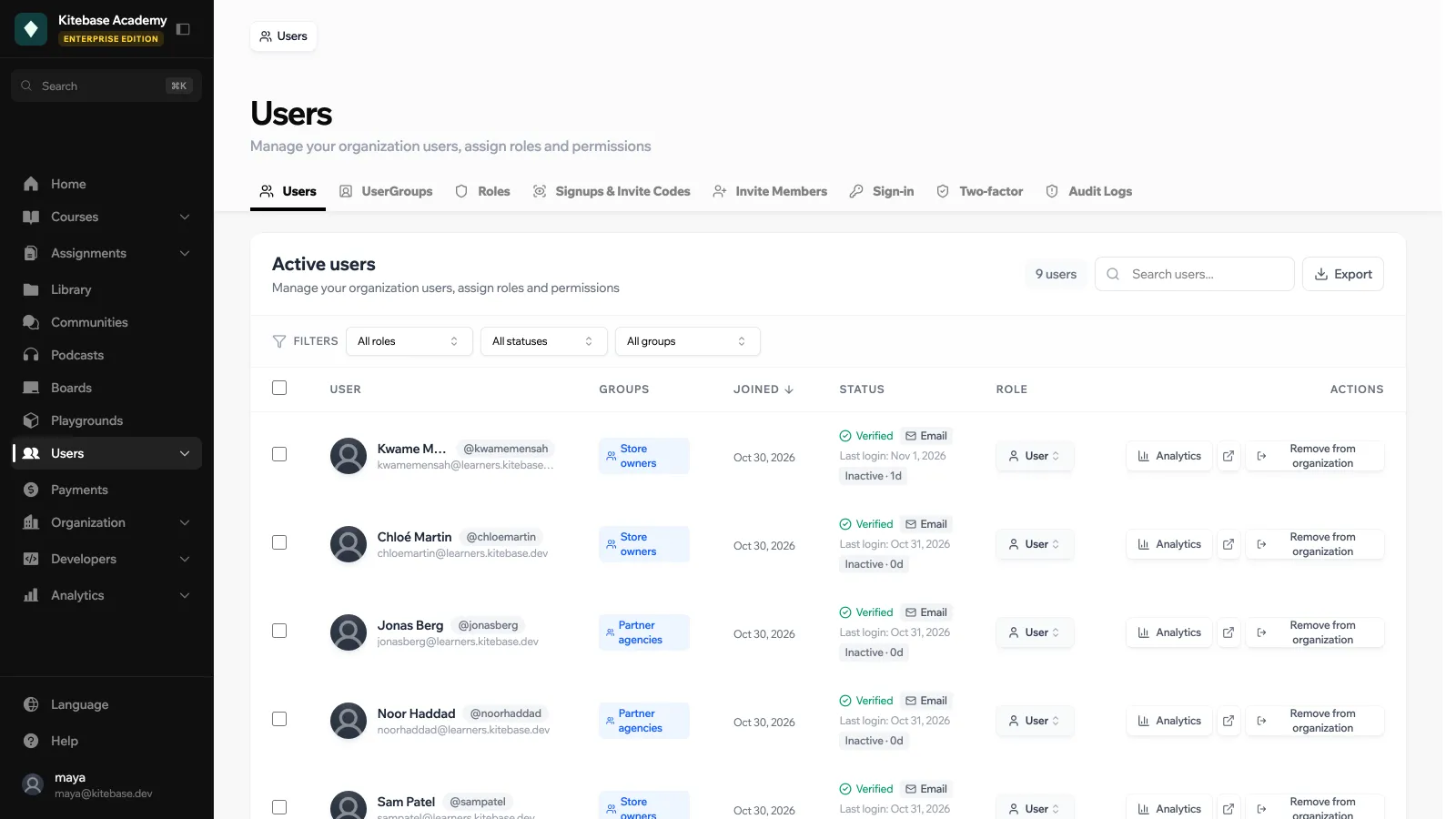 For each member you can:
- **Change their role** with the role dropdown. You cannot change your own role.
- **Analytics**: open a quick view of the learner's record, or **Open full analytics page**. See [Learner Analytics](https://docs.learnhouse.app/platform/users/learner-analytics).
- **Remove from organization**: takes them out of this organization. Their account and their other organizations are kept.
Select several rows to act on them together: **Compare analytics** shows a side-by-side table, **Export analytics** downloads their records, and **Remove selected** removes them all.
The download icon next to the search box exports the member list as CSV.
> Only roles that can manage the organization (Admin and Maintainer by default) can change roles or remove members.
## Signup mode
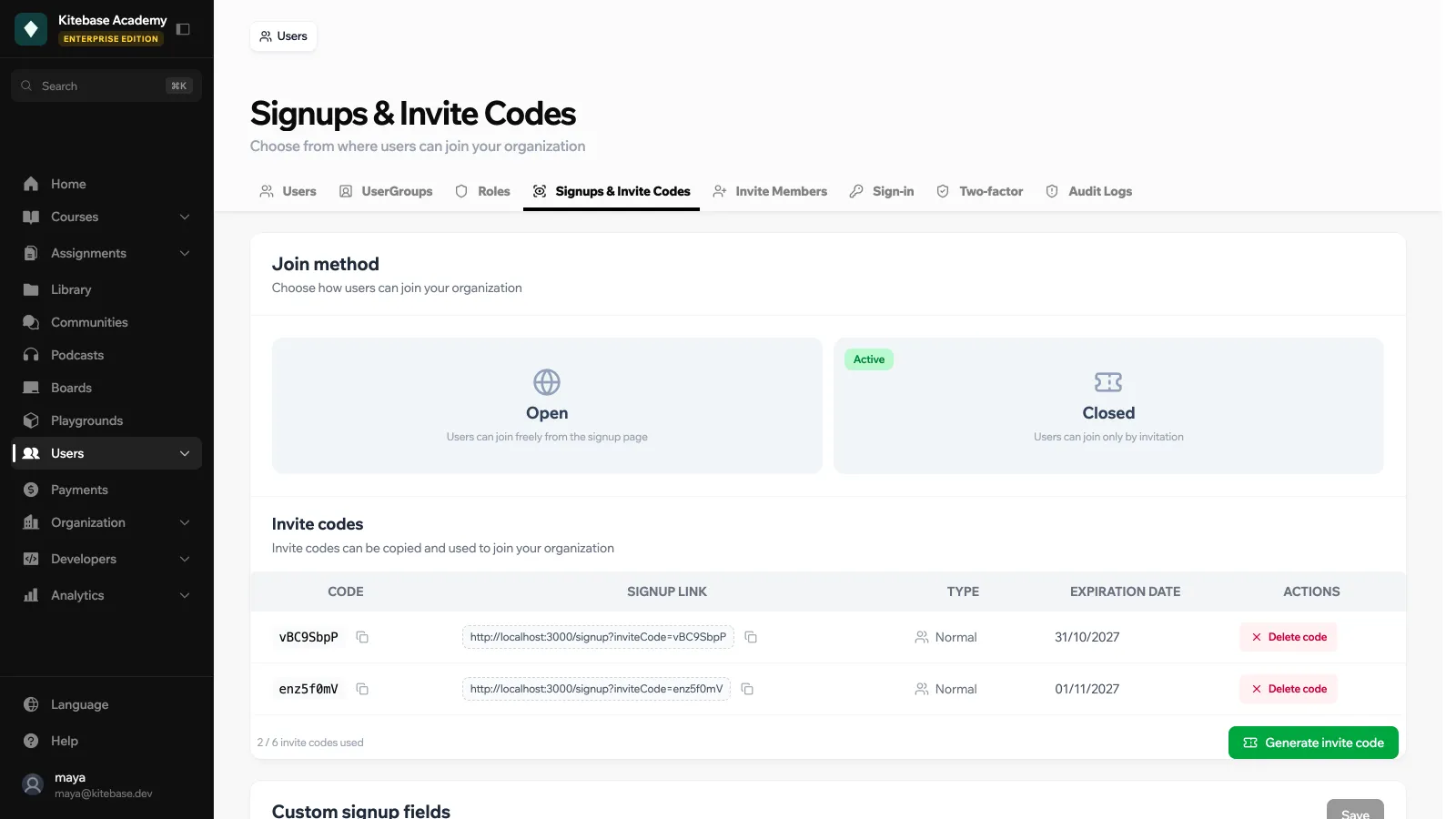
On **Signups & Invite Codes**, **Join method** decides how new people can join:
| Option | Behavior |
| --- | --- |
| **Open** | Users can join freely from the signup page. This is the default. |
| **Closed** | Users can join only by invitation: an email invite or an invite code. Google sign-up is refused without a valid invite. |
## Invite codes
Invite codes are shareable links for a **Closed** organization. The section is greyed out while the join method is **Open**.
1. Click **Generate invite code**.
2. Choose **Normal Invite Code**, or **Invite Code linked to a UserGroup** to add everyone who signs up with it to that group.
3. Copy the code or its signup link (`/signup?inviteCode=...`) and share it.
| Limit | Value |
| --- | --- |
| Codes per organization | 6 at a time |
| Code format | 8 letters and digits |
| Lifetime | 1 year, then the code stops working |
Delete a code from the table to revoke it.
 ## Custom signup fields
**Custom signup fields** add extra questions to the signup form. Answers are saved on each member's profile.
- Field types: **Text**, **Long text**, **Dropdown**, **Checkbox**, **Number**, **Date**.
- Options per field: **Required**, **Help text**, **Max length** (text), **Min** and **Max** (number), and **Options (one per line)** (dropdown).
- Up to 40 fields. Text answers are capped at 2,000 characters.
Field labels are public: anyone who opens the signup page can read them.
## Inviting people by email
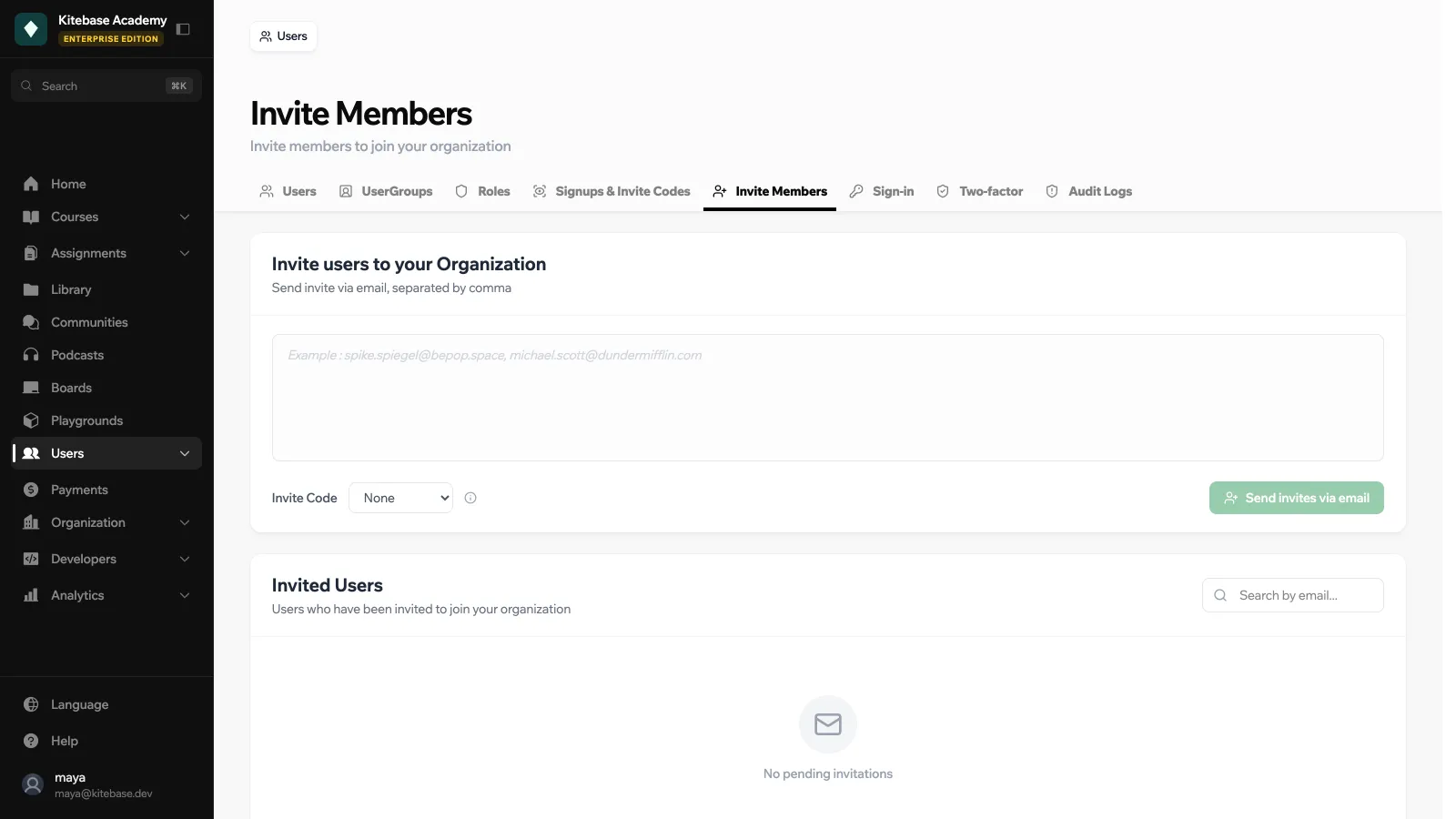
On **Invite Members**, enter email addresses separated by commas and click **Send invites via email**. You can attach an **Invite Code** so that invitees land in the code's user group.
 | Limit | Value |
| --- | --- |
| Emails per batch | 25 |
| Invites per day | 100 per organization and 100 per inviting user |
| Invitation lifetime | 60 days |
Duplicates and malformed addresses are skipped. The result tells you how many invites were sent, failed or were already pending.
The **Invited Users** table shows each invite's **Signup Status** (**Pending** or **Signed up**) and whether the email was sent. Use **Remove** to cancel a pending invite.
Each invitation fires the `user_invited_to_org` event for [webhooks and Zapier](https://docs.learnhouse.app/platform/automations/events).
> On the LearnHouse Cloud free plan, both the organization and your own account must be at least 7 days old before you can send invites or create invite codes. Paid plans are not affected.