# User Groups
> Create LearnHouse user groups to give a set of members access to courses, communities, folders, boards and podcasts in one step, and see how members join.
User groups bundle members together so you can give them access to content in one step. Instead of opening a course to everyone in the organization, you link it to a group, and only that group's members can reach it.
> User groups need the **Standard** plan or higher on LearnHouse Cloud. They are included on every self-hosted instance.
>
## Creating a group
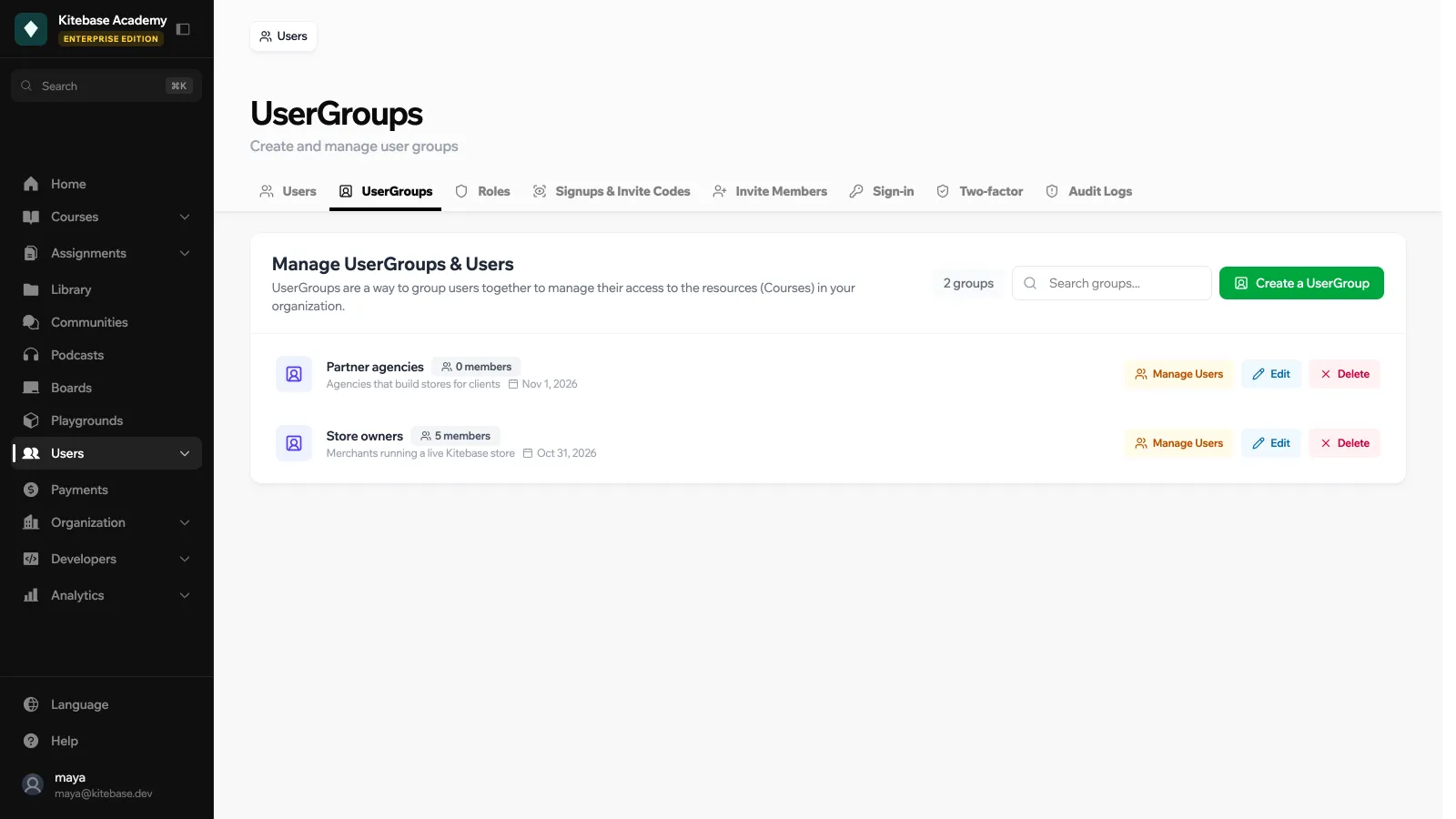
1. Go to **Users** → **UserGroups**.
2. Click **Create a UserGroup**, enter a **Name** (required) and a **Description**.
3. Click **Manage Users** on the group's row to add members. Filter by **All Users**, **In Group** or **Not in Group**, then **Link** or **Unlink** people, or select several and use **Add to Group** / **Remove from Group**.
**Edit** renames a group. **Delete** removes it, and every member of the group loses the access it granted.
 ## What a group can unlock
You link a group from the resource's own access settings, not from the Users page. These resources can be linked to a group:
| Resource | Where to link it |
| --- | --- |
| Courses | The course's **Access** tab in the dashboard |
| Communities | The community's access settings |
| Folders | The folder's access popover in the Library |
| Boards | The board's access tab |
| Podcasts | The podcast's access settings |
Inside a course, chapters and lessons can also be locked to user groups. Locked lessons are hidden from everyone outside the group, including in [search](https://docs.learnhouse.app/platform/search).
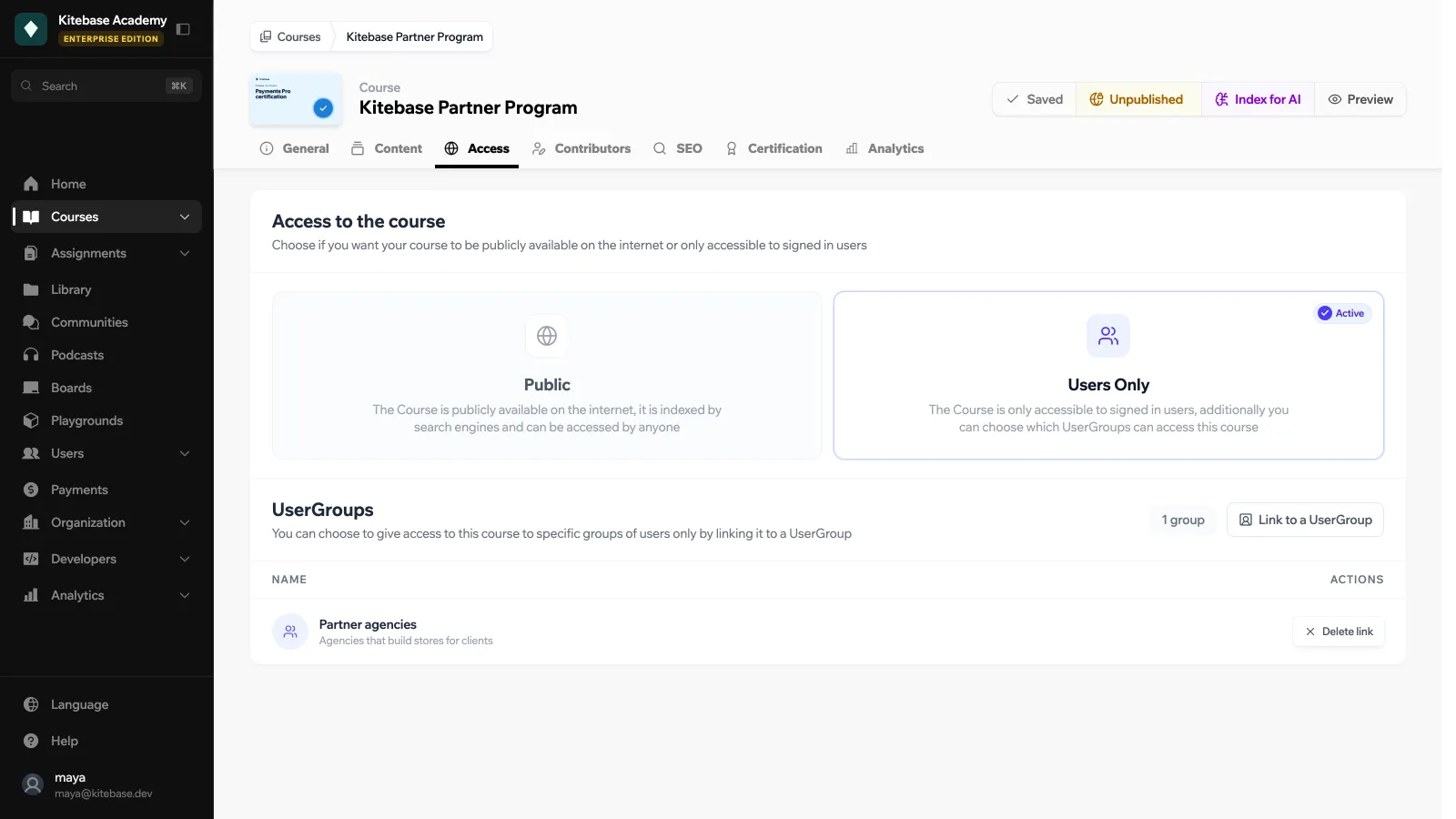
To limit a course to a group, set **Access to the course** to **Users Only** on the course's **Access** tab, then click **Link to a UserGroup** and pick the group. Members outside the group lose access to the course.
 ## Other ways members join a group
- **Invite codes** can be linked to a group. Everyone who signs up with the code is added to it. See [Invite codes](https://docs.learnhouse.app/platform/users/members-and-invites#invite-codes).
- **Payments**: a payment group can be synced to a user group, so buyers are added automatically. See [Groups & Bundles](https://docs.learnhouse.app/platform/payments/groups).
- **API**: API tokens with the **User Groups** permission can manage groups and their members.