Import from Another LMS
LearnHouse converts course exports from other learning platforms into native LearnHouse courses: pages built with the course editor, graded assignments with auto-graded tasks, quiz blocks, videos, PDFs and SCORM activities. Supported formats:
| Platform | Export to use | File |
|---|---|---|
| Moodle (1.9 to 5.2) | Course backup (without user data) | .mbz |
| Canvas | Settings › Export Course Content › Course | .imscc |
| Blackboard Learn (Original and Ultra) | Export/Archive Course | .zip |
| D2L Brightspace | Course Admin › Import/Export/Copy Components › Export as Brightspace package | .zip |
| Open edX | Studio › Tools › Export Course (or a content library export) | .tar.gz |
| Any IMS Common Cartridge 1.0 to 1.3 (Schoology, Sakai, Thin CC, publishers) | Common Cartridge export | .imscc / .zip |
The format is detected automatically. A zip holding several exports (a publisher test bank with one archive per chapter, for example) is combined into one course. You can import from the dashboard, from the command line, or through the API.
From the dashboard
- Go to Courses in the dashboard and click Import Course.
- Choose Another LMS.
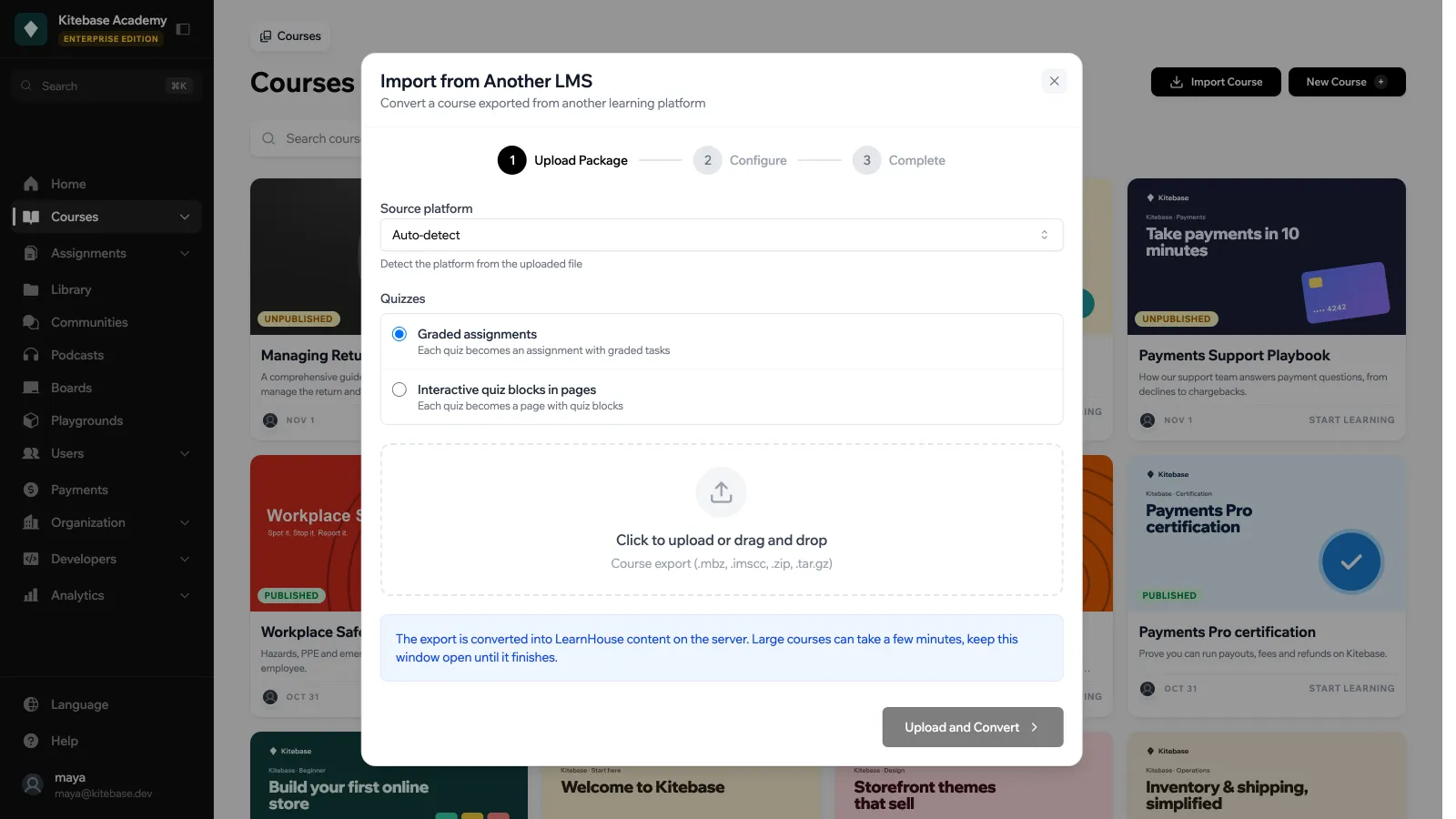
- Pick the Source platform (or leave Auto-detect), choose how Quizzes are converted, drop the export file and click Upload and Convert.
- Wait for the conversion. Large backups with many videos can take a few minutes.
- Review the report: what was created, what was skipped and why. Pick the courses to import and set the import options (Course Name Prefix, Set as private, Set as unpublished), then click the import button.
The report lists every source item that has no LearnHouse equivalent under Skipped items (discussions, LTI tools, files missing from the export…). Warnings only appear when something in the export could not be read or converted, so a healthy export shows none.
Imported courses are private and unpublished by default, so you can review them before learners see them.
What gets converted
| Source content | LearnHouse result |
|---|---|
| Sections, modules, topics, weeks, chapters | Chapters, in source order |
| Pages, labels, books, wiki pages, HTML files | Pages (editor documents) with headings, lists, tables, code, links, math and callouts |
| Images, audio, video and PDFs embedded in text | Image, audio, video and PDF blocks |
| PDF files | Document activities |
| Office documents, zips, notebooks and other files | Library files (downloadable from the page; other formats are wrapped in a zip) |
| Video files and YouTube links | Video activities |
| Vimeo and other players, iframes | Embeds |
| Web links | Link previews |
| Glossaries | Flashcards |
| Quizzes and tests | Graded assignments (see below) |
| Question banks, pools and libraries no quiz uses | Unpublished assignments in a “Question pools” or “Question library” chapter |
| Assignments, drop boxes, open response assessments | Assignments with a file submission task and due date; attachments go on the instructions page |
| SCORM packages | SCORM activities (requires the SCORM feature) |
| Hidden or unpublished items | Unpublished activities |
Quizzes
Choose one of two modes:
- Graded assignments (default): every quiz becomes an assignment. Questions are mapped to task types and keep their answer keys, attempts, due dates and pass mark. Assignments with only objective questions are auto-graded; a question without an answer key (a survey question, for example) makes the assignment graded by hand.
- Interactive quiz blocks in pages: quizzes become pages with quiz blocks and flashcards, for self-checks without grades. Practice quizzes and ungraded problems always use this mode. Question images and tables are shown above their quiz block, and questions with no interactive equivalent keep their text.
| Source question | Assignment task | Page block |
|---|---|---|
| Multiple choice, multiple answer, true/false | Quiz | Quiz block |
| Matching, ordering | Quiz (one question per pair or position) | Flashcards |
| Fill in the blank(s), cloze, dropdowns, drag words into text | Form | Flashcards |
| Short answer (wildcards and regular expressions kept) | Short answer | Flashcards |
| Numerical, calculated (first dataset), arithmetic | Number | Flashcards |
| Essay, file upload | File submission (graded by an instructor) | Not shown |
| Text-only and description items | Part of the next task’s description | Text |
Consecutive multiple choice questions are grouped into a single quiz task. Images in a question become the task’s reference file. When answers are pictures (graphs, diagrams) or several questions in one task have images, a “figures” page is added right before the assignment and the picture answers are labelled “Option A”, “Option B” and so on. A quiz with no question LearnHouse can grade (for example only STACK or drag-onto-image questions) is kept as a page with its questions.
What is not migrated
The report lists every skipped item. Not migrated:
- Learners, enrollments, grades and submissions (exports usually leave them out; course content only).
- Forums and discussions (their text is kept as a page), chats, wikis that only exist as links, LTI tools and H5P content.
- Hot spot, drag-onto-image, STACK and script-graded questions (their text is kept, they are not graded). CodeRunner questions become code tasks; tests that call the learner’s code from test code are listed in the prompt instead, and problems graded by an external code queue arrive without tests.
- Availability and release conditions, completion rules and rubrics. Point values are kept as task weights (the heaviest task is worth 100).
- Due dates that have already passed: they would close the assignment to learners, so they are removed (the report counts them). Set new ones after the import.
- Time limits, question shuffling and quiz passwords, which LearnHouse assignments do not have.
- Random question draws import every question of the pool; calculated questions use their first set of values; A/B test variants show their first group.
Media in formats LearnHouse cannot play (such as .mov or .bmp) is converted when ffmpeg and Pillow are available; otherwise the original file is kept as a downloadable Library file.
From the command line
The converter ships in the LearnHouse image as learnhouse-lms-import:
# What is in this export?
docker exec -it learnhouse learnhouse-lms-import inspect /data/backup.mbz

# Convert to a LearnHouse course package (import it from the dashboard: Import Course › LearnHouse Courses)
docker exec -it learnhouse learnhouse-lms-import convert /data/backup.mbz -o /data/course.zip --report /data/report.json

# Convert and import into an instance in one step, with an API token
learnhouse-lms-import push backup.mbz --url https://learn.example.com --token lh_... --org-id 1
From a source checkout, run it from apps/api: uv run python cli.py lms-import --help.
| Option | Commands | Meaning |
|---|---|---|
--source | all | auto (default), moodle, canvas, blackboard, brightspace, openedx, common_cartridge |
--quiz-mode | convert, push | assignment (default) or page |
--skip-hidden | convert | Leave out hidden sections and items instead of importing them unpublished |
--unpublished | convert | Import every activity unpublished |
--no-transcode | convert | Never convert media formats |
--keep-due-dates | convert | Keep due dates that have already passed (removed by default, or learners could not submit) |
--report FILE | convert | Write the conversion report as JSON |
--name-prefix, --public, --publish | push | Same as the dashboard import options |
push reads LEARNHOUSE_URL, LEARNHOUSE_API_TOKEN and LEARNHOUSE_ORG_ID from the environment when the options are not given.
Through the API
# 1. Upload the export; conversion starts in the background
curl -X POST "https://learn.example.com/api/v1/courses/import/lms/analyze?org_id=1&source=auto&quiz_mode=assignment" \
  -H "Authorization: Bearer lh_..." -F "package=@backup.mbz"
# → {"temp_id": "…", "status": "processing"}

# 2. Poll until status is "ready" (or "failed", with an error)
curl "https://learn.example.com/api/v1/courses/import/lms/analyze/{temp_id}?org_id=1" -H "Authorization: Bearer lh_..."
# → {"status": "ready", "source": "moodle", "courses": [...], "report": {"counts": {...}, "warnings": [...], "skipped": [...]}}

# 3. Import, exactly like a LearnHouse package
curl -X POST "https://learn.example.com/api/v1/courses/import?org_id=1" -H "Authorization: Bearer lh_..." \
  -H "Content-Type: application/json" \
  -d '{"temp_id": "…", "course_uuids": ["course_…"], "set_private": true, "set_unpublished": true}'
GET /api/v1/courses/import/lms/sources lists the supported formats. All three calls need permission to create courses in the organization; a conversion is only visible to the user or token that uploaded it.
Uploads are limited to 4 GB by default. Set LEARNHOUSE_LMS_IMPORT_MAX_MB on the API to change it, and make sure your reverse proxy accepts bodies that large. The upload request must carry a Content-Length header (browsers and curl -F always do); a larger declared size is refused before the body is read. Like the LearnHouse package import, the upload and the import must reach the same API instance. Each API process converts at most 2 exports at a time and queues up to 8 more, with a limit of 2 conversions per user.
