Command Palette and Keyboard Shortcuts
Learners can move around a LearnHouse organization without a mouse. The command palette searches and jumps to pages, and single-key shortcuts handle the common actions on each page.
Press ? on any learner page to open the Keyboard shortcuts sheet. It lists every shortcut that works on the page you are on, grouped as Everywhere, Go to and On this page.
Shortcuts are ignored while you are typing in a text field, a select or the editor. Shortcuts that use ⌘, Ctrl or Alt are left to the browser, except the palette shortcut.
Command palette
Open the palette with ⌘ K on macOS, Ctrl K on Windows and Linux, or /. You can also click Search in the top menu.
Before you type, the palette shows:
- Actions: the shortcuts available on the current page (for example Start course on a course page).
- Go to: the pages of your organization, such as Home, Courses, Library, Podcasts, Communities, Playgrounds, Store, Progress, Boards, Copilot and your account pages. A page only appears when the feature is turned on for the organization and you are allowed to open it.
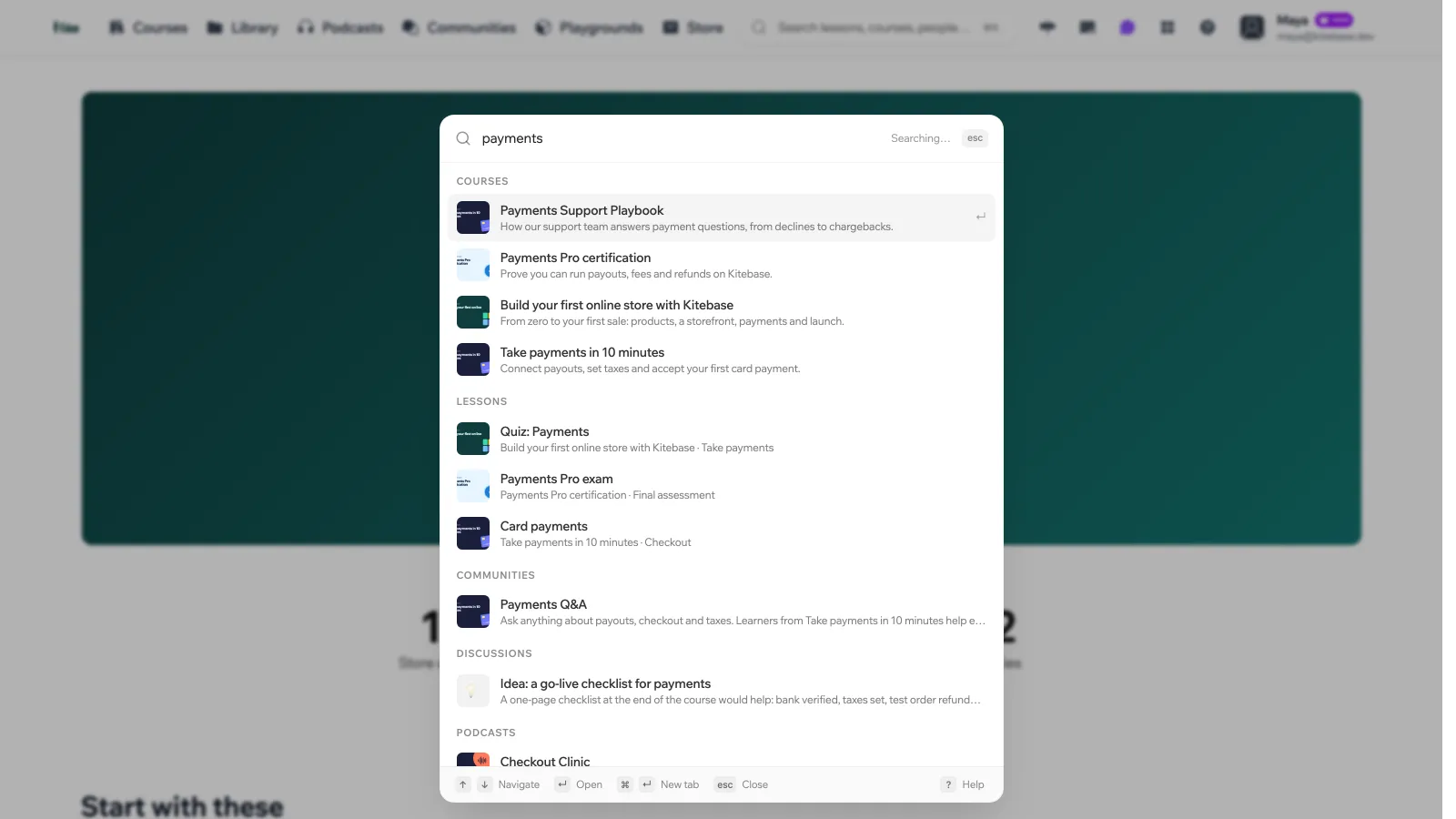
Type 3 characters or more to search content. Results are grouped as Courses, Lessons, Folders, Communities, Discussions, Playgrounds, Podcasts and Members, and See all results opens the full search page.
| Key | Action |
|---|---|
| ↑ ↓ | Navigate |
| Enter | Open |
| ⌘/Ctrl Enter | Open in a new tab |
| Esc | Close |
Everywhere
| Key | Action |
|---|---|
| ? | Open the keyboard shortcuts sheet |
| / | Open search |
| ⌘/Ctrl K | Open search |
| p | Play or pause the podcast player, when one is open |
Go to
“Go to” shortcuts are two keys pressed one after the other: press g, then the second key within about a second.
| Keys | Page |
|---|---|
| g then h | Home |
| g then c | Courses |
| g then l | Library |
| g then p | Podcasts |
| g then m | Communities |
| g then y | Playgrounds |
| g then s | Store |
| g then t | Progress (your trail) |
| g then b | Boards |
| g then a | Copilot |
| g then u | Account settings |
A chord only exists when its page is available to you. If the organization has turned off podcasts, for example, g p does nothing.
Lists and catalogs
These work on the home page, the course catalog, the library and its folders, podcasts, communities, playgrounds, boards, your progress page and the search page.
| Key | Action |
|---|---|
| j or ↓ | Next item |
| k or ↑ | Previous item |
| Enter | Open selected item |
| ] | Next page |
| [ | Previous page |
Course page
| Key | Action |
|---|---|
| s | Start course, or continue where you left off |
| e | Expand or collapse all chapters |
Lesson page
| Key | Action |
|---|---|
| j or → | Next lesson |
| k or ← | Previous lesson |
| ] | Next chapter |
| [ | Previous chapter |
| m | Mark lesson complete, or unmark it |
| f | Toggle focus mode |
| Esc | Exit focus mode |
| Space | Play or pause video |
| c | Back to course |
In right-to-left languages, the arrow keys for next and previous lesson are swapped to follow the reading direction.
Community page
| Key | Action |
|---|---|
| n | New discussion |
