Live Sessions
Live sessions let you schedule classes, office hours and events with chat, Q&A, polls, breakout rooms and attendance tracking. Sessions run in LearnHouse Meet, the built-in video room, or in Google Meet, Zoom, Webex, BigBlueButton or any other link. Microsoft Teams integration is coming soon; until then, hosts can paste a Teams link.
Live sessions are included from the Pro plan on LearnHouse Cloud. Self-hosted, they need an Enterprise license. An admin also has to turn them on under Live sessions → Settings.
Where to find them
- Live in your organization’s top menu opens the public list of sessions (
/live). It has an Upcoming tab, with Happening now at the top when a session is running, and a Past & recordings tab. - Live sessions in the dashboard is where hosts manage sessions (
/dash/live-sessions), with Upcoming, Past and Cancelled lists, and Settings for admins.
When a session you can join is live or about to start, a Live now banner with Join appears at the bottom of the site.
Scheduling a session
Organization admins can schedule a session from either page. People who can edit a course can schedule sessions for that course from the course editor (see Live sessions in a course).
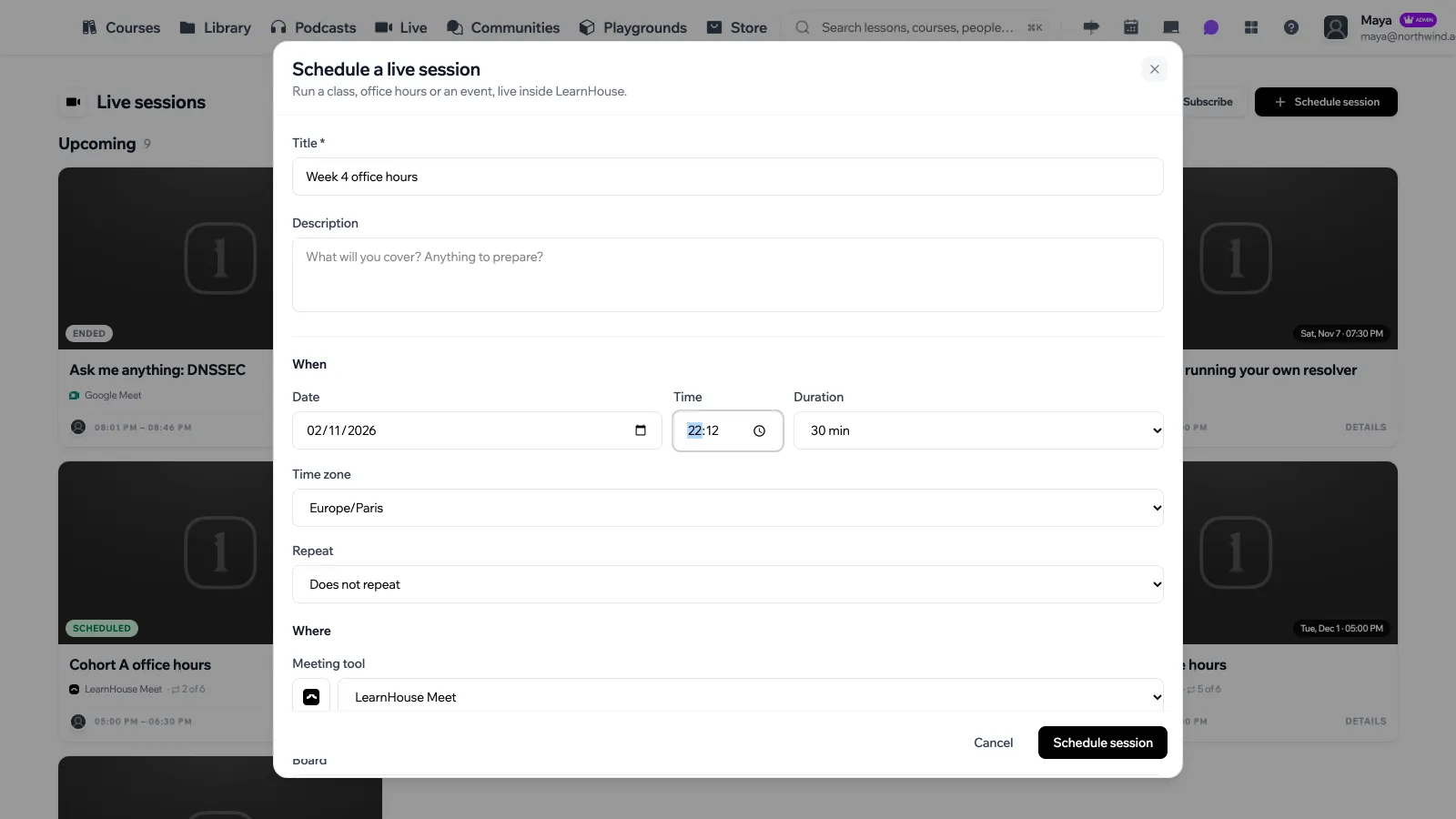
- Click Schedule session.
- Give it a Title and an optional Description.
- Under When, pick the Date, Time, Duration (15 minutes to 4 hours) and Time zone. The time is read in the time zone you pick, and every learner sees it in their own.
- Under Repeat, keep Does not repeat or choose Every day, Every week or Every month, and how many sessions the series has (2 to 52).
- Under Where, choose the Meeting tool. With LearnHouse Meet nobody needs another account. For other tools, paste the Meeting link, unless the provider is connected, in which case LearnHouse creates the meeting for you.
- Optionally pick a Board. Participants can open it from the room and draw on it together during the session.
- Set Who can join, a Course and an optional Capacity (see below).
- Click Schedule session.
Who can join
| Option | Who can see and join |
|---|---|
| Public | Anyone with the link can see the session. Joining still needs an account. |
| Members | Anyone in the organization. |
| Course learners | Only people enrolled in the course you pick. |
| User groups | Only the user groups you pick. |
Admins set the default under Live sessions → Settings → Defaults. Leave Capacity empty for no limit. When it is set, the session page shows how many spots are taken.
In the room
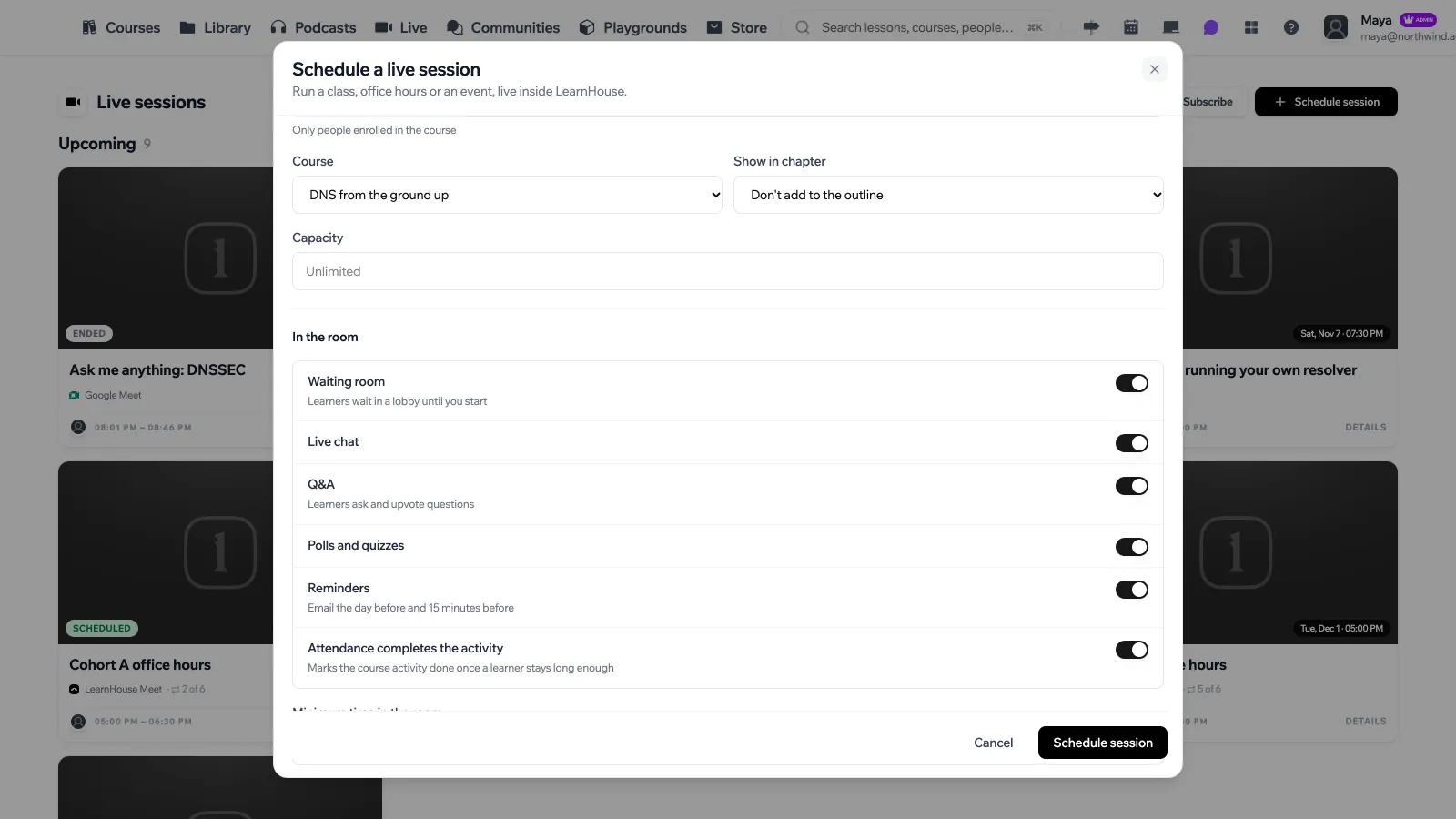
These switches decide what the room offers. Each one can be changed per session.
| Setting | What it does |
|---|---|
| Waiting room | Learners wait in a lobby until you start. |
| Live chat | A chat next to the video. |
| Q&A | Learners ask and upvote questions. |
| Polls and quizzes | You can launch polls and quizzes in the room. |
| Reminders | Email the day before and 15 minutes before. |
| Attendance completes the activity | Marks the course activity done once a learner stays long enough. Needs a linked course. |
With Attendance completes the activity on, choose the Minimum time in the room, from 10% to 100% of the session. The default is 50%.
Managing a session
Open a session from Live sessions in the dashboard. Its page has four tabs: General (every setting from the form), Attendance, Polls and Recordings. Open session page shows the learner page, and Go to room opens the room.
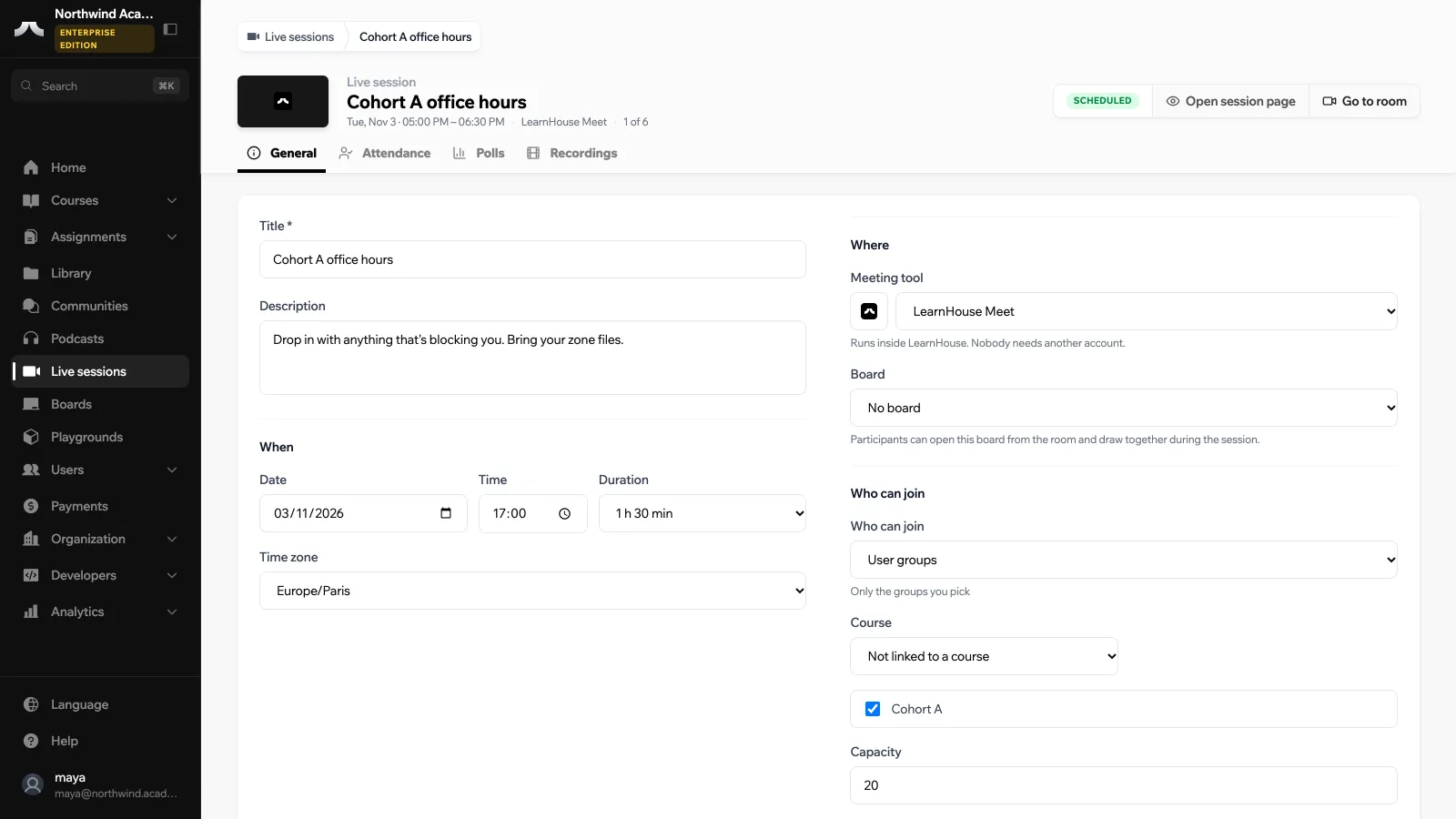
For a session in a series, changes can apply to this session only or with Apply to this and following sessions. The Danger zone has two ways to stop a session:
- Cancel session (or Cancel rest of series): learners see it as cancelled. Its attendance and recordings are kept.
- Delete session (or Delete rest of series): removes the session with its chat, polls, attendance and recordings.
RSVPs and reminders
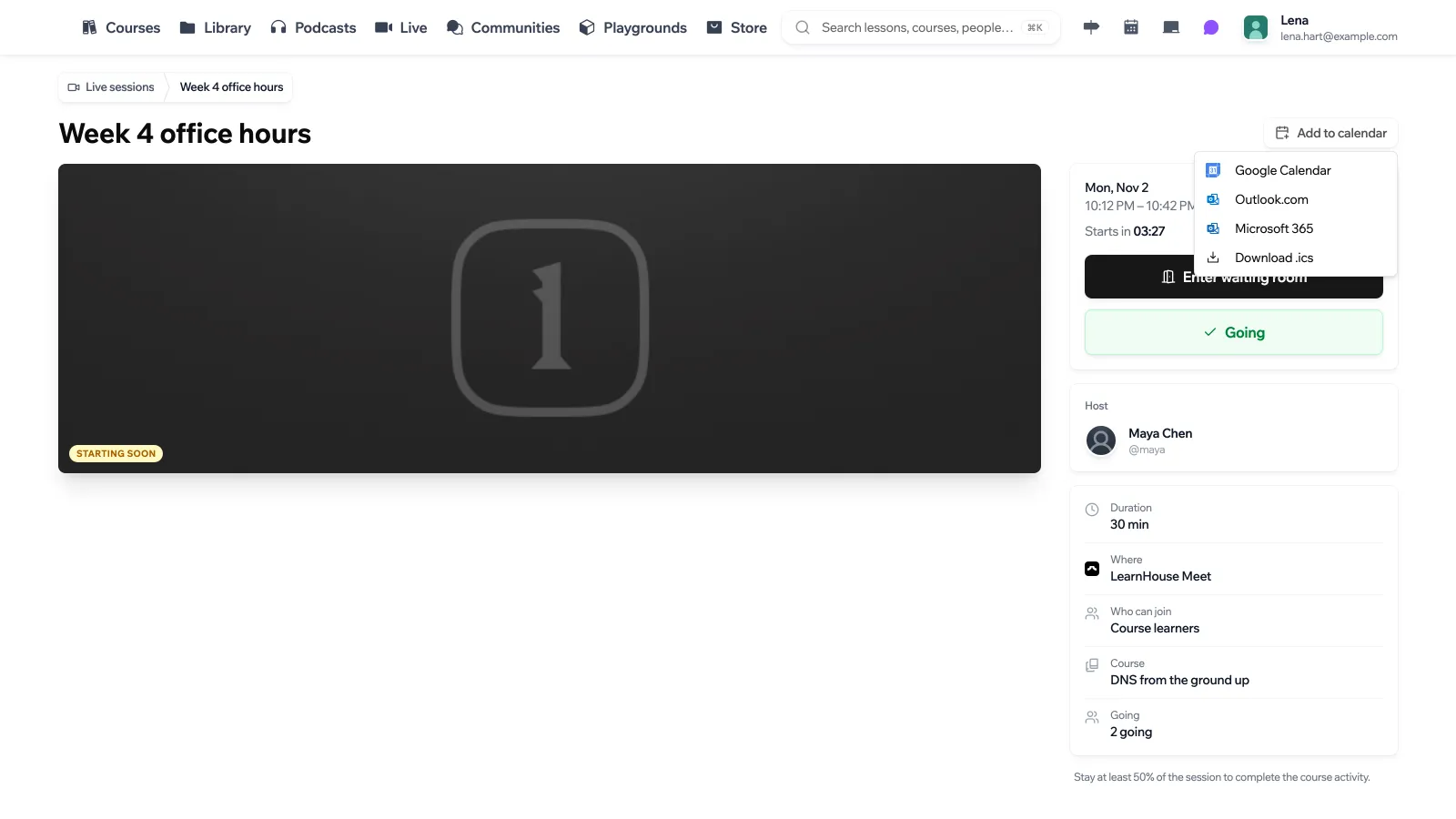
On the session page, learners see the date and time in their time zone, a countdown, the host, the meeting tool, who can join and how many people are going. They click RSVP to say they are going, and click it again to take it back.
People who RSVP get reminder emails (if the session has Reminders on) and, when Google is connected, a calendar invite that is updated when the session moves or is cancelled. Admins choose which reminders are sent under Settings → Reminders:
- Day before: an email 24 hours before, with calendar links.
- 15 minutes before: a last nudge right before it starts.
- When the host goes live: everyone who is going hears it started.
Reminders go to people who RSVP’d and to the host.
Adding sessions to a calendar
Add to calendar on a session page offers Google Calendar, Outlook.com, Microsoft 365 and Download .ics. For a series, you can download the whole series at once.
Subscribe on the Live page downloads an .ics file with the upcoming sessions you can see. Sessions also appear on your Calendar.
In the room
At class time, learners click Enter waiting room (or Join live once it started). With a waiting room, they wait in the lobby, where they can check their camera and microphone. When the host clicks Go live, everyone waiting is let in. End for everyone closes the session.
Learners must be signed in to join, so their attendance is recorded.
The side panel has these tabs:
| Tab | What it does |
|---|---|
| Chat | Messages for everyone in the room. |
| Q&A | Learners ask questions, or Ask anonymously to hide their name from other learners (the host still sees it). Others Upvote them, and the host can Pin a question or mark it Answered. |
| Polls | The poll or quiz the host launched. Quizzes reveal the correct answer when the host closes them. |
| People | Who is in the room, and who is waiting. |
| Rooms | Breakout rooms (host). |
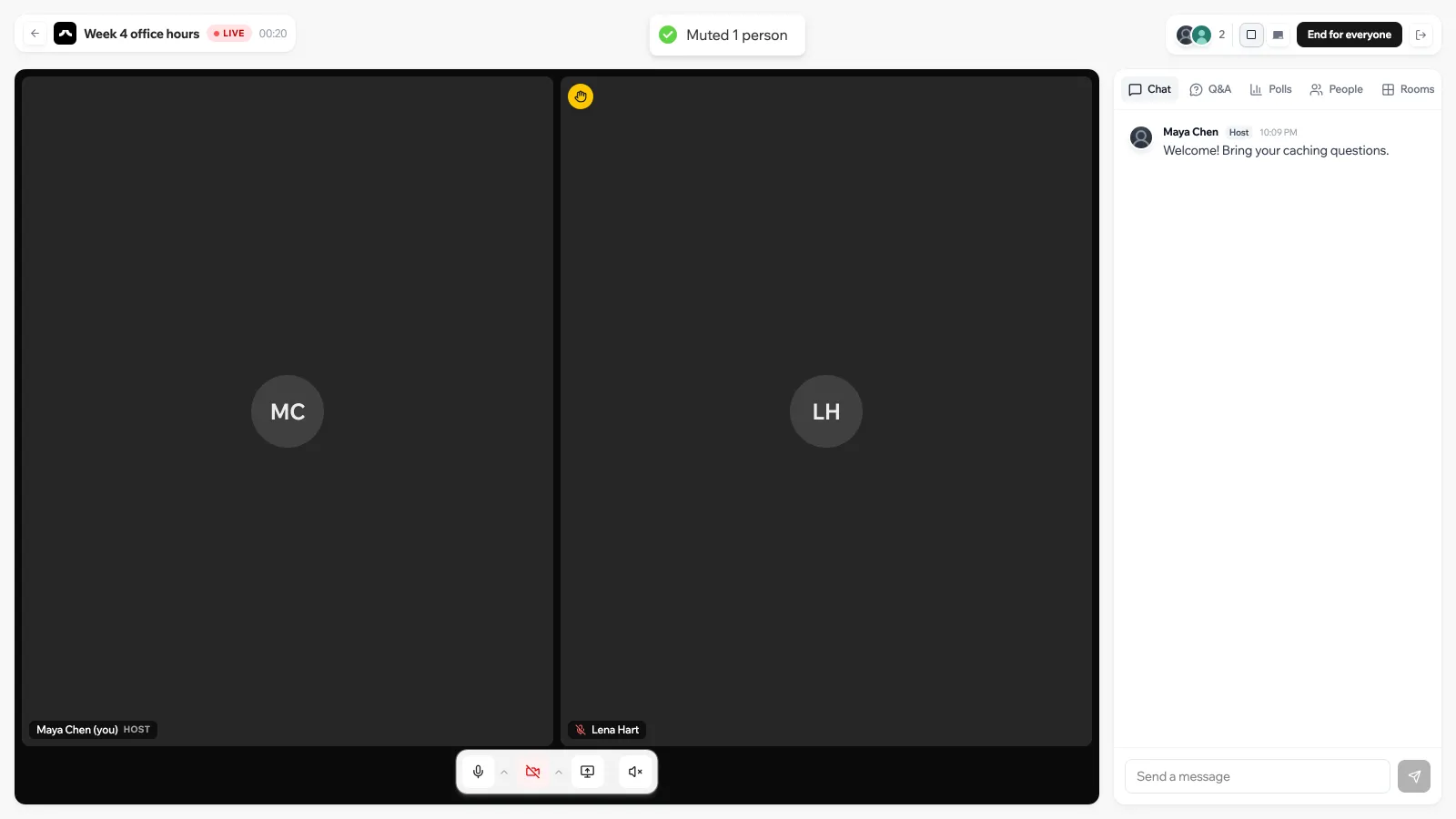
LearnHouse Meet controls
In LearnHouse Meet, everyone can turn their microphone and camera on and off, pick devices, share their screen and Raise hand. Hosts can also:
- Mute everyone, or mute one person.
- Remove from call: the person leaves the video, but keeps chat and Q&A in the side panel.
- Start recording and Stop recording, when recording is set up. Everyone in the call sees that it is recording, and the file appears under Recordings shortly after.
With another meeting tool, the room shows Join on the provider with a button to open the meeting in a new tab. Learners keep the LearnHouse page open next to it for chat, Q&A and polls, and their attendance is counted while that page is open.
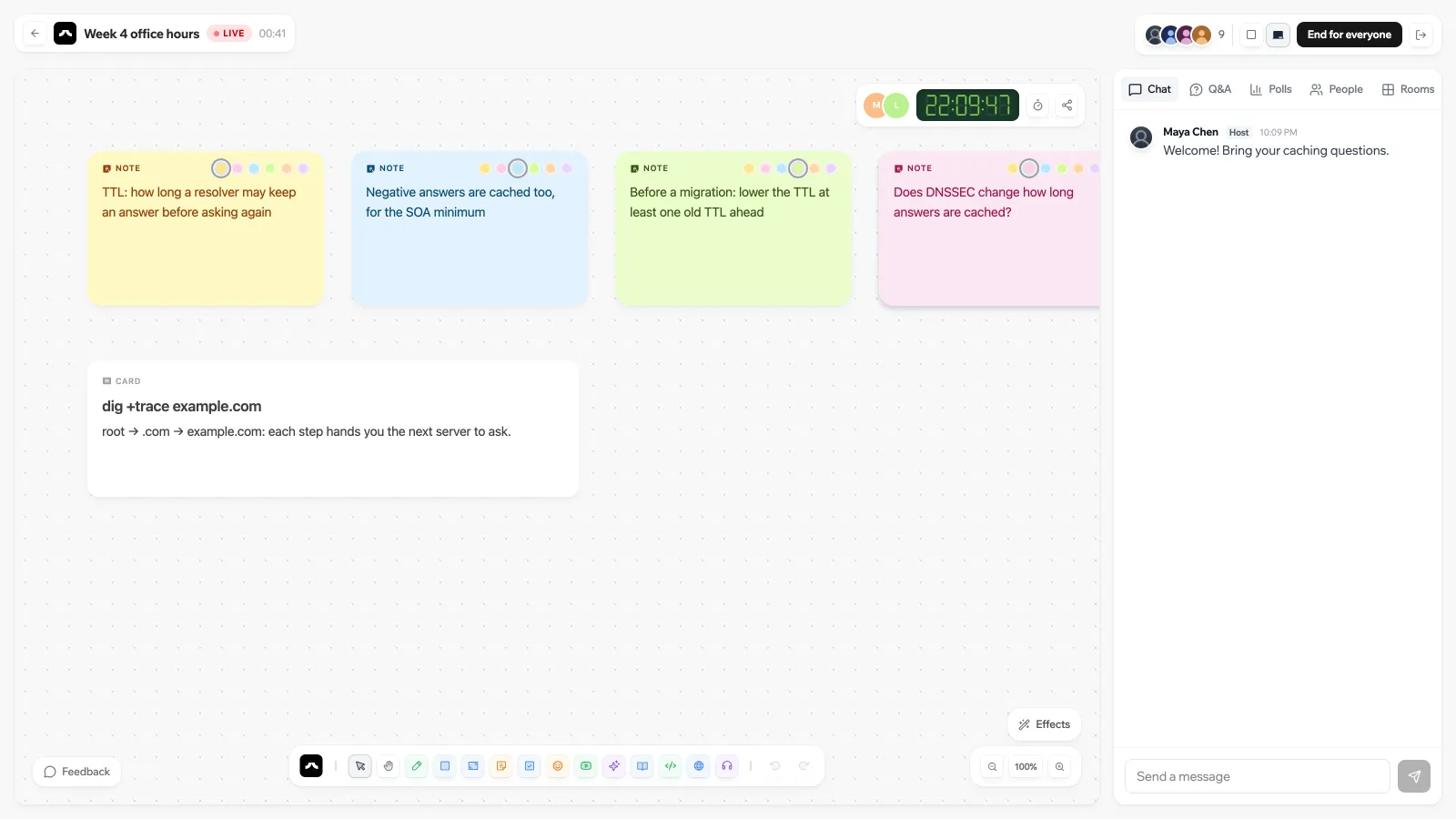
The board
If the session has a board, Board opens it in the room. Organization members in the room can edit it for as long as they stay in the class, even if they are not members of the board. Guests of a public session only watch. See Boards.
Polls and quizzes
Prepare polls ahead of time in the session’s Polls tab with New poll, then Launch them from the room, or create and launch one on the spot. Choose Poll or Quiz: a quiz needs a correct answer, and learners see whether they got it right once you close it. The Polls tab shows Who answered what.
Breakout rooms
Once you are live, open Rooms and click Open breakout rooms to split the room into small groups. Choose the number of rooms and an optional Time limit. You can Move to room any participant, and each room has its own private chat. Bring everyone back closes the rooms.
Attendance
The Attendance tab shows Registered, Attended, Average time, Met threshold and No-shows (people who said they were going but never joined). The table lists each person’s first join, time in the room, number of joins and whether they completed the course activity. It updates live during the session. Export CSV downloads it.
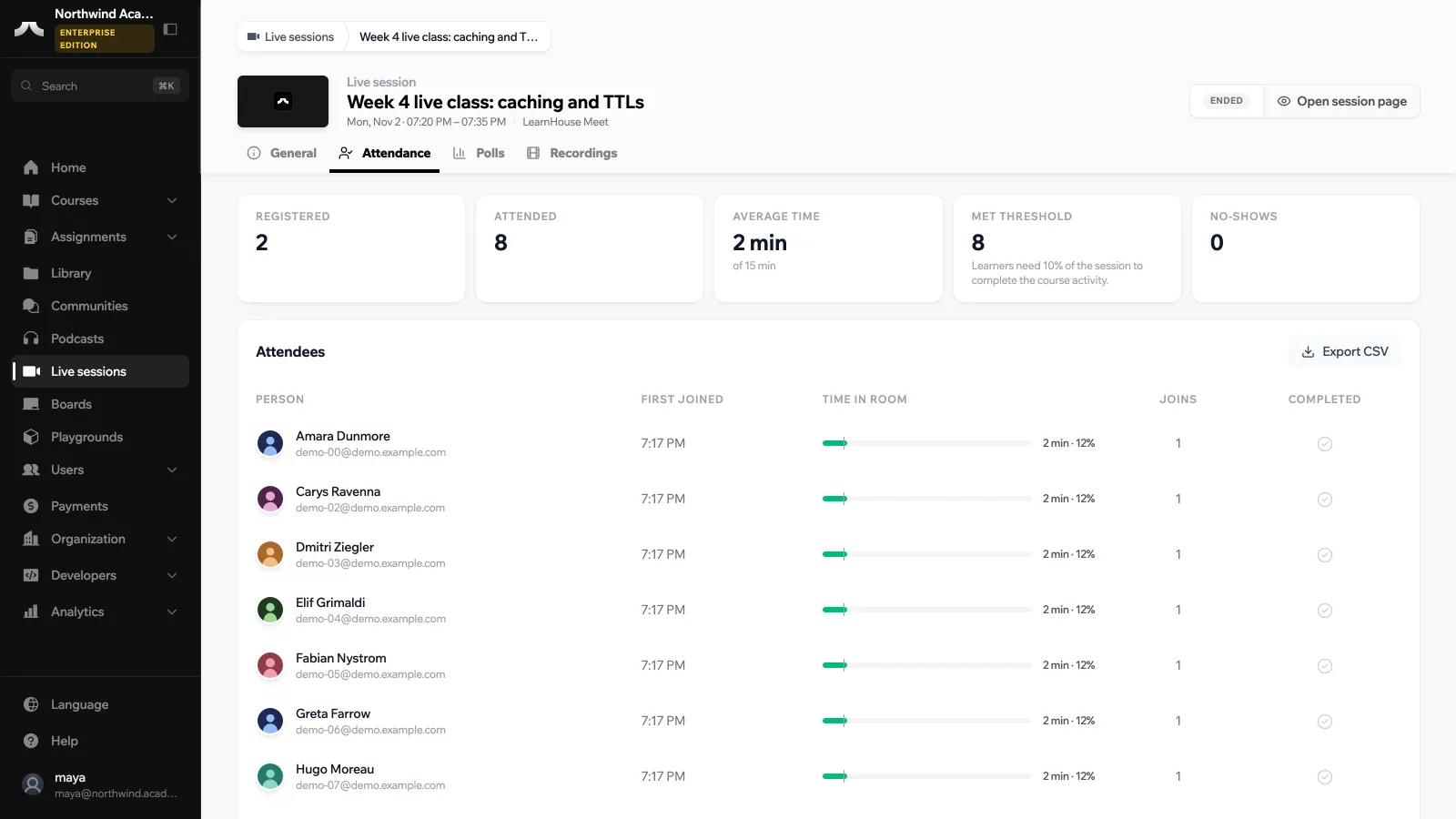
With Google Meet or Zoom connected, attendance from the meeting is imported after class.
Recordings
The Recordings tab holds the session’s recordings:
- LearnHouse Meet recordings are added automatically.
- Add a recording with Upload (a video or audio file, stored with your organization’s media) or Link (YouTube, Vimeo, a Zoom, Meet or Teams share link, or a direct video file).
- With Zoom connected, Import from Zoom brings in the meeting’s cloud recordings.
Add a transcript (paste text or a WebVTT file), or click Transcribe with AI on an uploaded recording. Then Summarize with AI writes an AI summary with Key points and Action items. Add to course publishes the recording to a chapter of the linked course.
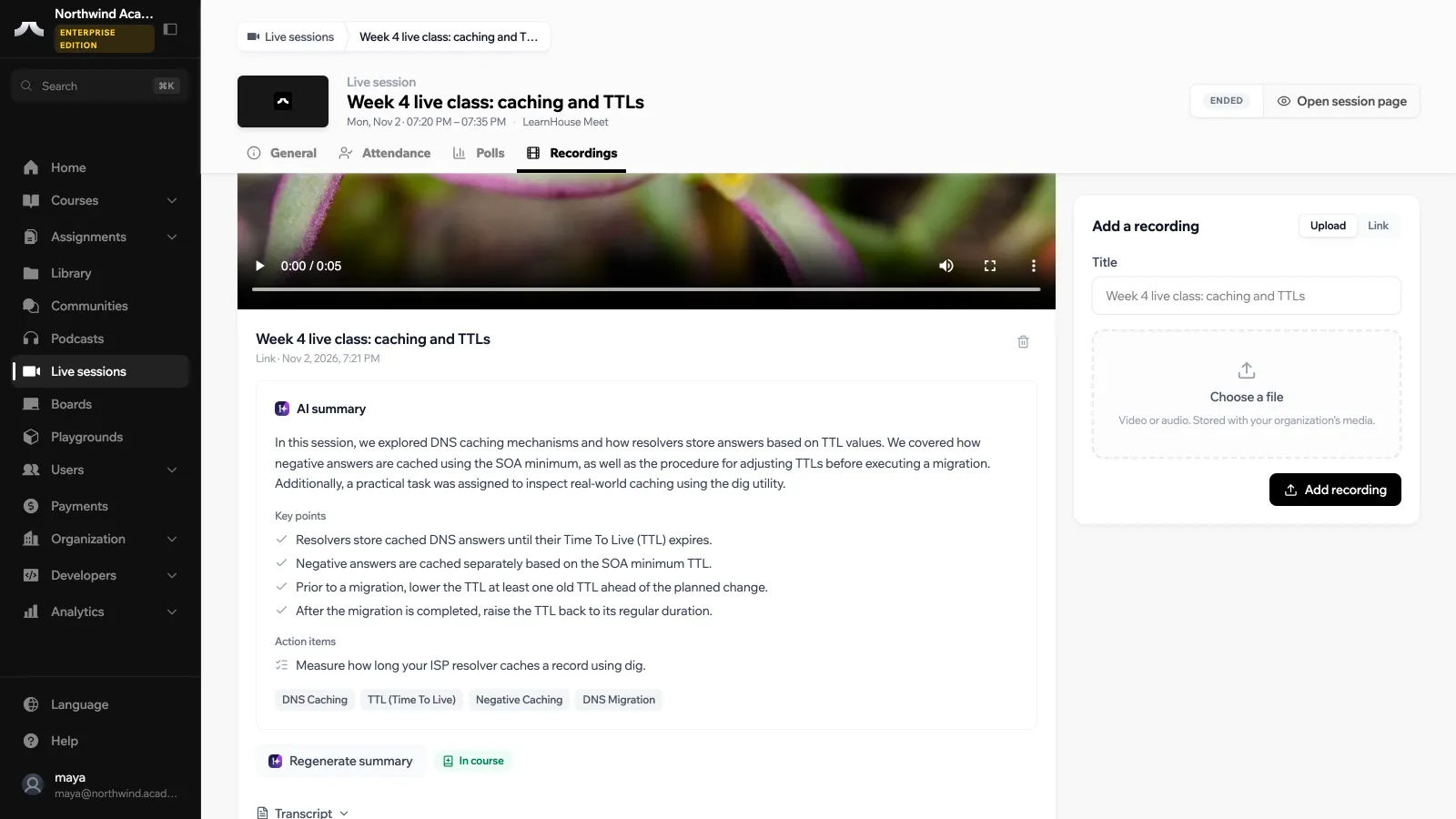
Learners find recordings on the session page and under Past & recordings on the Live page.
Live sessions in a course
A session linked to a course can appear in its outline as a Live session activity. When scheduling, pick the chapter under Show in chapter. From the course editor you can also add a Live session activity to a chapter, and either Use an existing session or Schedule new.
Learners open the activity to RSVP, join, and later watch the recording. With Attendance completes the activity on, the activity counts as done once they stay long enough.
Settings
Organization admins manage live sessions under Live sessions → Settings:
- Live sessions: turn the feature on or off. Turning it off hides sessions from learners. Nothing is deleted.
- Meeting providers: turn each provider on or off, and Make default the one new sessions start with. LearnHouse Meet is always on. Connect Google or Zoom here (see below).
- Defaults: who can join new sessions by default.
- Reminders and Calendar invites.
On LearnHouse Cloud, everything below is already set up. The rest of this page is for self-hosted Enterprise installs.
Self-hosted setup
LearnHouse Meet
LearnHouse Meet is the built-in video room. Its media server ships with the Enterprise package as apps/meet, a LiveKit server you run once for the whole instance. Organizations never see or configure it.
cd apps/meet
cp .env.example .env    # API key/secret, TURN domain, optional recording storage
docker compose up -d                      # video
docker compose --profile recording up -d  # video + recording
Put TLS in front of port 7880 and open TCP 7881, UDP 3478, TCP 5349 and UDP 50000-60000 on the host. Then set on the LearnHouse API:
| Variable | Description |
|---|---|
LEARNHOUSE_MEET_URL | Public websocket URL of the media server, for example wss://meet.example.com. |
LEARNHOUSE_MEET_API_KEY | API key from apps/meet/.env. |
LEARNHOUSE_MEET_API_SECRET | Matching secret. Signs room tokens and checks the media server’s webhooks. |
LEARNHOUSE_MEET_INTERNAL_URL | Optional. How the API reaches the media server on a private network, for example http://meet:7880. |
LEARNHOUSE_MEET_RECORDING | true when the recorder runs. Gives hosts a record button. |
Every participant gets a room token signed by the API for one room, valid for four hours; only the session’s hosts get host rights. Muting, removing people and recording go through the API, never through a browser. Finished recordings are uploaded to your storage and attached to the session automatically.
Until these are set, sessions on LearnHouse Meet show Video isn’t set up on this server yet; chat, Q&A and polls still work, and Google Meet, Zoom and pasted links keep working.
Google Meet and Zoom
Org admins connect their own Google or Zoom account from Live sessions → Settings. Once connected, LearnHouse creates the meeting, sends calendar invites to everyone who RSVPs, keeps the invites in sync when the session changes or is cancelled, and imports attendance, recordings and transcripts after class.
To let admins connect with a single click, register one OAuth app per provider for your instance and set its credentials:
| Variable | Description |
|---|---|
LEARNHOUSE_LIVE_GOOGLE_CLIENT_ID / LEARNHOUSE_LIVE_GOOGLE_CLIENT_SECRET | Google Cloud OAuth client (web application). Enable the Google Calendar API and the Google Meet REST API. |
LEARNHOUSE_LIVE_ZOOM_CLIENT_ID / LEARNHOUSE_LIVE_ZOOM_CLIENT_SECRET | Zoom OAuth app (user-managed). |
LEARNHOUSE_LIVE_OAUTH_REDIRECT_URI | Optional. The exact callback URL, if your proxy hides the API’s public URL. |
Register https://<your API host>/api/v1/live_sessions/oauth/callback as the redirect URI in each app.
If you leave a provider unset, org admins can still connect it: the settings page offers Use your own app, where they enter their own client ID and secret. The secret is stored encrypted.
Permissions to grant
- Google:
openid,email,https://www.googleapis.com/auth/calendar.events,https://www.googleapis.com/auth/meetings.space.readonly. - Zoom: meeting read/write, cloud recording read and past meeting participants read.
