Members & Invites
This page covers the Users, Signups & Invite Codes and Invite Members tabs under Users in the dashboard.
The Users list
The Users tab lists everyone in the organization, 10 per page. Use Search users… to find someone, and Filters to narrow by role, by verification status (Verified or Unverified) or by user group. Each row shows the member’s groups, role and how they signed up (Email, Google, and so on).
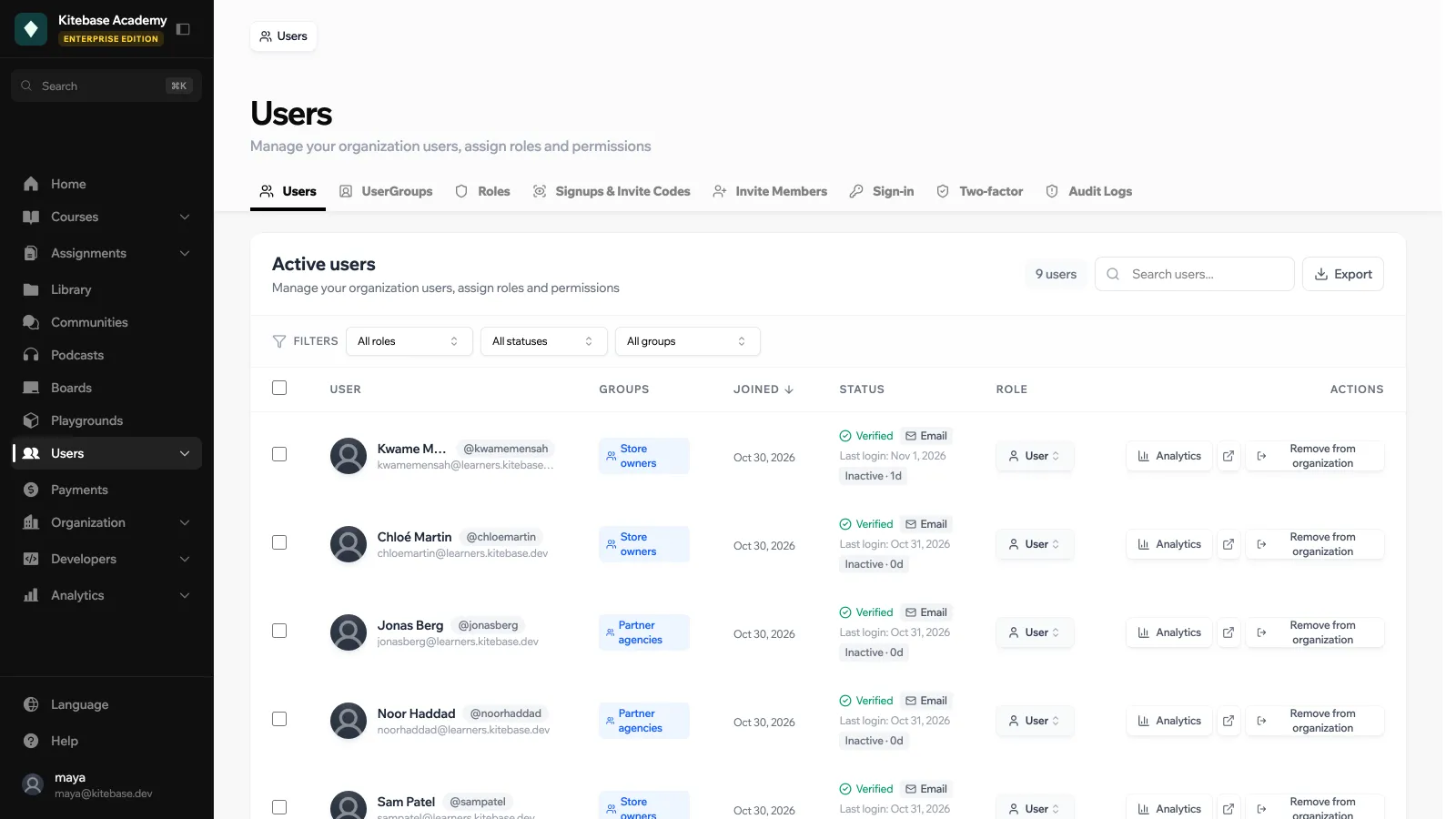
For each member you can:
- Change their role with the role dropdown. You cannot change your own role.
- Analytics: open a quick view of the learner’s record, or Open full analytics page. See Learner Analytics.
- Remove from organization: takes them out of this organization. Their account and their other organizations are kept.
Select several rows to act on them together: Compare analytics shows a side-by-side table, Export analytics downloads their records, and Remove selected removes them all.
The download icon next to the search box exports the member list as CSV.
Only roles that can manage the organization (Admin and Maintainer by default) can change roles or remove members.
Signup mode
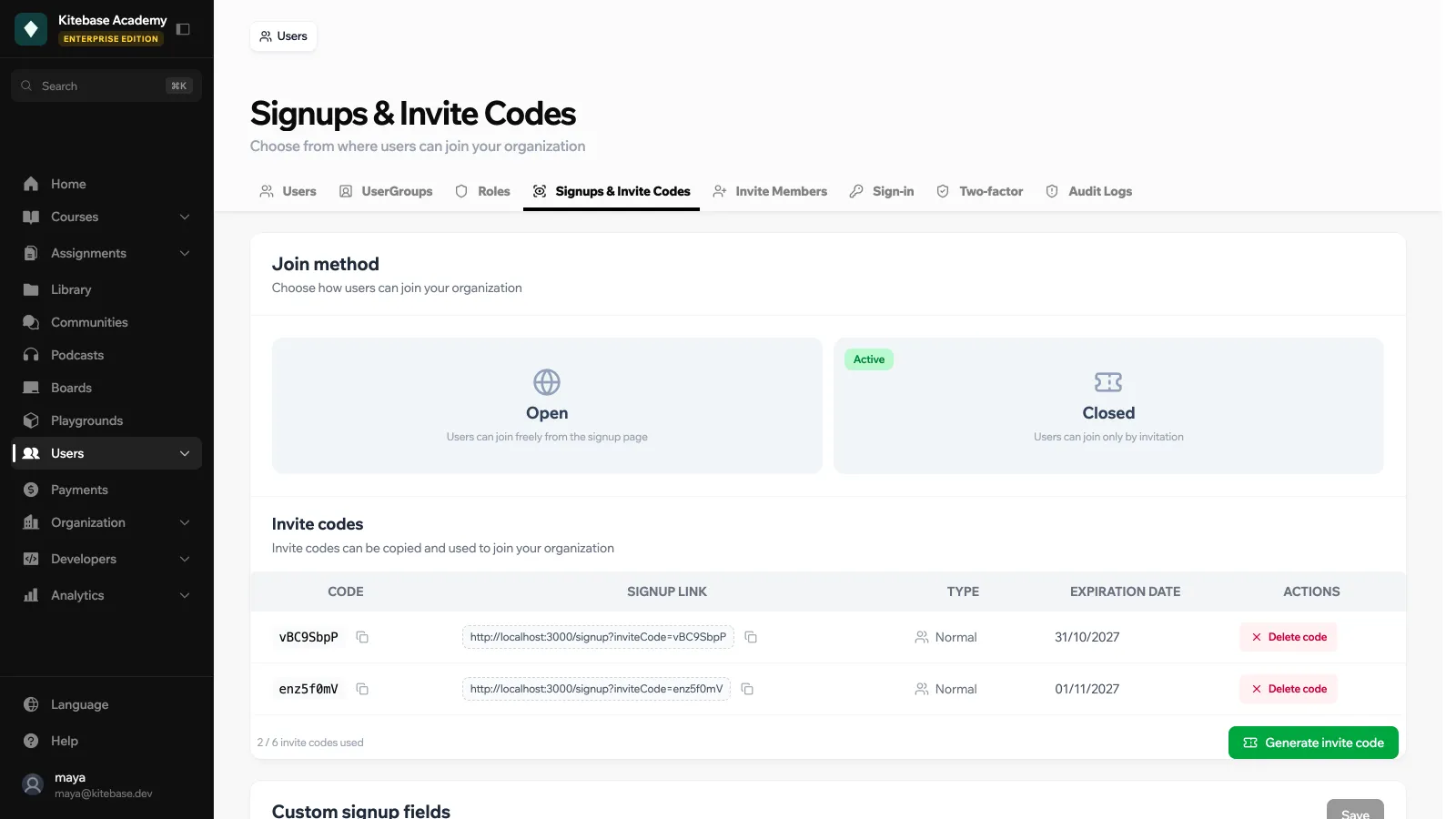
On Signups & Invite Codes, Join method decides how new people can join:
| Option | Behavior |
|---|---|
| Open | Users can join freely from the signup page. This is the default. |
| Closed | Users can join only by invitation: an email invite or an invite code. Google sign-up is refused without a valid invite. |
Invite codes
Invite codes are shareable links for a Closed organization. The section is greyed out while the join method is Open.
- Click Generate invite code.
- Choose Normal Invite Code, or Invite Code linked to a UserGroup to add everyone who signs up with it to that group.
- Copy the code or its signup link (
/signup?inviteCode=...) and share it.
| Limit | Value |
|---|---|
| Codes per organization | 6 at a time |
| Code format | 8 letters and digits |
| Lifetime | 1 year, then the code stops working |
Delete a code from the table to revoke it.
Custom signup fields
Custom signup fields add extra questions to the signup form. Answers are saved on each member’s profile.
- Field types: Text, Long text, Dropdown, Checkbox, Number, Date.
- Options per field: Required, Help text, Max length (text), Min and Max (number), and Options (one per line) (dropdown).
- Up to 40 fields. Text answers are capped at 2,000 characters.
Field labels are public: anyone who opens the signup page can read them.
Inviting people by email
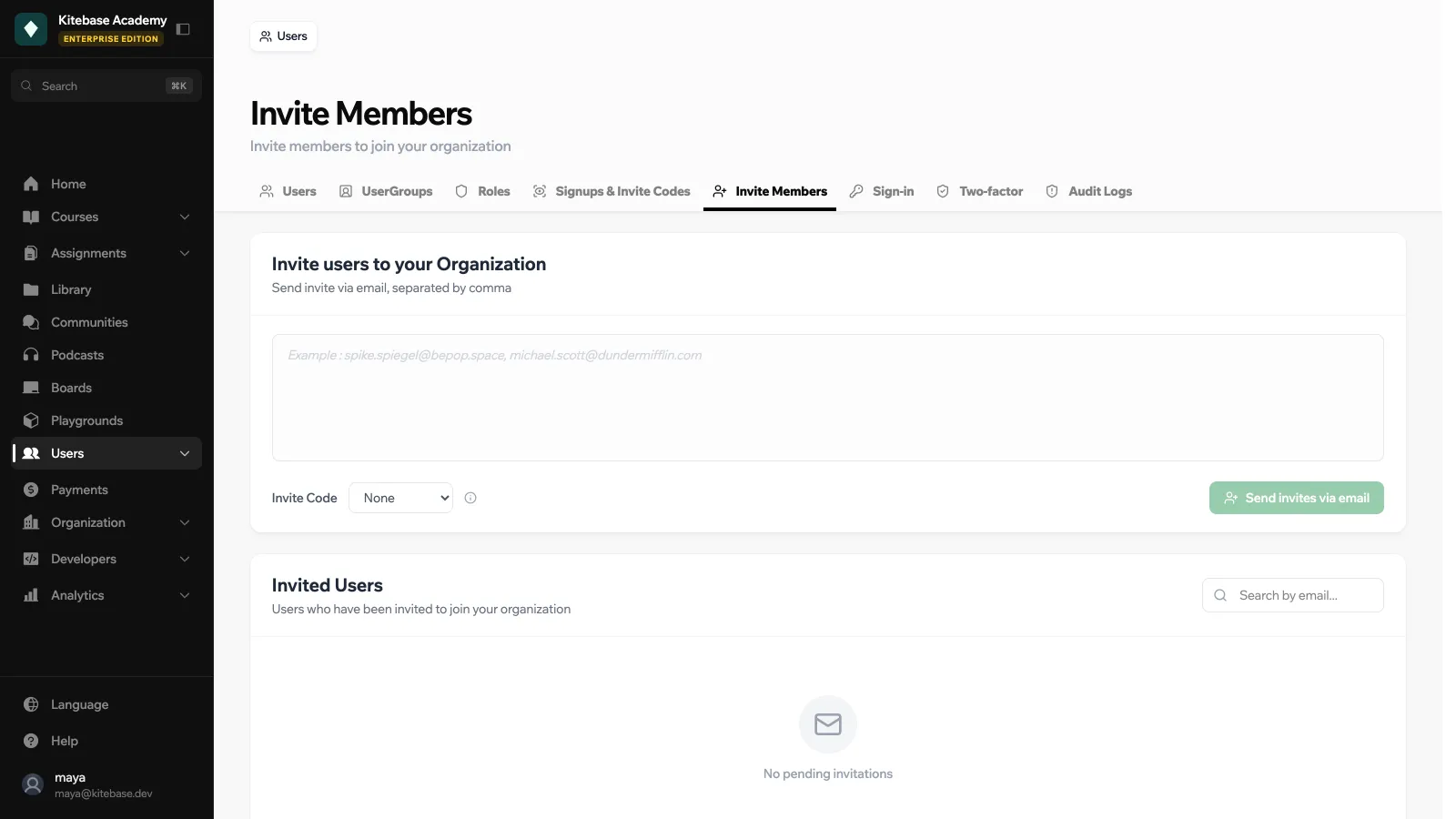
On Invite Members, enter email addresses separated by commas and click Send invites via email. You can attach an Invite Code so that invitees land in the code’s user group.
| Limit | Value |
|---|---|
| Emails per batch | 25 |
| Invites per day | 100 per organization and 100 per inviting user |
| Invitation lifetime | 60 days |
Duplicates and malformed addresses are skipped. The result tells you how many invites were sent, failed or were already pending.
The Invited Users table shows each invite’s Signup Status (Pending or Signed up) and whether the email was sent. Use Remove to cancel a pending invite.
Each invitation fires the user_invited_to_org event for webhooks and Zapier.
On the LearnHouse Cloud free plan, both the organization and your own account must be at least 7 days old before you can send invites or create invite codes. Paid plans are not affected.
