Drip Content
Drip content releases a course one chapter at a time instead of all at once. You set when each chapter opens, and learners see what is coming next and when. Locked chapters stay locked on the server, so a learner can’t skip ahead with a direct link.
On LearnHouse Cloud, drip content needs the Standard plan or higher. Self-hosted instances do not apply this plan restriction.
Turning it on
Open a course from Courses in the dashboard and go to the Schedule tab.
Switch drip content on
Turn on Drip content at the top of the tab. Until you do, every chapter is available at once.
Choose when the schedule starts
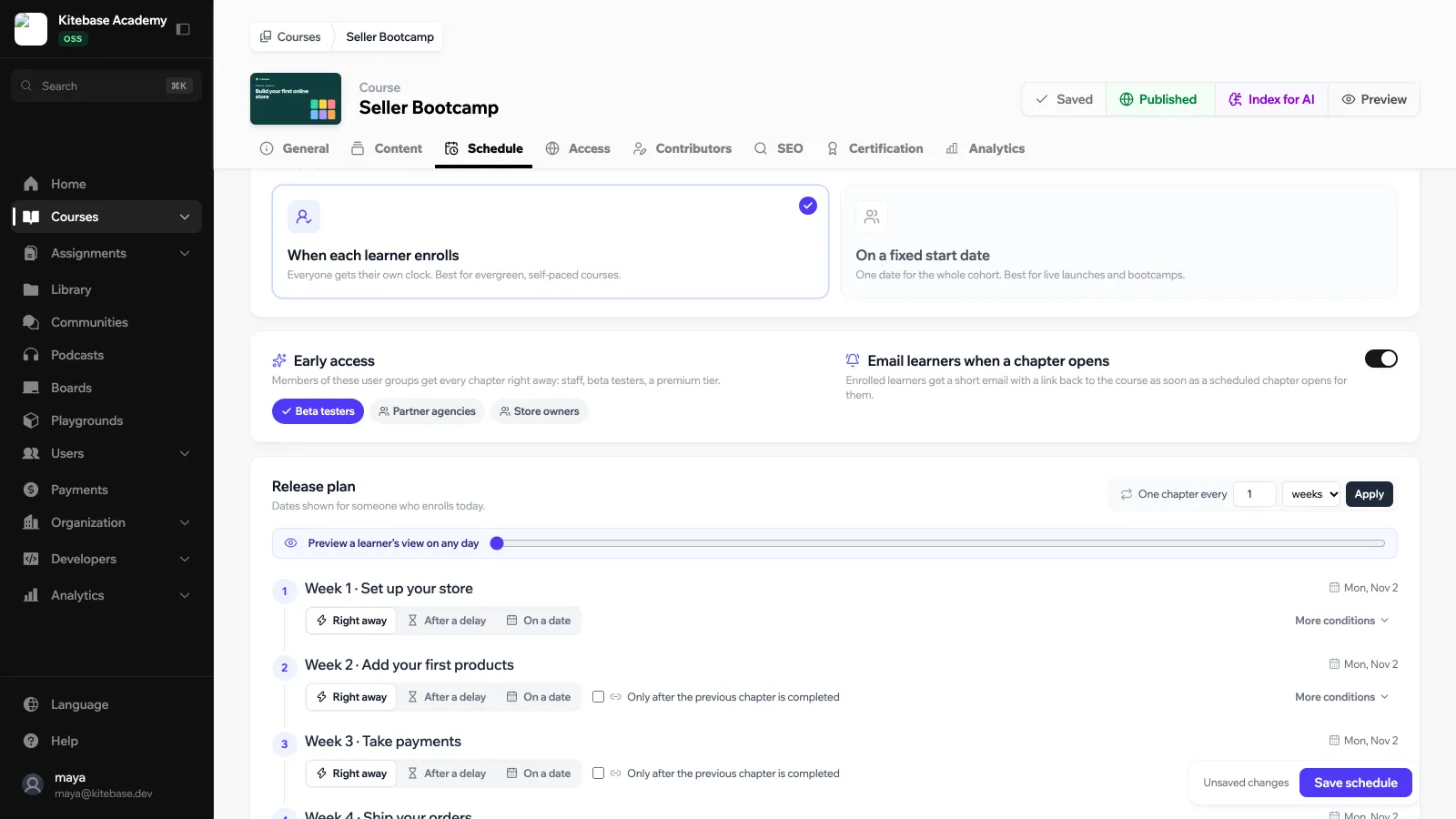
Under When does the schedule start?, pick one:
| Option | What it does |
|---|---|
| When each learner enrolls | Every learner gets their own clock, starting the first time they start the course. Best for self-paced courses. |
| On a fixed start date | One date for the whole cohort, set in Cohort starts on. Best for live launches and bootcamps. |
Set early access and emails
- Early access: pick the user groups whose members get every chapter right away, for example staff, beta testers or a premium tier.
- Email learners when a chapter opens: enrolled learners get a short email with a link back to the course as soon as a scheduled chapter opens for them. Emails are sent by a job that runs every hour.
Build the release plan
The Release plan lists every chapter of the course, with the date it opens for someone who enrolls today (or for the cohort, with a fixed start date). Give each chapter a rule:
| Rule | When the chapter opens |
|---|---|
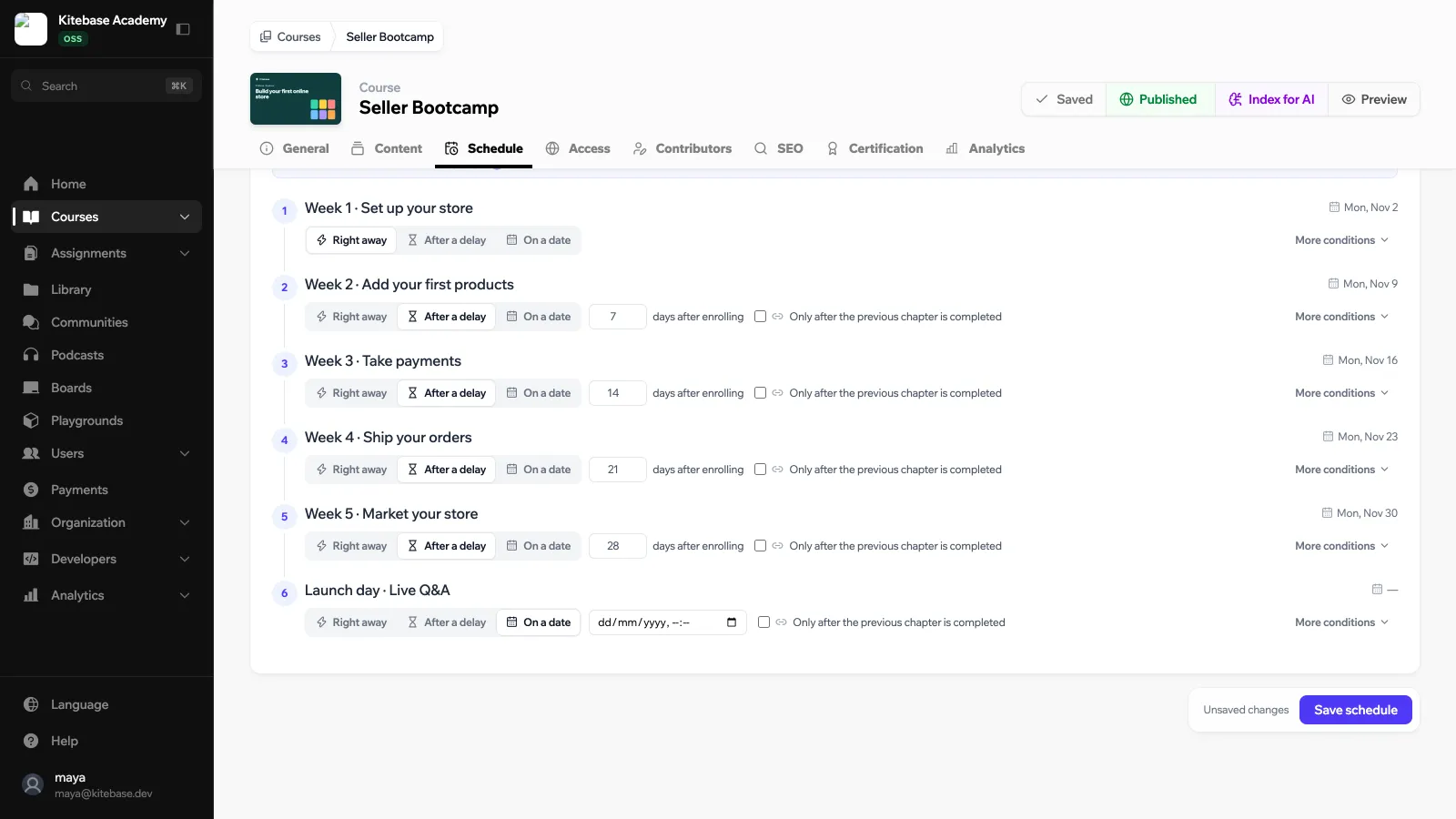
| Right away | As soon as the schedule starts. |
| After a delay | A number of days after the learner enrolls, or after the cohort start date. |
| On a date | On a fixed date and time, for everyone at once. |
To space chapters evenly, use One chapter every: enter a number, pick days or weeks and click Apply. The first chapter opens right away and each next chapter opens one interval later.
Tick Only after the previous chapter is completed to also wait until the learner has finished every published activity of the chapter before it.
Add more conditions
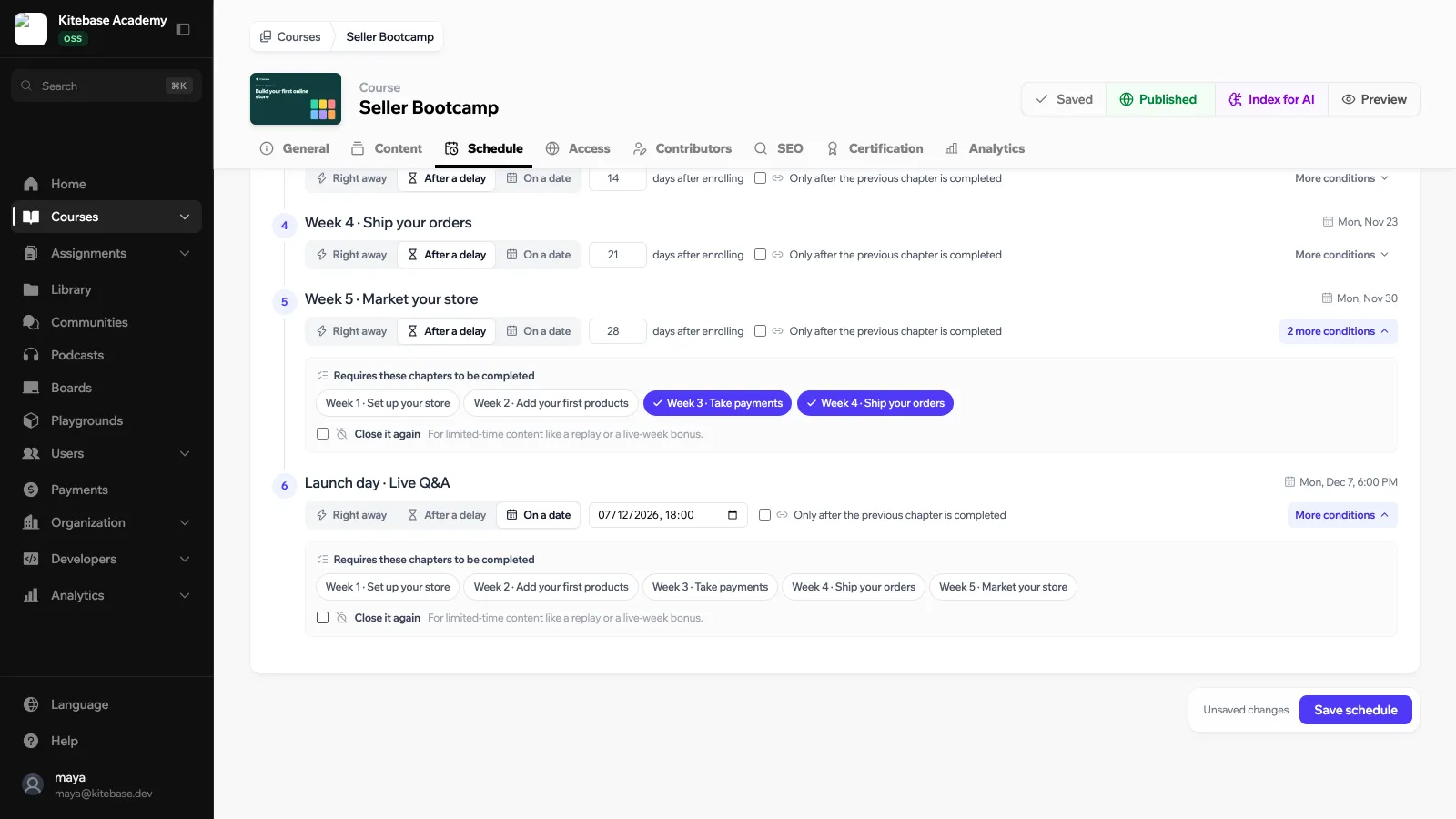
Click More conditions on a chapter for finer control:
- Requires these chapters to be completed: pick earlier chapters the learner must finish first.
- Close it again: the chapter closes a number of days after it opens (Days open). Use it for limited-time content like a replay or a live-week bonus.
Preview and save
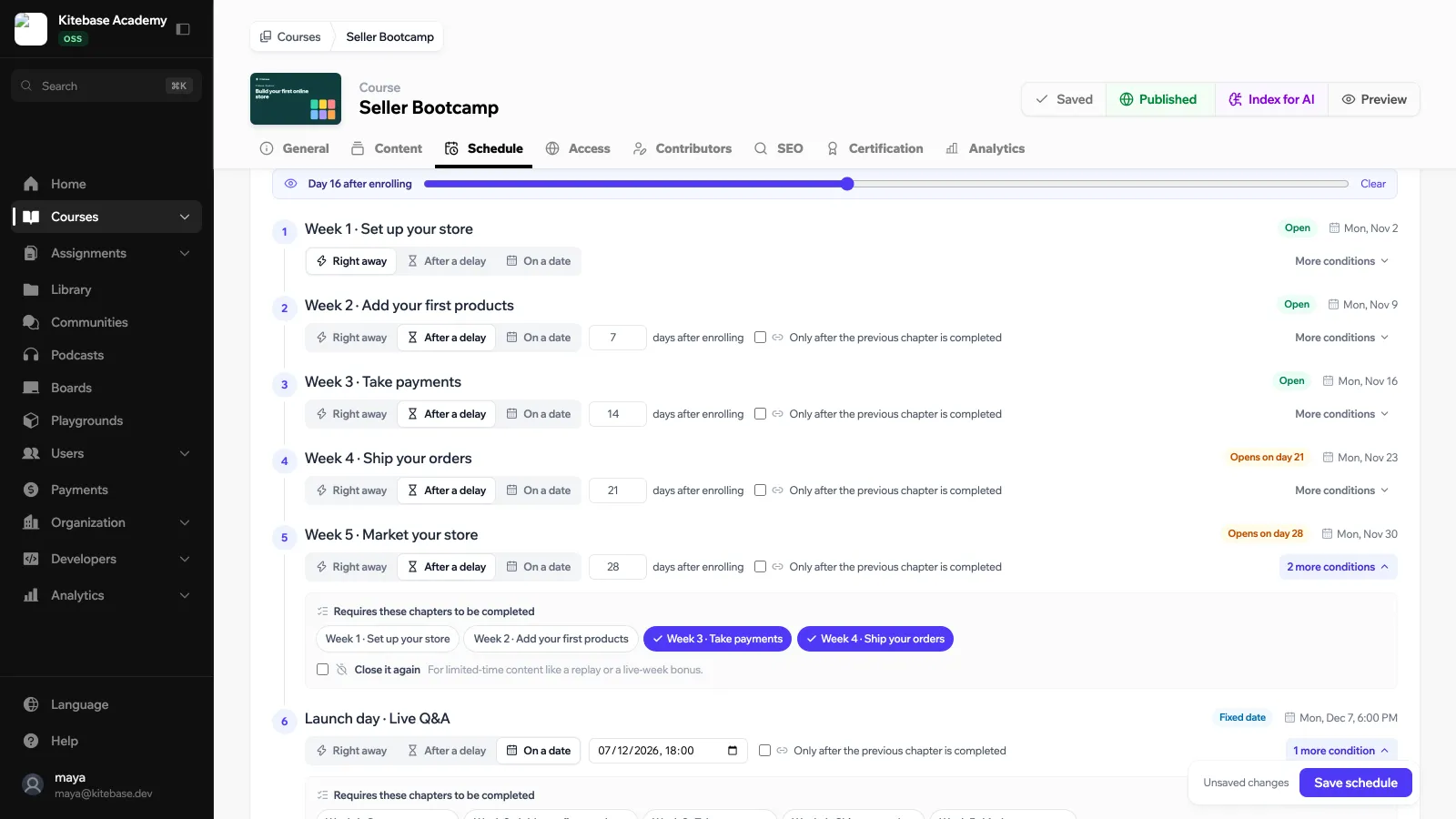
Drag the Preview a learner’s view on any day slider to see which chapters are Open, which open later (Opens on day N) and which are Closed on that day of a learner’s schedule. Click Clear to reset it.
Click Save schedule.
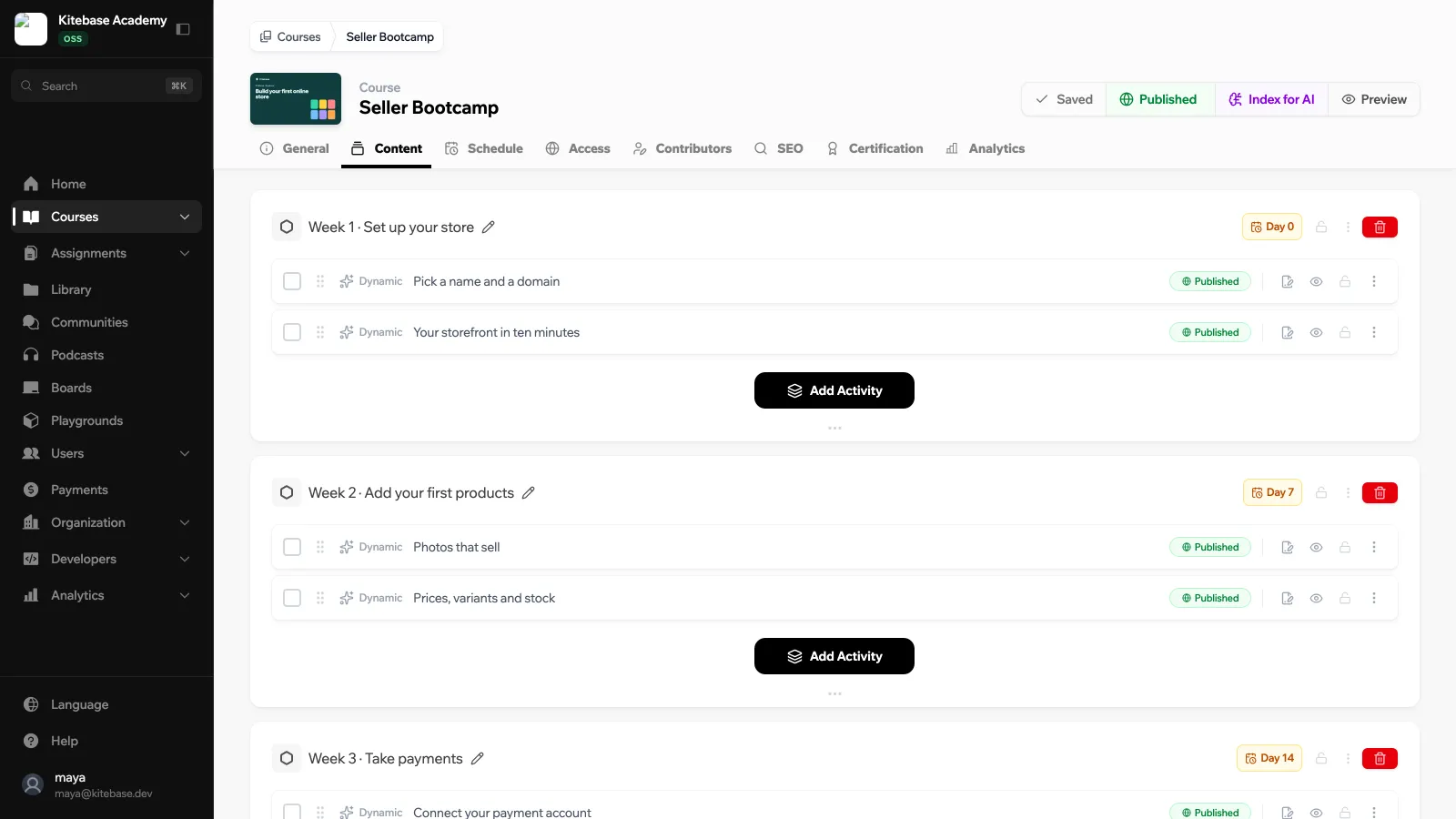
After you save, each scheduled chapter shows its release day (for example Day 7) in the course Content tab. Edit the rules from the Schedule tab.
What learners see
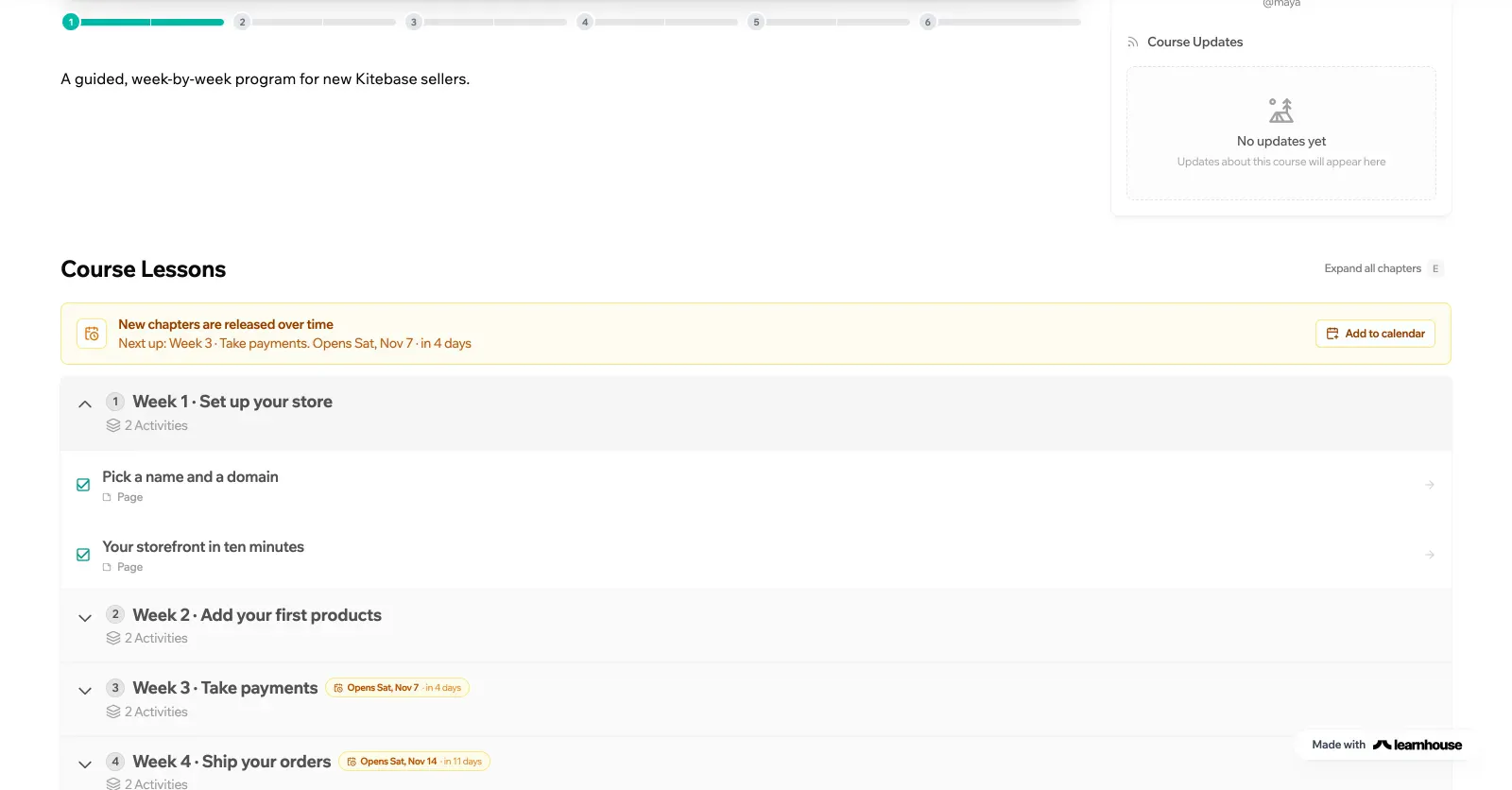
On the course page, a banner says New chapters are released over time and names the next chapter and when it opens. Upcoming chapters show their date (for example Opens Sat, Nov 7) and their lessons stay locked until then.
Click Add to calendar to download an .ics file with one event per upcoming release that has a known date, to open in any calendar app.
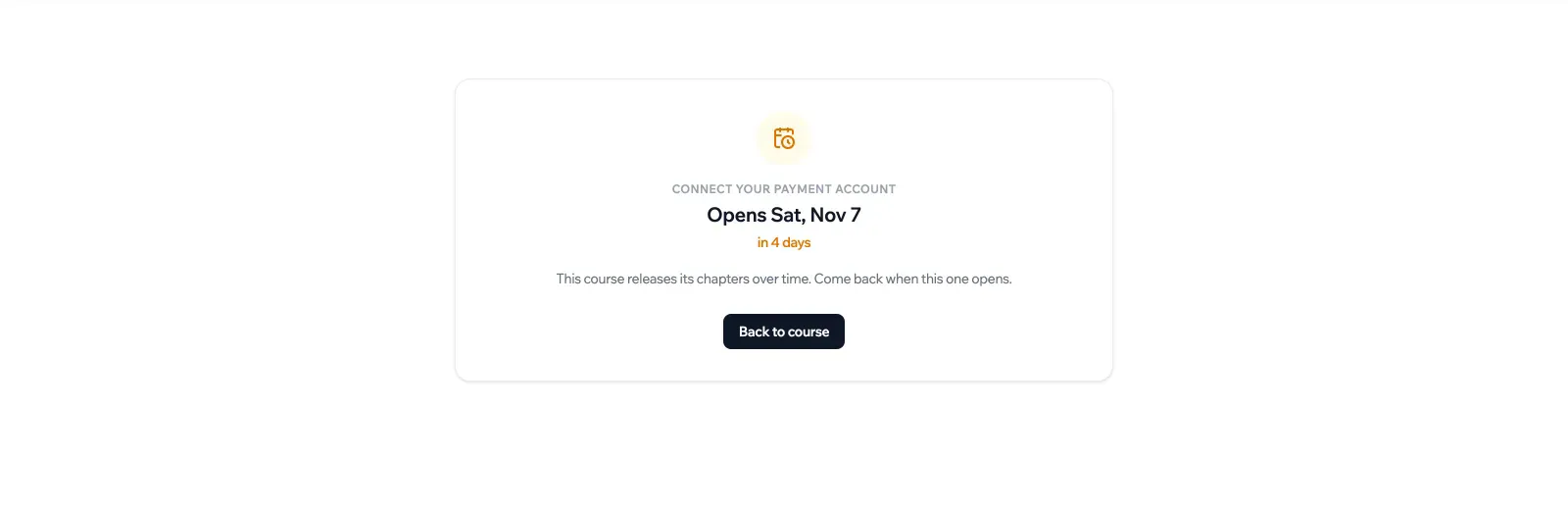
A learner who opens a locked lesson, even through a direct link, sees when it opens instead of the content:
| Why it is locked | What the learner sees |
|---|---|
| The release time is not reached yet | The opening date, and This course releases its chapters over time. Come back when this one opens. |
| The schedule starts on enrollment and the learner hasn’t started the course | A note to start the course from the course page to unlock their schedule. Chapters set to Right away stay open as a preview. |
| The previous chapter is not finished | Finish every lesson of the previous chapter and this one opens right away. |
| Required chapters are not finished | Finish the chapters this one builds on and it opens right away. |
| The chapter was open for a limited time | No longer available |
The lock is applied by the API, not only in the page. A locked lesson’s content, its files and media, its assignments and its progress are not sent to the learner, and the AI assistant does not answer from chapters that are not released yet.
Who is not affected
- Admins and anyone who can edit the course always see every chapter.
- Members of the Early access user groups get every chapter right away.
Drip content works on whole chapters. To hide or reveal part of a page instead, for example a note that appears after the first week, use a conditional block with the After a week preset.
Turning it off
Switch Drip content off and click Save schedule. Every chapter becomes available again. The chapter rules are kept, so turning it back on restores the same schedule.
