Learner Analytics
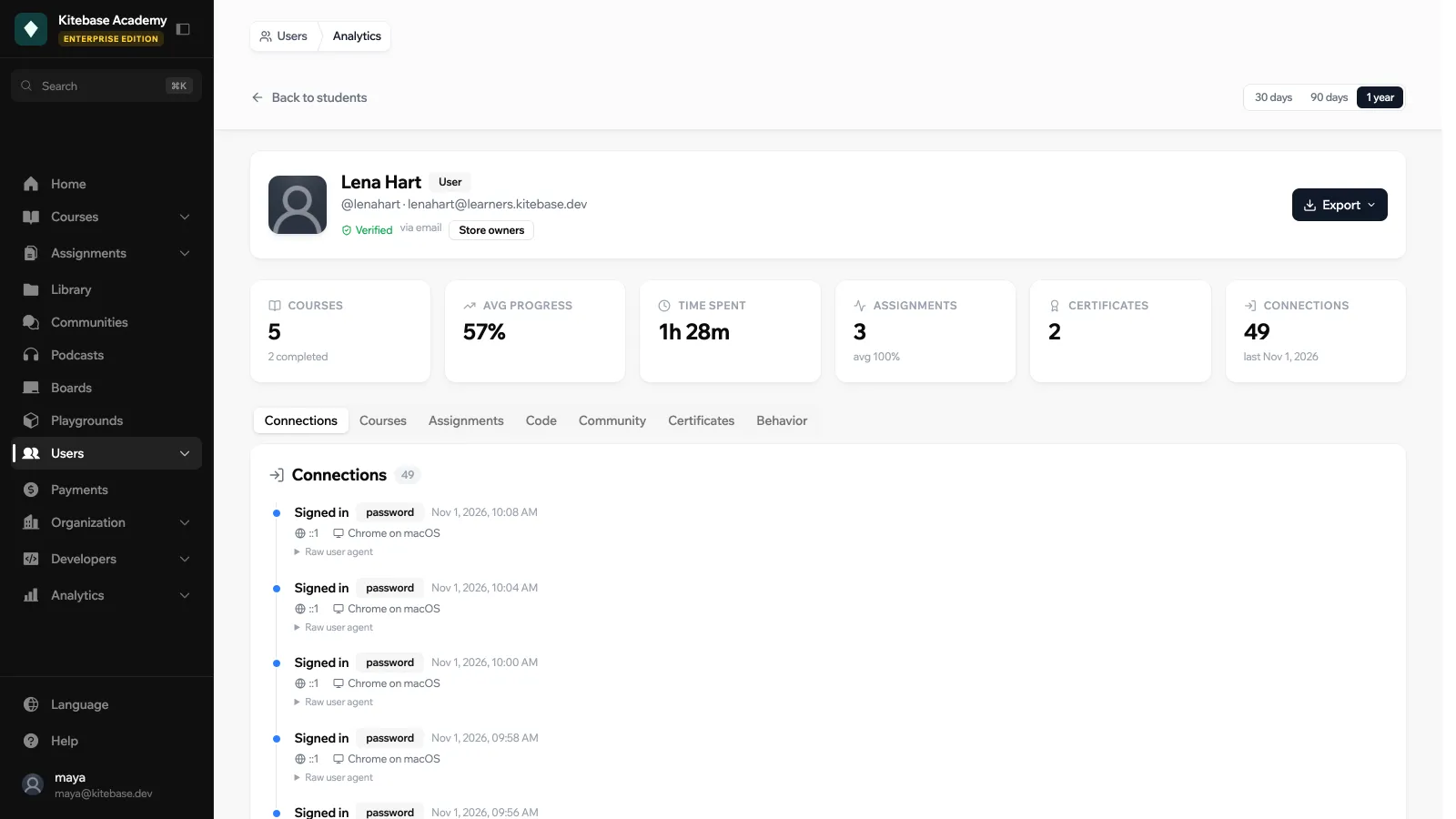
Learner analytics gathers everything one member has done in your organization on a single page: courses, assignments, code exercises, community activity, certificates and sign-ins.
Learner analytics needs the Pro plan or higher on LearnHouse Cloud, or the Enterprise Edition when self-hosted. Only organization admins can open it.
Opening a learner’s record
Go to Users → Users and, on the member’s row:
- Click Analytics (tooltip “View student analytics”) for a quick view in a modal.
- Click Open full analytics page for the full page, at
/dash/users/analytics/<user id>.
Pick the time range at the top: 30 days, 90 days or 1 year.
What the record shows
The header shows the member’s identity, a Verified or Unverified badge for their email, and how they signed up. Key numbers follow: Courses, Avg progress, Time spent, Assignments, Certificates and Connections.
| Tab | Contents |
|---|---|
| Connections | Each recorded sign-in, with device and user agent |
| Courses | Course progress, with completed activities out of the total and the enrollment date |
| Assignments | Submissions, with the learner’s answers next to the expected answers, grades and feedback |
| Code | Code exercise submissions and their test results |
| Community | Discussions and comments the learner posted |
| Certificates | Certificates earned, with their credential ID |
| Behavior | Time by course, searches and page views. This tab needs analytics to be set up. |
Comparing and exporting
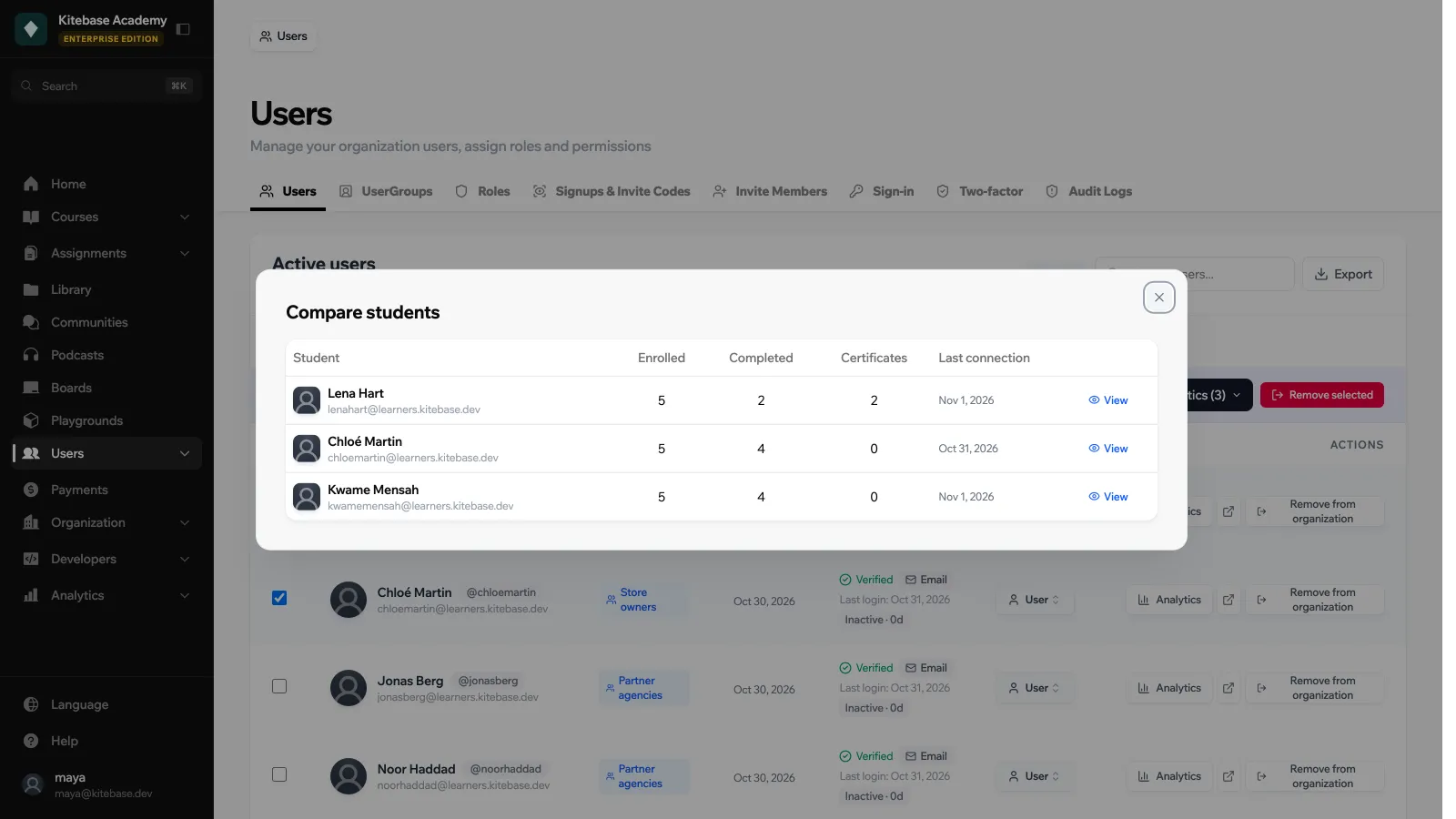
Select several members in the Users list to:
- Compare analytics: a Compare students table with enrolled courses, completions, certificates and last connection for each.
- Export analytics: download the selected records.
From a single record, Export downloads it as CSV, JSON or PDF. Turn on Include raw submission data to add the full submission contents.
