Two-Factor Authentication
Two-factor authentication (2FA) asks for a one-time code from an authenticator app every time you sign in. LearnHouse uses standard TOTP codes, so any authenticator app works (Google Authenticator, 1Password, Authy, and so on). There are no SMS or email codes.
2FA applies to password, magic link and Google sign-ins. After the first step, you have 5 minutes to enter the code.
Turning on 2FA for your account
Open your security settings
Go to your account settings and open Security. Under Two-factor authentication, click Enable.
Confirm your password
If your account has a password, enter it and click Continue.
Scan the QR code
Scan the code with your authenticator app. If you cannot scan it, use Or enter this setup key manually and Copy setup key.
Enter a code
Type the 6-digit code your app shows into Authentication code and click Verify and enable.
Save your backup codes
LearnHouse shows 10 backup codes. This is the only time these codes will be shown, so use Copy all or Download .txt, tick I have saved these codes somewhere safe. and click Done.
Each backup code works once, in place of an app code. The Security page shows how many you have left and warns you when 3 or fewer remain. Regenerate backup codes replaces the whole set (it asks for a code from your app).
To turn 2FA off, click Disable and confirm with your password and an app code or a backup code. This also deletes your backup codes.
If you lose your phone and your backup codes, an organization admin can reset your 2FA from the Two-factor tab (see below).
Requiring 2FA in your organization
Go to Users → Two-factor and turn on Require two-factor authentication.
| Setting | Options |
|---|---|
| Grace period | Immediately, 7 days, 14 days or 30 days. New members get the same window, counted from the day they join. |
| Exempt users who sign in via Google or SSO | On by default. Their identity provider already handles multi-factor. |
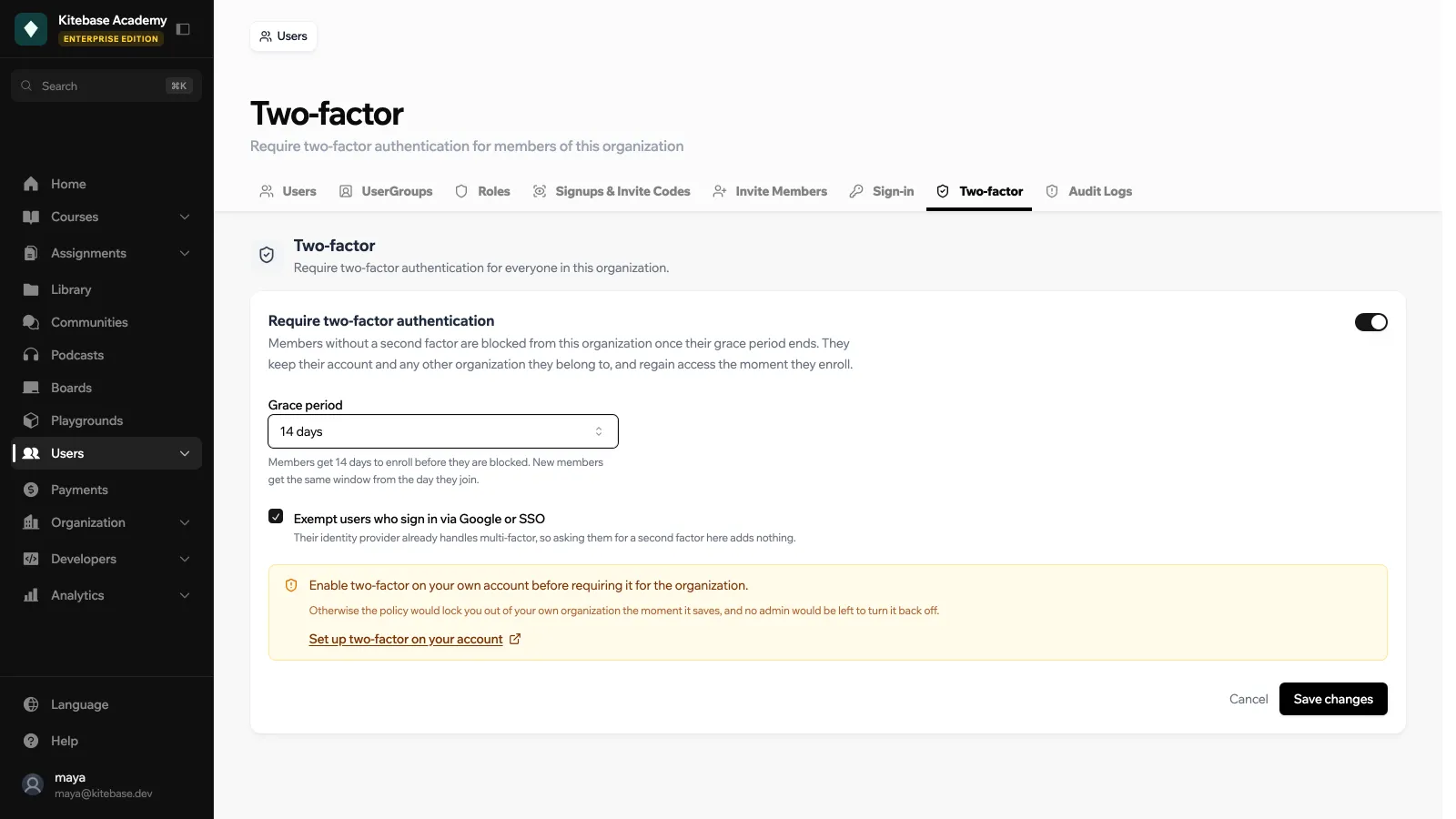
When the grace period ends, members without 2FA are blocked from your organization until they enroll. They keep their account and access to any other organization they belong to, and get access back as soon as they set up 2FA. Turning the requirement off restores access immediately.
Saving an active policy again does not restart anyone’s countdown. Turning it off and on again does.
Two-factor coverage
The Two-factor coverage panel shows how many members have 2FA, with counts for Enrolled, Exempt (external sign-in) and Would be blocked, and a list of members with members who are not enrolled at the top. Use Reset 2FA on a member to clear their second factor, for example after they lose their device.
Only the Admin role can change the policy, and you must have 2FA enabled on your own account before you can require it for others.
