Taking a Course
This page describes what learners see when they follow a course.
The course page
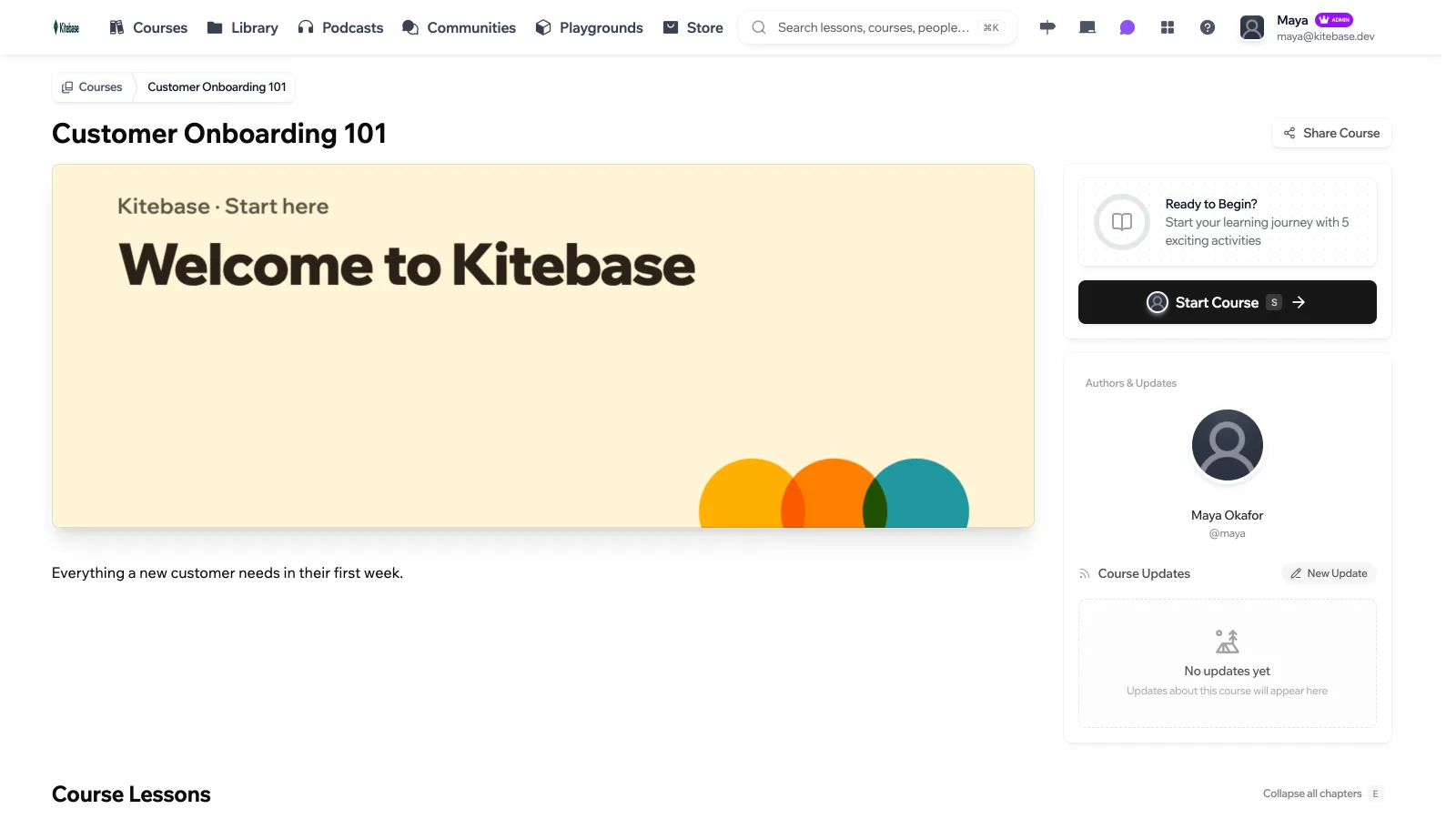
The course page shows the description, what learners will get out of it, the authors, any course updates, and the list of chapters and activities. If a community is linked to the course, its latest threads appear under Community Discussions.
Click Start Course to open the first activity. Once a learner has started, the button continues where they left off.
If the course uses drip content, a banner names the next chapter and when it opens, upcoming chapters show their opening date, and Add to calendar downloads every release as an .ics file.
Inside an activity
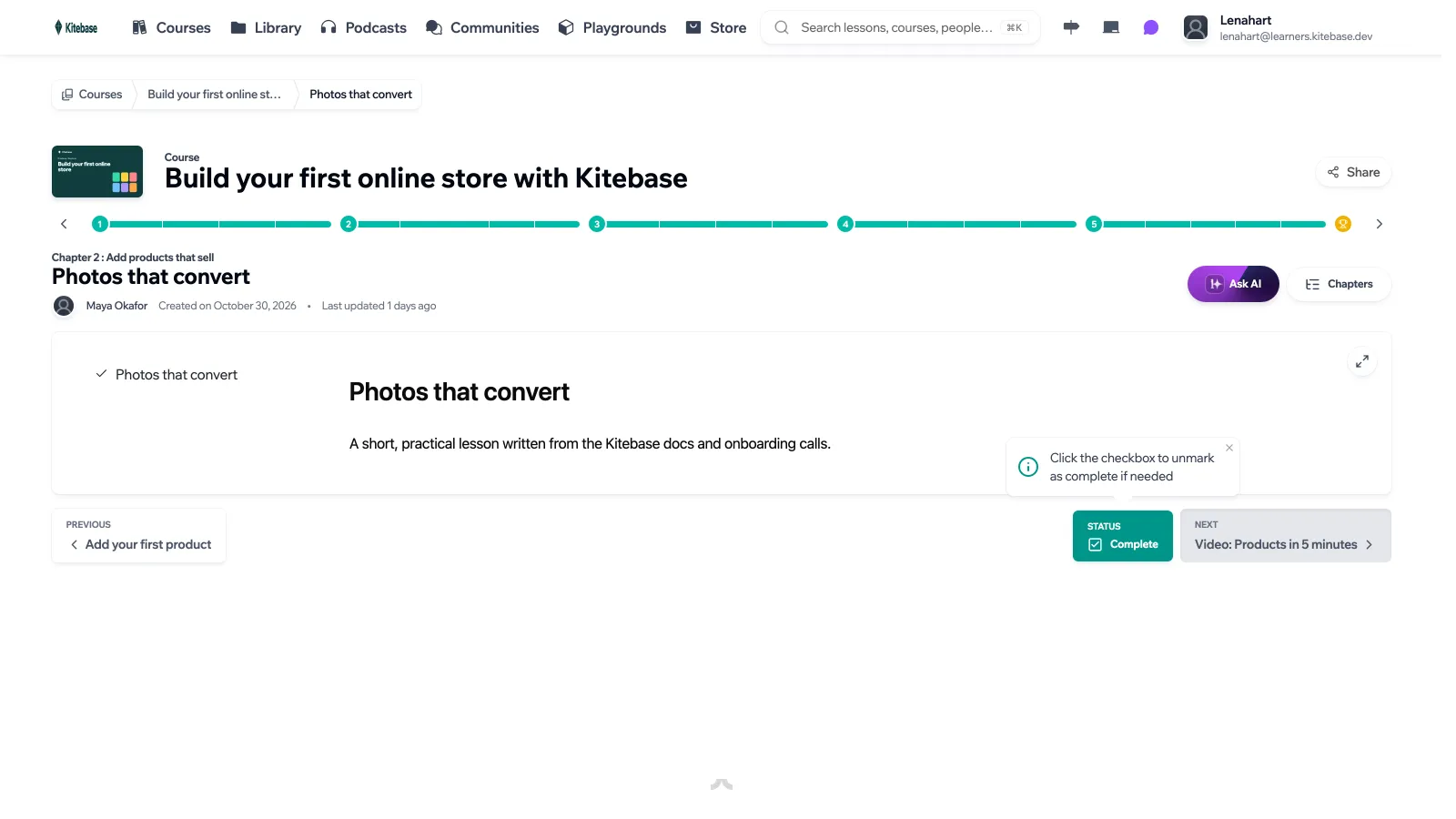
| Feature | What it does |
|---|---|
| Previous activity / Next activity | Move through the course in order. |
| Mark as complete | Records the activity as done in the learner’s Trail. Clicking it again offers Unmark Activity. |
| Focus Mode | Hides the course navigation so only the content is on screen. |
| Ask AI | Opens an AI chat about the current activity. See AI for Students. |
| Share | Copy Link to the activity, or Embed to copy an <iframe> code that shows the activity on another site. |
Locked chapters and activities show This activity is locked with a hint to sign in or join the right user group. See Locking chapters and activities.
Videos
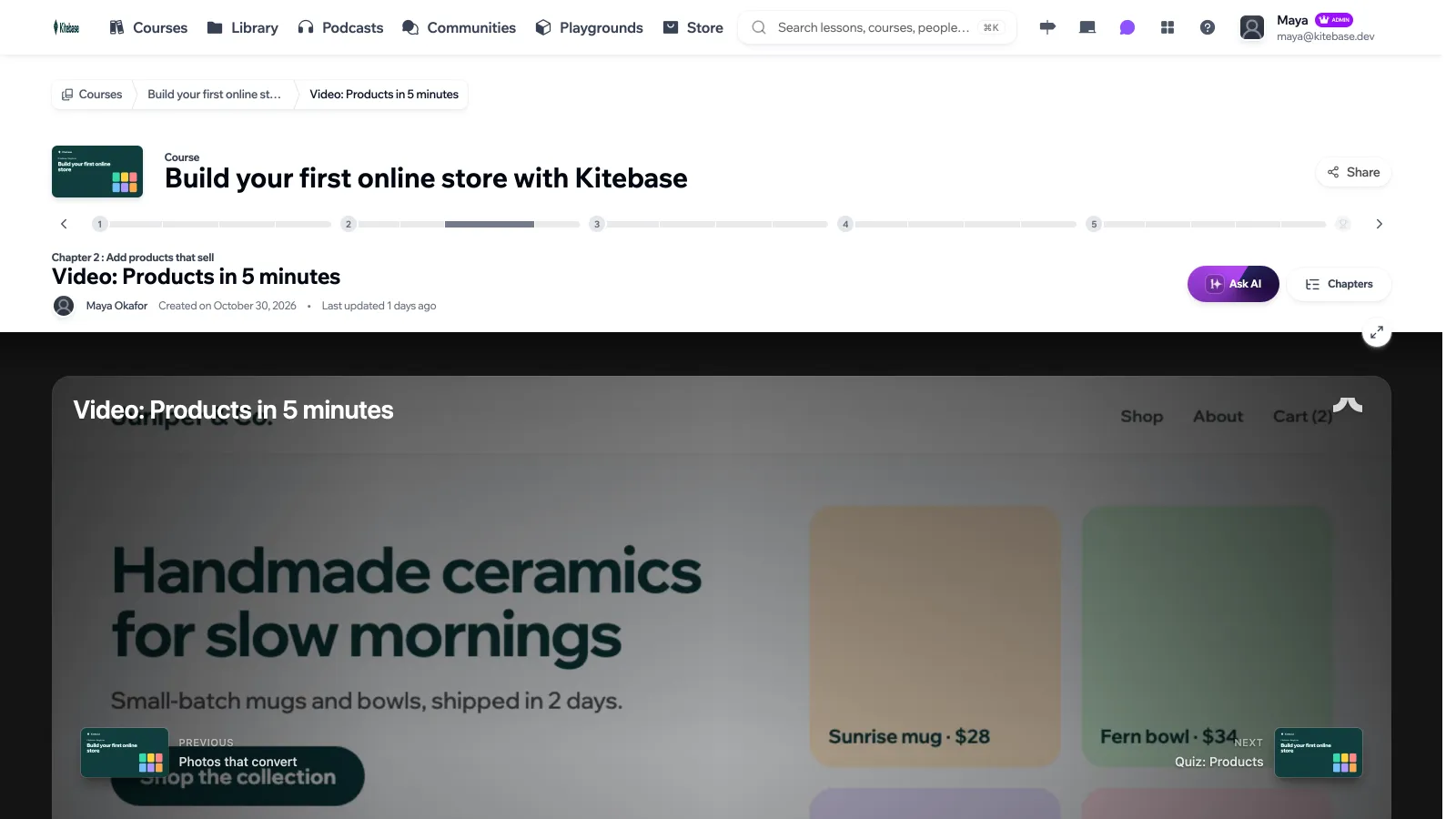
Video activities open on a dark band across the page, so the video stands out. Uploaded videos play in the LearnHouse player (built on Video.js), which has:
- Adaptive streaming with a quality menu, and preview thumbnails when you hover the timeline, for videos that are streamed in several qualities.
- Playback speed, picture-in-picture, AirPlay and fullscreen.
- Subtitles in several languages. See AI Video Captions.
- Chapters, drawn as segments on the timeline and listed under the player under Chapters, so learners can jump to a section.
When the video is paused, the previous and next activities appear on either side of the player, so learners can move on without leaving it.
YouTube videos play in the YouTube player.
End of the course
After the last activity, learners reach the end screen. If the course has a certification and they earned it, they can download it as a PDF and open its verification page. See Certifications.
Keyboard shortcuts
Press ? anywhere to see the shortcuts available on the current page. On a course page, s starts the course (or continues where you left off) and e expands or collapses all chapters. The full list, including the command palette and the g navigation shortcuts, is in Command Palette and Keyboard Shortcuts.
In an activity
| Keys | Action |
|---|---|
j or → | Next lesson |
k or ← | Previous lesson |
] / [ | Next / previous chapter |
m | Mark lesson complete |
f | Toggle focus mode |
Esc | Exit focus mode |
Space | Play or pause the video |
c | Back to the course page |
In right-to-left languages the arrow keys are swapped. Shortcuts are ignored while you are typing in a text field.
Search (/ or Cmd+K) finds lessons as well as courses. See Search.
