Learning Paths
A learning path is an ordered set of courses that learners follow from start to finish. It can mix required and elective courses, unlock them one at a time, and award its own certificate when the learner is done. The courses stay normal courses: a path only groups them and tracks progress across them.
Learning paths need the Pro plan or higher on LearnHouse Cloud. They are included on every self-hosted instance. Creating and editing paths needs a role with the create and update rights on courses (Admin and Maintainer by default). Path certificates keep verifying even if the organization later moves to a lower plan.
Creating a path
Create it
Go to Paths in the dashboard sidebar and click New path. Enter a Name and a Short description (shown on the path card). Visible to everyone, not only members is on by default. Click Create path.
The path opens on its Courses tab. It starts as a Draft, so learners cannot see it yet.
Add the courses
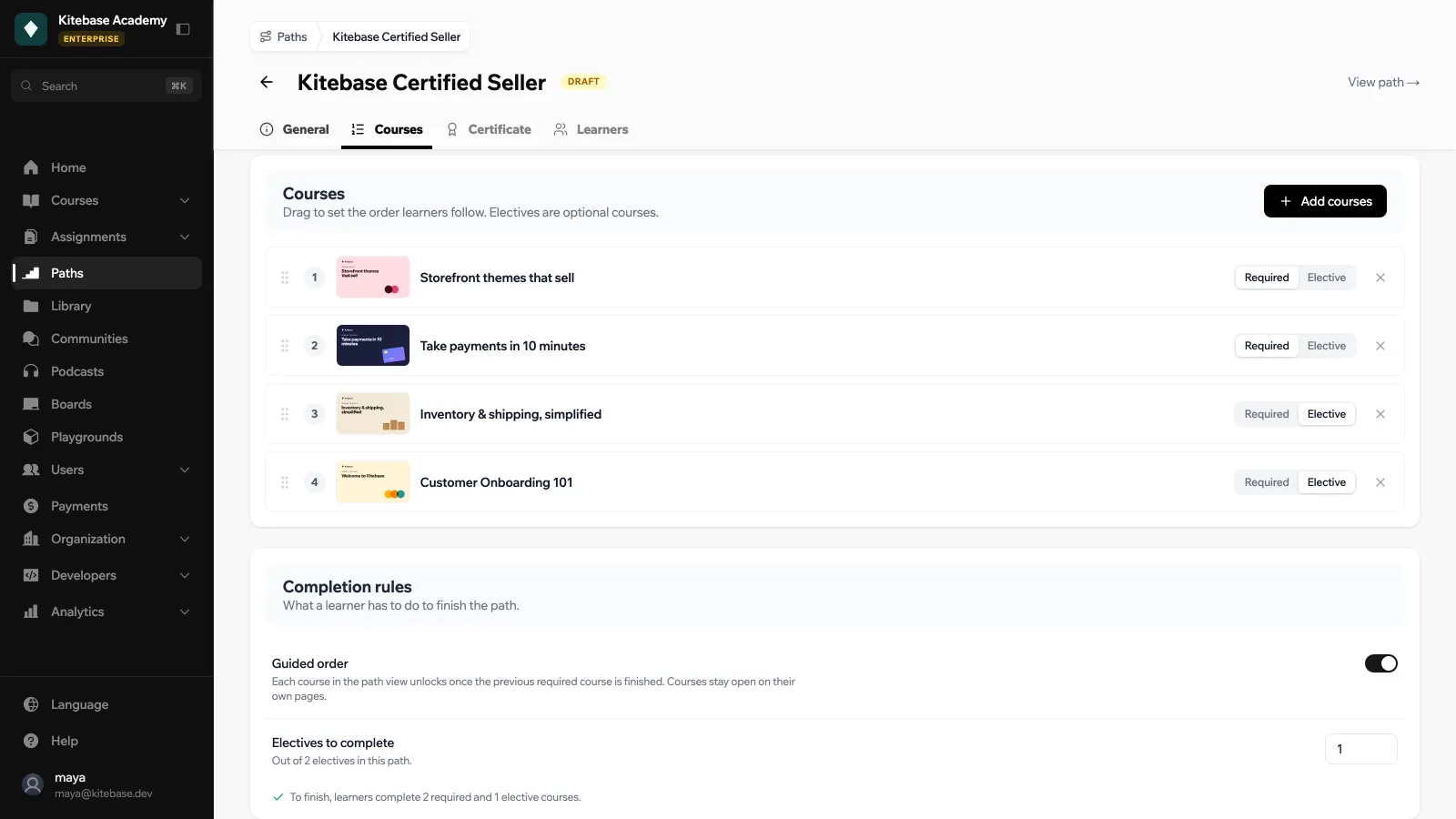
Click Add courses, pick courses from your organization and confirm with the Add button (for example Add 4 courses). They are added in the order you pick them. Drag a course by its handle to move it, or click Remove from path to take it out. A path holds up to 100 courses, and each course can appear once.
For each course, choose Required or Elective. Unpublished courses are marked Unpublished, hidden from learners and do not count toward completion until you publish them.
Set the completion rules
Under Completion rules:
| Setting | What it does |
|---|---|
| Guided order | Each course in the path view unlocks once the previous required course is finished. The courses stay open on their own pages; only the path view is locked. |
| Electives to complete | How many elective courses a learner must finish on top of the required ones. 0 means electives never count. |
A summary line shows the rule, for example “To finish, learners complete 2 required and 1 elective courses.”
Fill in the details and publish
On the General tab, set a Cover image (16:9 works best, PNG or JPG), the Name, the Short description, an About text shown on the path page, and a Level: All levels, Beginner, Intermediate or Advanced.
Under Visibility, tick Published so learners can find and start the path. Leave Public on to show it to visitors who are not members of your organization, or turn it off to keep it for members. Click Save changes.
Use View path at the top of the editor to open the path as learners see it. From the path list in the dashboard, each card has a menu with Settings, Edit courses and Delete path.
Deleting a path removes it with its learners’ progress and its path certificates. The courses themselves are not touched.
When a path is complete
A learner completes a path when they have finished every published required course, plus the number of electives you set. A course counts as finished under the same rule as a course certificate: every published activity is done and every graded assignment is passed.
Work done before the learner started the path counts. A learner who has already finished every course completes the path, and gets its certificate, the moment they start it.
The path certificate
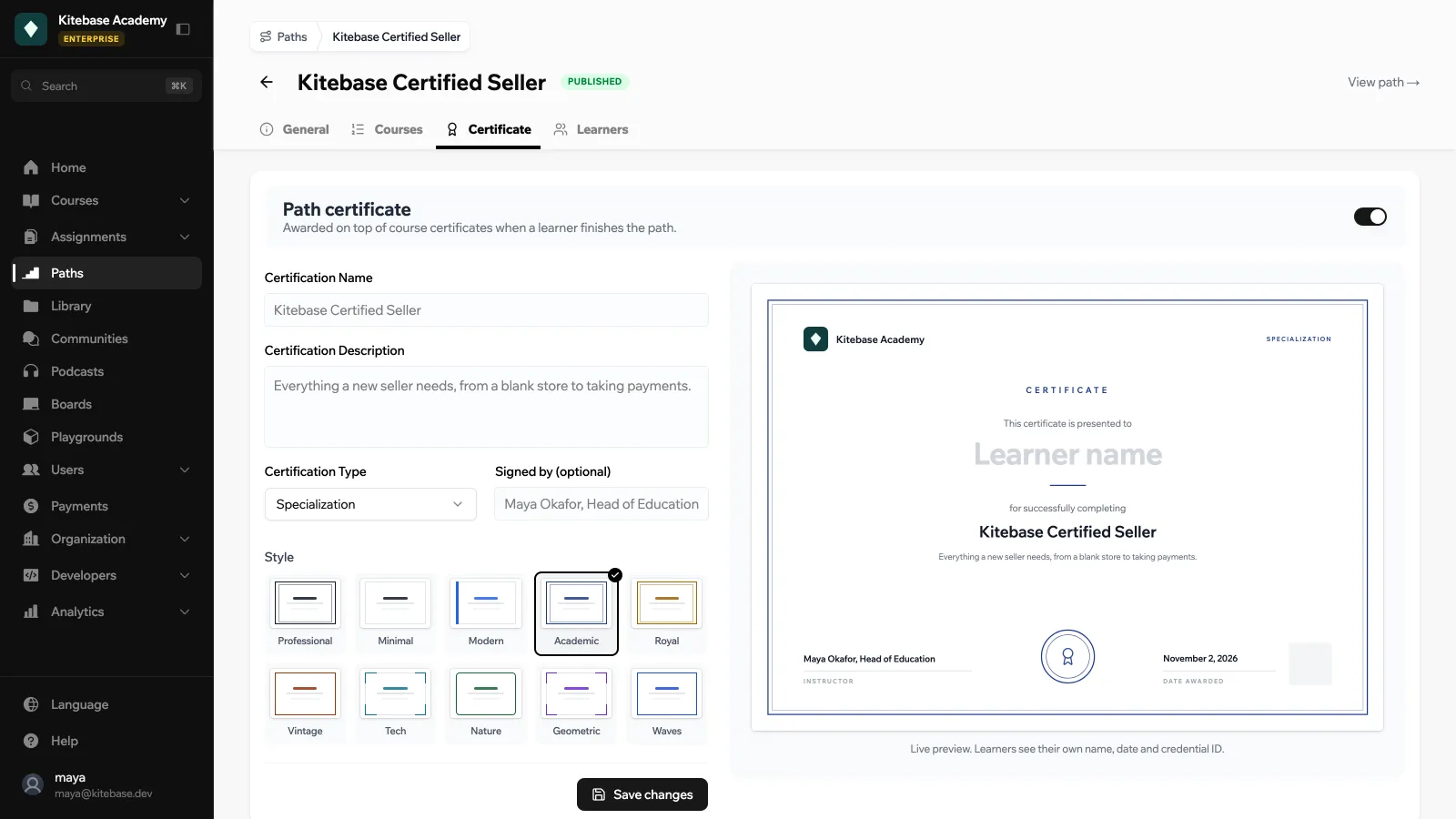
On the Certificate tab, click Award a certificate, then set it up with the same designer as course certificates:
| Field | Notes |
|---|---|
| Certification Name | Required. Up to 100 characters. |
| Certification Description | Up to 500 characters. |
| Certification Type | Course Completion, Achievement Based, Assessment Based, Participation, Skill Mastery, Professional Development, Continuing Education, Workshop Attendance or Specialization. |
| Signed by (optional) | A name printed at the bottom of the certificate, for example the head of your school. |
| Style | Professional (default), Minimal, Modern, Academic, Royal, Vintage, Tech, Nature, Geometric or Waves. |
The live preview shows the certificate with your organization’s logo and name. Learners see their own name, date and credential ID. Click Save changes.
The path certificate is awarded on top of the course certificates. If you turn it on after some learners have already completed the path, they get it the next time their progress is checked.
Each path certificate has an ID like PATH-20261102-d68d-2d61e7cd and a public verification page at /paths/certificate/{id}, which works for anyone with the link. See Certifications for what that page shows.
What learners see
Paths get their own page in your public menu, Paths, with a search box. You can rename, reorder or hide the link from Menu.
A path page shows the cover, the number of courses, the level, Guided order when it is on, the about text and Courses in this path. When the path awards a certificate, a Certificate included card shows a preview of it.
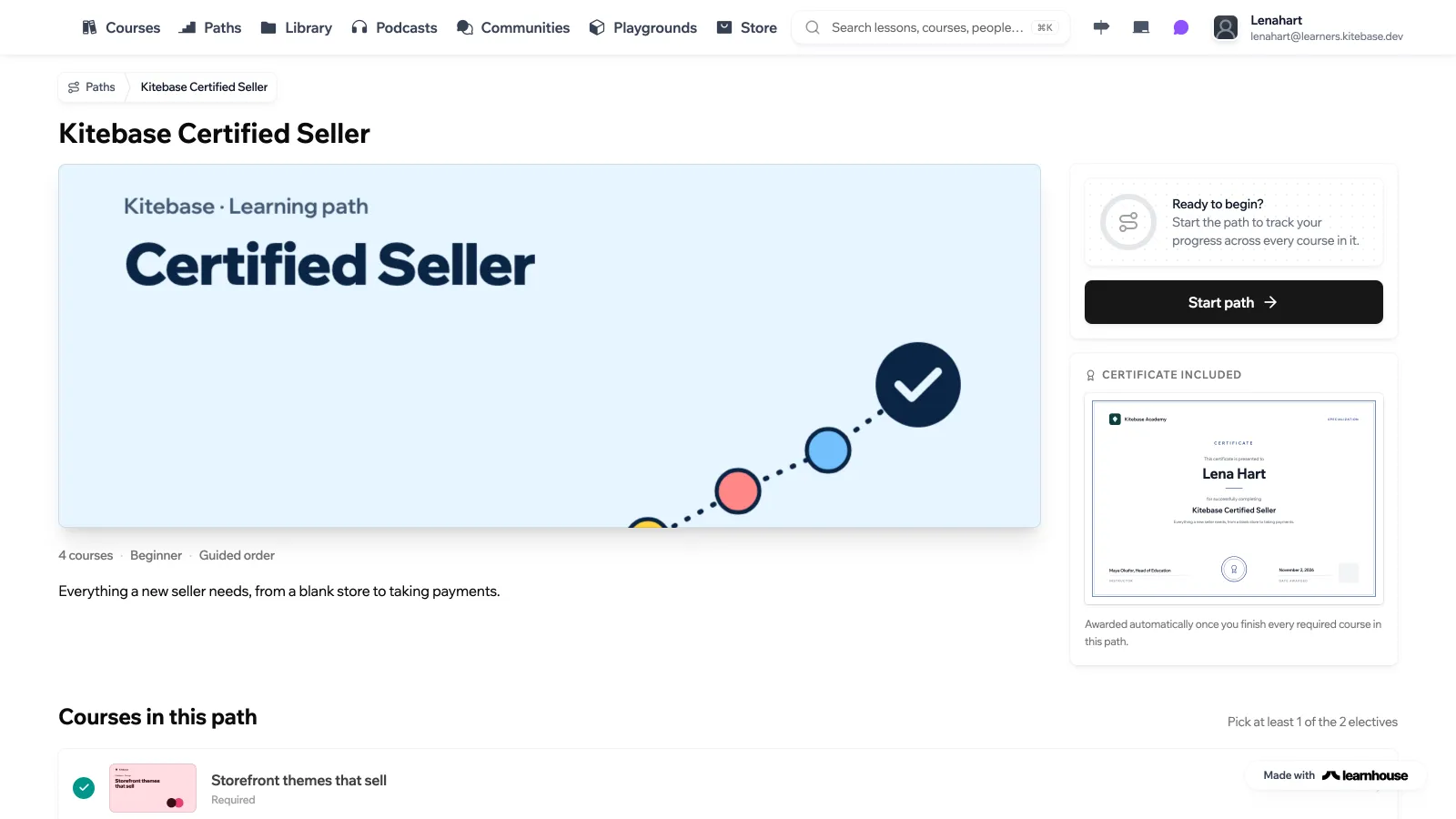
- The learner clicks Start path. Visitors who are not signed in see Sign in to start.
- Your progress shows how many of the courses that count are done. Continue learning opens the next course.
- In the course list, finished courses get a check mark and the next one is marked Up next. With Guided order on, later courses show Finish the previous course to unlock. Courses the learner cannot open, for example ones limited to a user group, show as Restricted course.
- Once the path is done, the card shows Completed and View certificate.
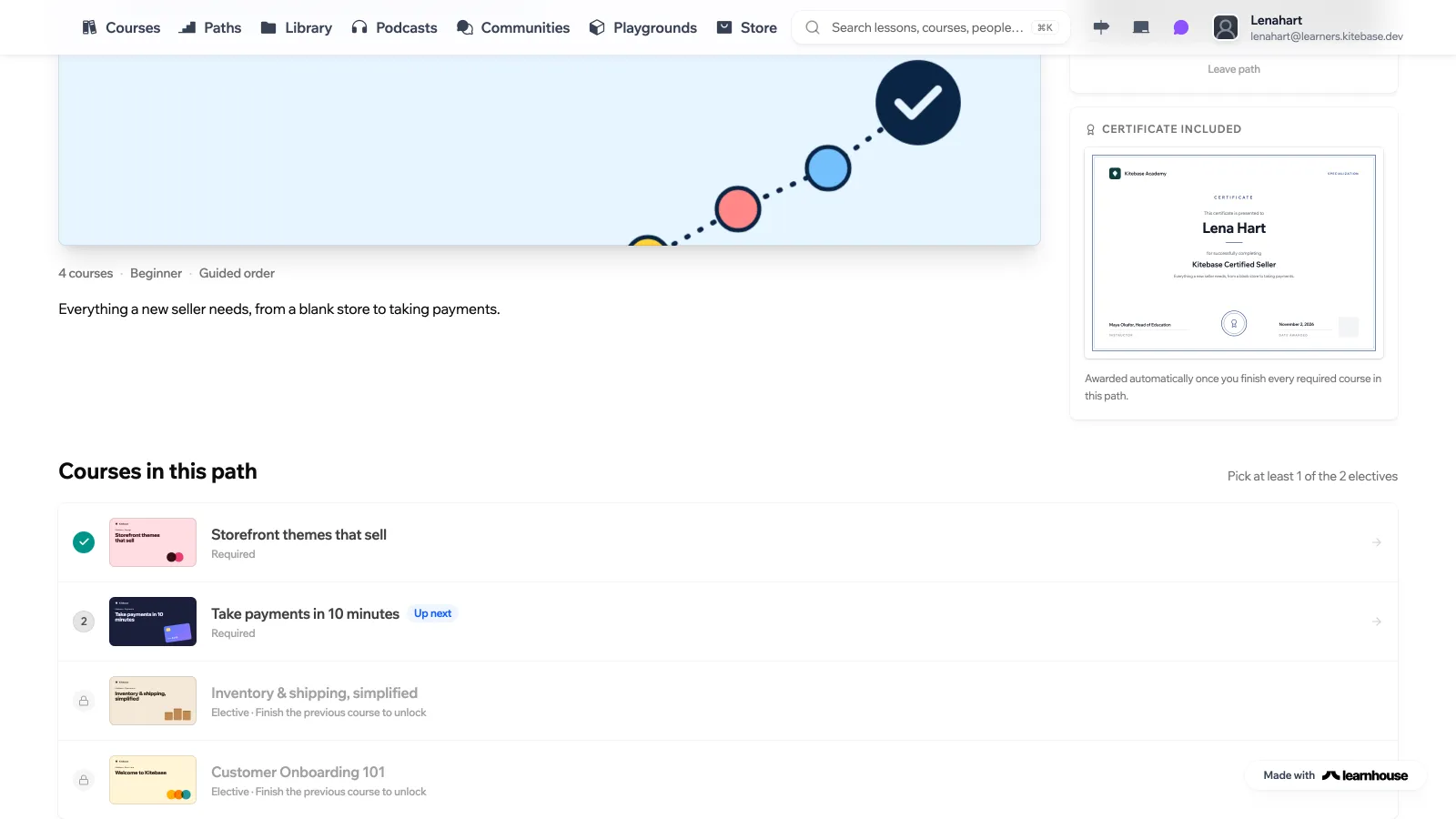
Leave path stops tracking the path for that learner. A certificate they already earned is kept.
Paths also show up in other places:
- A course page lists the paths it belongs to under Part of a path.
- The learner’s Progress page lists My paths, and path certificates appear under My Certificates next to course certificates.
Following learners
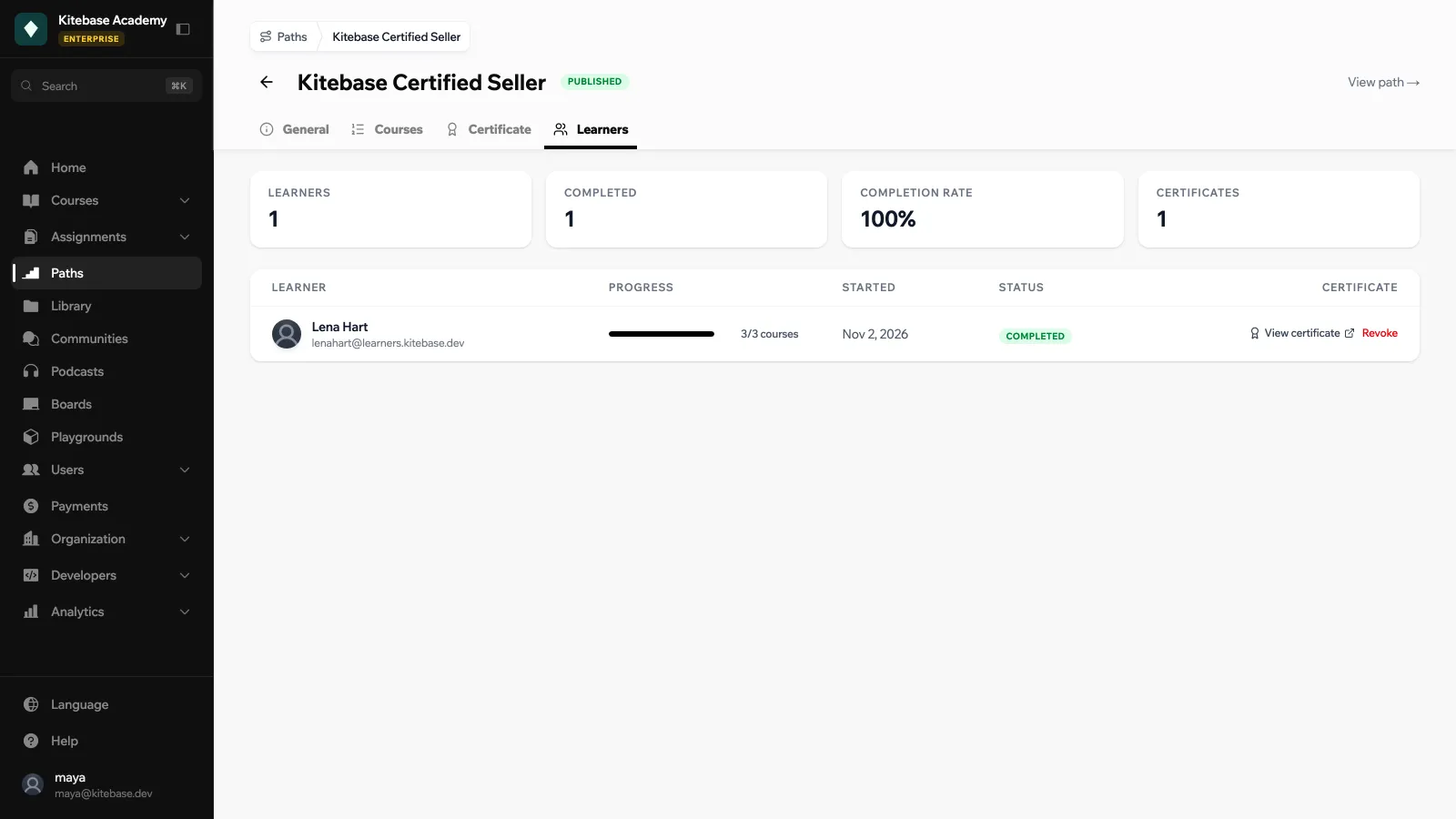
The Learners tab shows everyone who started the path. At the top are the number of Learners, how many Completed, the Completion rate and the number of Certificates issued. The table lists each learner with their Progress, the date they Started, their Status (In progress or Completed) and their Certificate.
Revoking and reinstating a certificate
Click Revoke next to a certificate to withdraw it. It stops verifying right away and the row shows Revoked. A revoked certificate is not issued again automatically, even if the learner leaves and restarts the path.
Click Reinstate to undo it. The same certificate, with its original ID and date, verifies again.
Webhooks
Paths fire two events: path_enrolled when a learner starts a path, and path_completed when they finish it, with the certificate ID when the path awards one.
API
The paths API lives under /api/v1/paths. API tokens with course rights can create, edit and delete paths, set their courses, list their learners and revoke or reinstate certificates. Starting and leaving a path need a signed-in user.
