Course Settings
Open a course from Courses in the dashboard. Its settings are split into tabs. You only see the tabs your role allows:
| Tab | What it covers |
|---|---|
| General | Name, description, learnings, tags and thumbnail. |
| Content | Chapters and activities. See Chapters & Activities. |
| Schedule | Release chapters over time. See Drip Content. |
| Access | Who can see the course. |
| Contributors | Who can edit the course. |
| SEO | How the course appears in search engines and on social media. See SEO below. |
| Certification | The certificate learners earn. See Certifications. |
| Analytics | Course analytics. See Course Analytics. |
General
| Field | Notes |
|---|---|
| Name | Up to 100 characters. |
| Description | Up to 1000 characters. |
| About | A longer presentation shown on the course page. |
| Learnings | What learners will get out of the course. At least one is required. |
| Tags | Keywords for the course. |
| Thumbnail Type | Image, Video or Both. |
| Thumbnail | Upload Image (PNG or JPG, up to 8 MB), Upload Video (MP4 or WebM, up to 100 MB), or generate one with AI. |
Access
Choose one of two modes:
- Public: anyone on the internet can see the course, and search engines can index it.
- Users Only: only signed-in users can see it.
Under UserGroups, click Link to a UserGroup to give access only to the members of specific user groups. Users outside the linked groups lose access. Use Delete link to remove a group.
For finer control, chapters and activities each have their own lock. See Locking chapters and activities.
Contributors
Contributors are users who can work on the course with you. Each has a role and a status (ACTIVE, INACTIVE or PENDING). Only ACTIVE contributors get access.
| Role | Can edit the course | Can manage contributors |
|---|---|---|
| CREATOR | Yes | Yes. The creator’s role and status can’t be changed. |
| MAINTAINER | Yes | Yes |
| CONTRIBUTOR | Yes | No |
| REPORTER | No | No |
To add contributors, search users by name or username, select them and click Add Selected. You can then change a contributor’s role and status, or remove them.
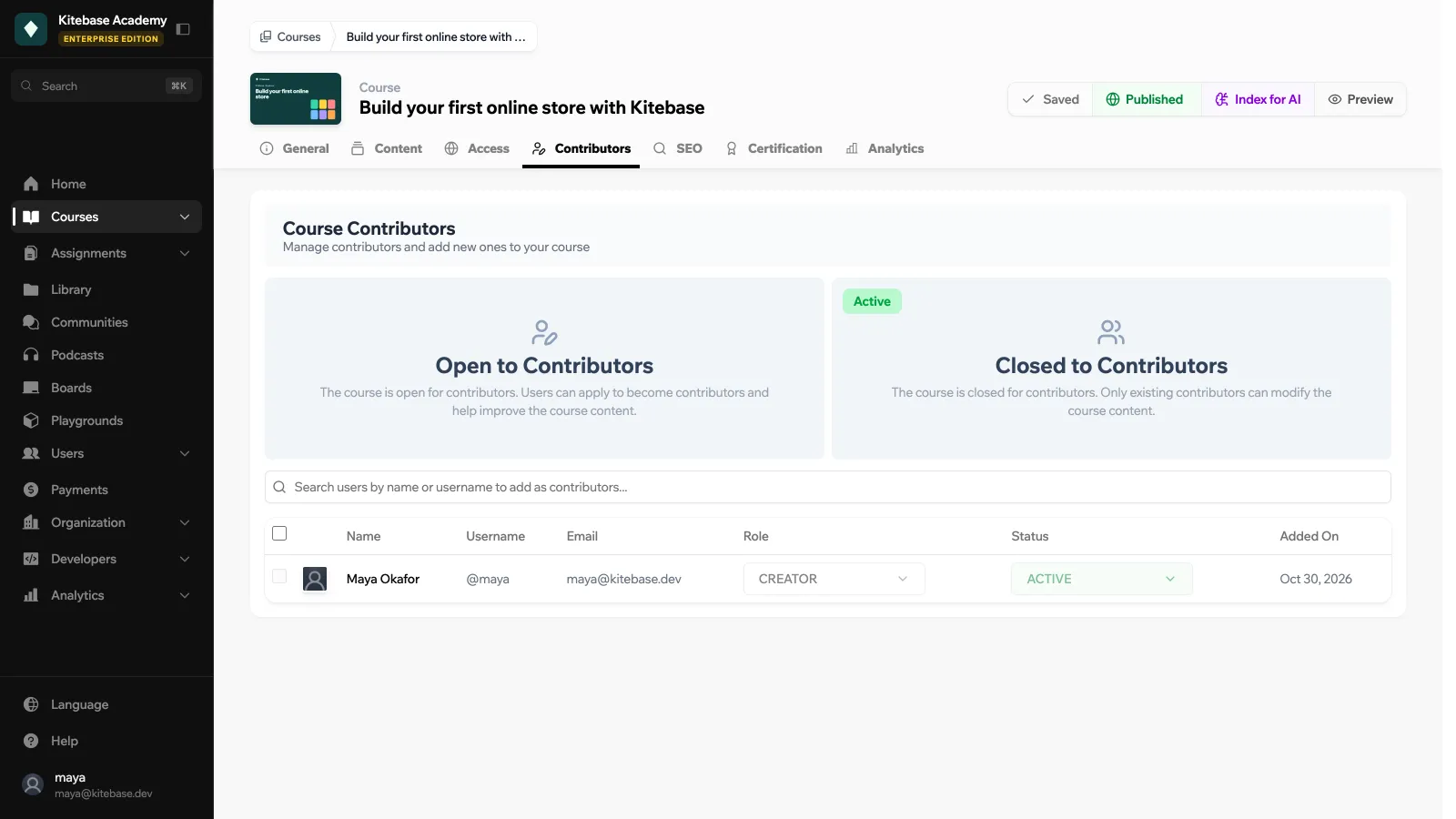
Set the course to Open to Contributors to let users apply from the course page with Apply to contribute. A user who applies is added as a CONTRIBUTOR with the PENDING status until a creator, maintainer or admin approves them. Closed to Contributors stops new applications; existing contributors keep their access.
SEO
The course SEO tab overrides your organization’s SEO defaults for this one course. The organization-wide settings (sitemap, robots.txt, default tags) are described in SEO.
The tab has four sections:
| Section | Fields |
|---|---|
| Basic SEO | SEO Title (up to 70 characters), Meta Description (up to 160), Keywords, Canonical URL. Empty fields fall back to the course name and description. |
| Open Graph | OG Title, OG Description (up to 200), OG Image URL. The course thumbnail is used when no image is set. |
| Twitter Card | Card Type (Summary or Summary with Large Image), Twitter Title, Twitter Description (up to 200). |
| Robots & Structured Data | Prevent search engine indexing (noindex), Prevent following links (nofollow), Enable JSON-LD Structured Data. |
On LearnHouse Cloud, SEO and Schedule settings need the Standard plan or higher. Certification and Analytics need the Pro plan or higher; see Course Analytics for what the Analytics tab shows. Self-hosted instances do not apply these plan restrictions.
Course updates
On the public course page, course editors can post updates (a title and some content) with New Update. Learners see them under Course Updates. Each course also has an RSS feed of its updates at /course/{course_id}/updates/feed, where {course_id} is the course UUID without its course_ prefix.
