Library
The Library is where you organize your organization’s content into folders, like a shared drive. A folder can hold courses, podcasts, communities, boards, playgrounds and media files, as well as other folders. Content can also sit at the root of the Library, outside any folder.
Manage it from Library in the dashboard. Learners browse it on the organization’s public Library page, and only see what they have access to.
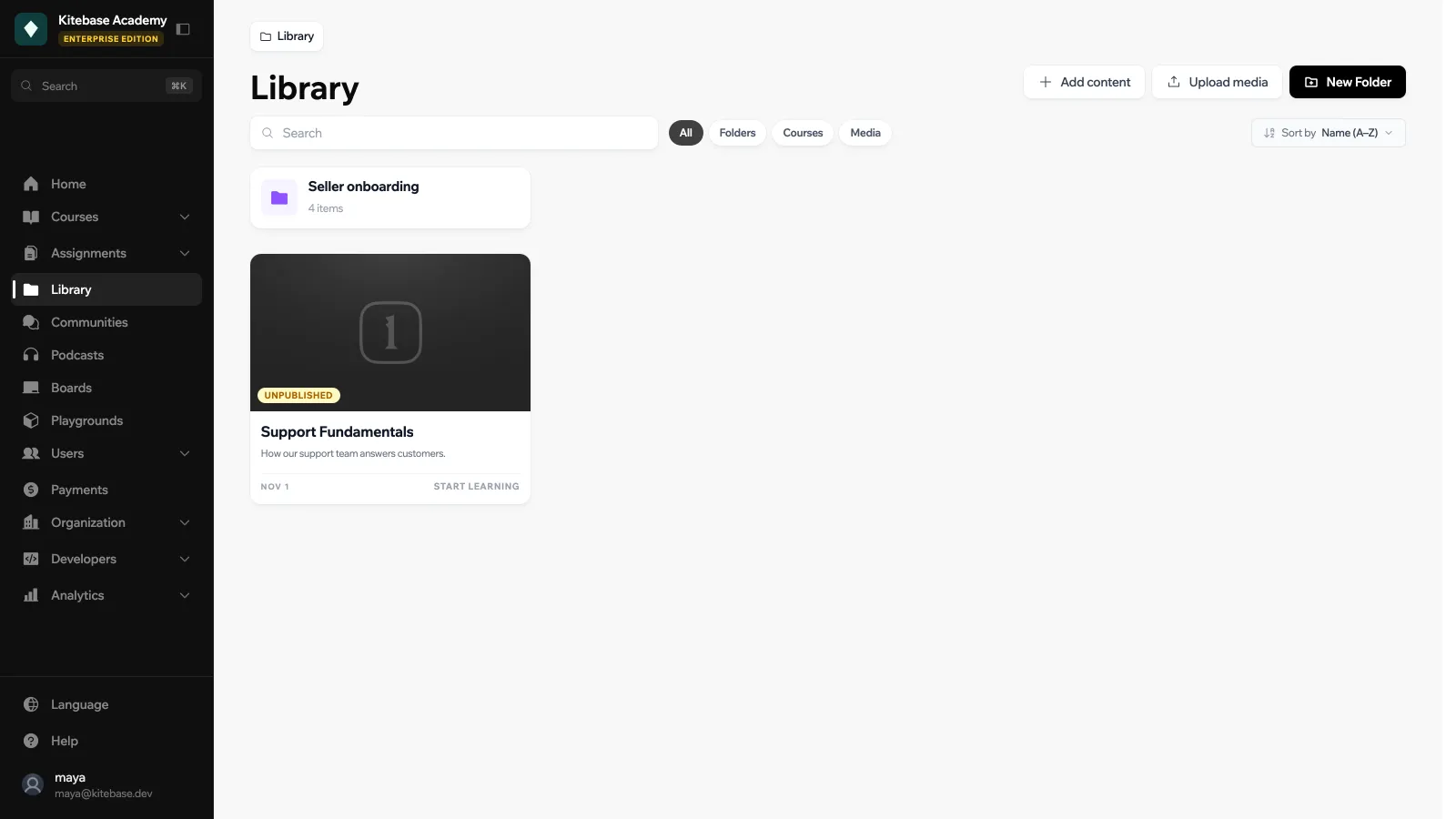
The Library replaces the old Collections feature. Use a folder to group related courses into a learning path or a program.
Folders
Click New Folder and give it a Folder name. A folder can also have:
| Setting | Notes |
|---|---|
| Description | Shown on the folder page. |
| Cover image | PNG, JPG or WEBP. |
| Color | The folder’s accent color. |
| Visibility | Public or Private. |
Folder actions: Rename, Move (into another folder), Manage access, Share (Copy link) and Delete folder. Deleting a folder deletes the folders inside it, but the courses and other resources it contained are not deleted.
Manage access lets you make a folder Public (anyone can view it) or Users only (signed-in members), and link user groups to it.
Adding content
Click Add content, at the root or inside a folder, to add existing courses, podcasts, communities, boards or playgrounds. An item can be in several folders. Remove from folder takes it out of the folder without deleting it.
Media
Click Upload media to add a file to the Library. You can upload images, video, audio, PDFs, Office documents and ZIP files, or add a link by URL. Each media item has a name, a description and its own visibility.
Media files can be reused in course pages with the Library block, and as Resource activities in a course. Files uploaded from a Library block are also added to the Library.
If a media file is private, learners without access to it will not see it in the course page either.
Sorting and filtering
Sort the Library with Sort by: Name (A-Z), Name (Z-A), Newest first, Oldest first or Manual. In Manual mode you drag items to set the order. Filter by All, Folders, Courses or Media, or search by name.
