Import & Export
LearnHouse can move courses between organizations and instances, bring them in from other learning platforms, and build a course from a folder of files.
Exporting courses
From Courses in the dashboard:
- Use Export Course on a course to download it as a
.zippackage. - Click Select, pick several courses and click Export Selected to download them in one
.zip. You can export up to 20 courses at a time.
An export contains the course structure, its content and its files. Import it into any LearnHouse organization with LearnHouse Courses below.
Cloning a course
Clone Course makes a full copy of a course in the same organization. The copy is private. Use Clone Selected to clone several at once.
Importing courses
Click Import Course in the course list and pick a source:
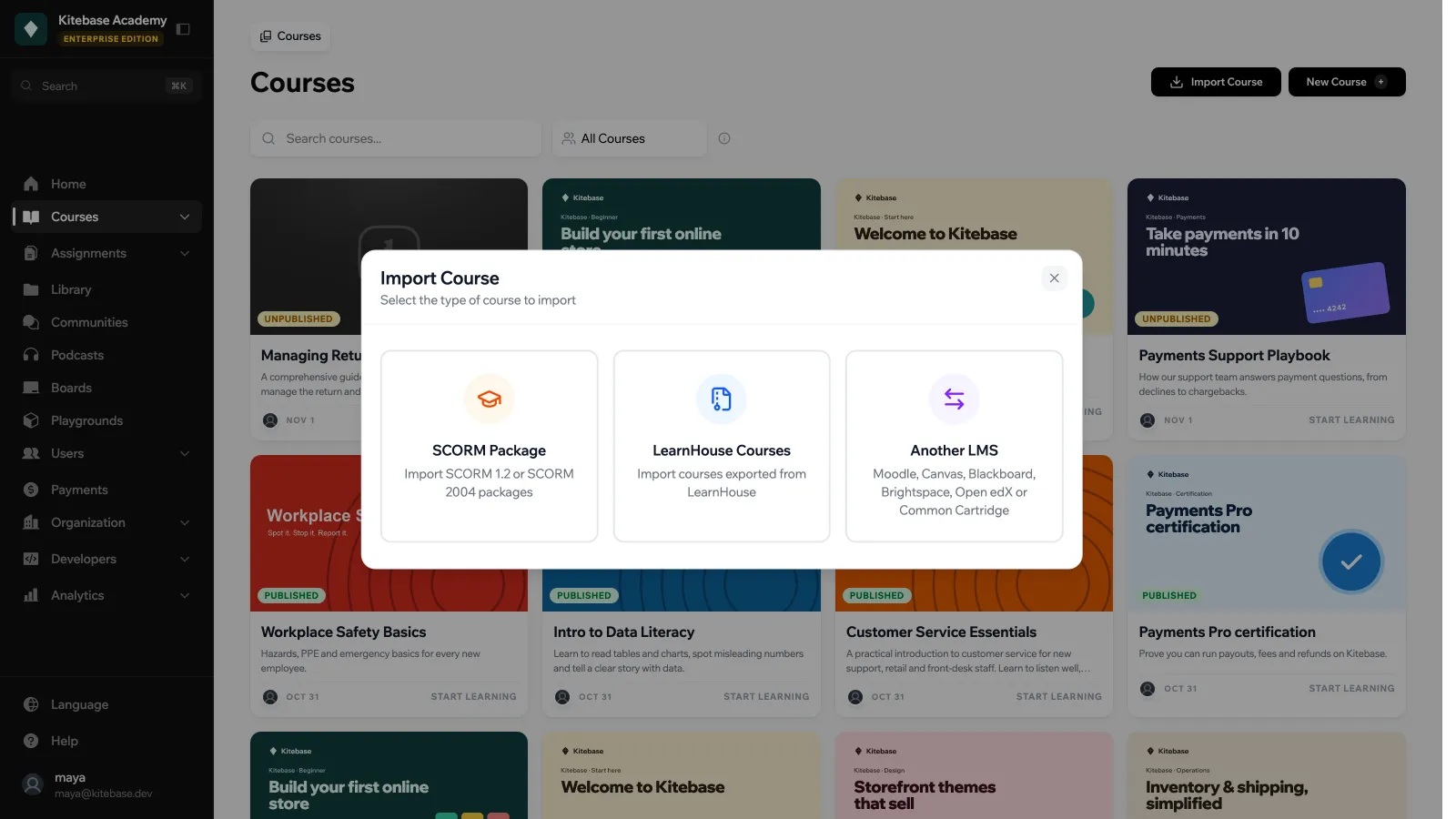
| Source | Accepts |
|---|---|
| SCORM Package | SCORM 1.2 or SCORM 2004 packages. Enterprise only. |
| LearnHouse Courses | A LearnHouse course export (.zip), up to 500 MB. |
| Another LMS | Exports from Moodle, Canvas, Blackboard, Brightspace, Open edX or any Common Cartridge. See Import from Another LMS. |
LearnHouse Courses
- Upload Package: drop the
.zipand click Analyze Package. - Configure: pick the courses to import from the package, then set the Import Options:
- Course Name Prefix: text added in front of every imported course name (for example
Imported -). - Set as private
- Set as unpublished
- Course Name Prefix: text added in front of every imported course name (for example
- Click the import button, which shows how many courses you selected (for example Import 2 Course(s)). The summary shows which courses were created, with a link to open each one.
Another LMS
The Import from Another LMS window has three steps: Upload Package, Configure and Complete. Choose the Source platform (or leave Auto-detect), choose how Quizzes are converted (Graded assignments or Interactive quiz blocks in pages), drop the export and click Upload and Convert.
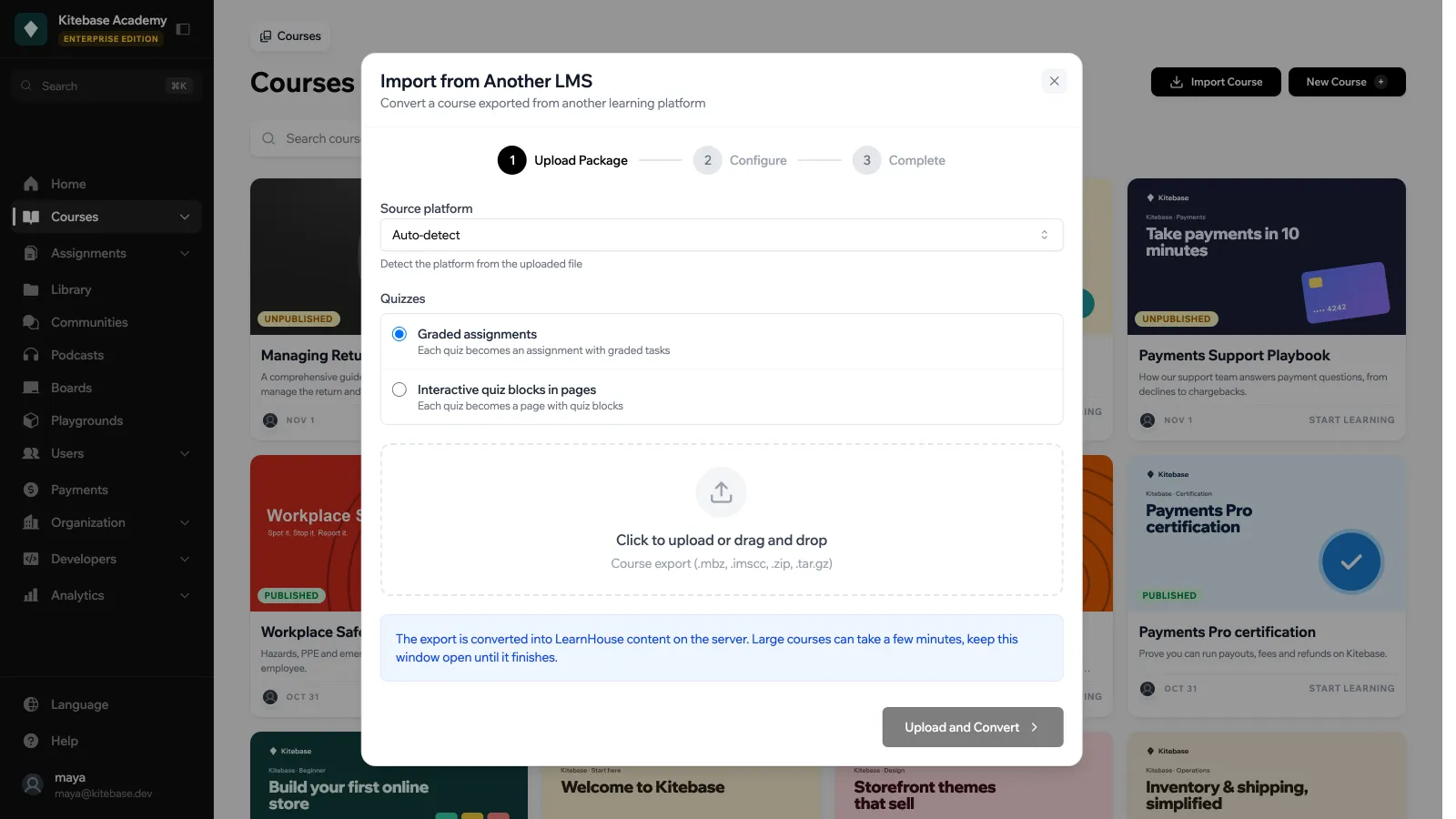
After the conversion you get a report of what was created and skipped, then the same import options as above. The full list of supported formats and what each item becomes is in Import from Another LMS.
From existing content
If you have a set of files but no course yet, use New Course > From Existing Content. The Migrate Content wizard has three steps:
- Upload: drop your files. Accepted: videos (MP4, WebM, MOV), documents (PDF), images (PNG, JPG, WebP) and audio (MP3, WAV). Up to 5 GB per file and 20 GB in total. Enter a Course Name and a One-liner Description.
- Organize: click Organize with AI to have the files sorted into chapters and activities for you (1 AI credit), or Organize Manually. Either way you can then drag files between chapters and activities, and use Add Chapter and Add Activity.
- Complete: click Create Course. LearnHouse uploads the files and creates the chapters and activities.
The same flows are available through the API. See Migrating Content.
